
STREAM IP is a digital patent management portal, designed to make patent translation and filing easier, faster, and more organised.
Account Registration
Login page
Contact us
Account Management - Personal Info
Account Management - Preferences
Account Management - Filing Jurisdiction
Account Management- Notifications
Account Management- Questions
Get New Quote - EP
Get New Quote - PCT
Get New Quote- Direct Filing
View Saved Quotes
Orders
FAQs
Account Registration
Login page
Contact us
Account Management - Personal Info
Account Management - Preferences
Account Management - Filing Jurisdiction
Account Management- Notifications
Account Management- Questions
Get New Quote - EP
Get New Quote - PCT
Get New Quote- Direct Filing
View Saved Quotes
Orders
FAQs

STREAM IP is a digital patent management portal, designed to make patent translation and filing easier, faster, and more organised. It uses AI to help you get accurate quotes and place orders quickly. STREAM IP connects with STREAM’s translation tools, reducing costs and improving turnaround times. Your portfolio is built and maintained for you, showing upcoming actions and deadlines in one place, so you can stay on top of what needs to be done, without the hassle of manual tracking.

Getting quotes is simple- just enter your patent number. You can adjust the quote by adding or removing filing states. It’s all interactive, so you can explore different options before placing your order.

Ready to move away from manual processes and into a more streamlined way of managing your filings? This guide will walk you through setting up your STREAM IP account and show you how to navigate the platform step by step.
Account Registration
This section will guide you through the process of creating a new STREAM IP account.
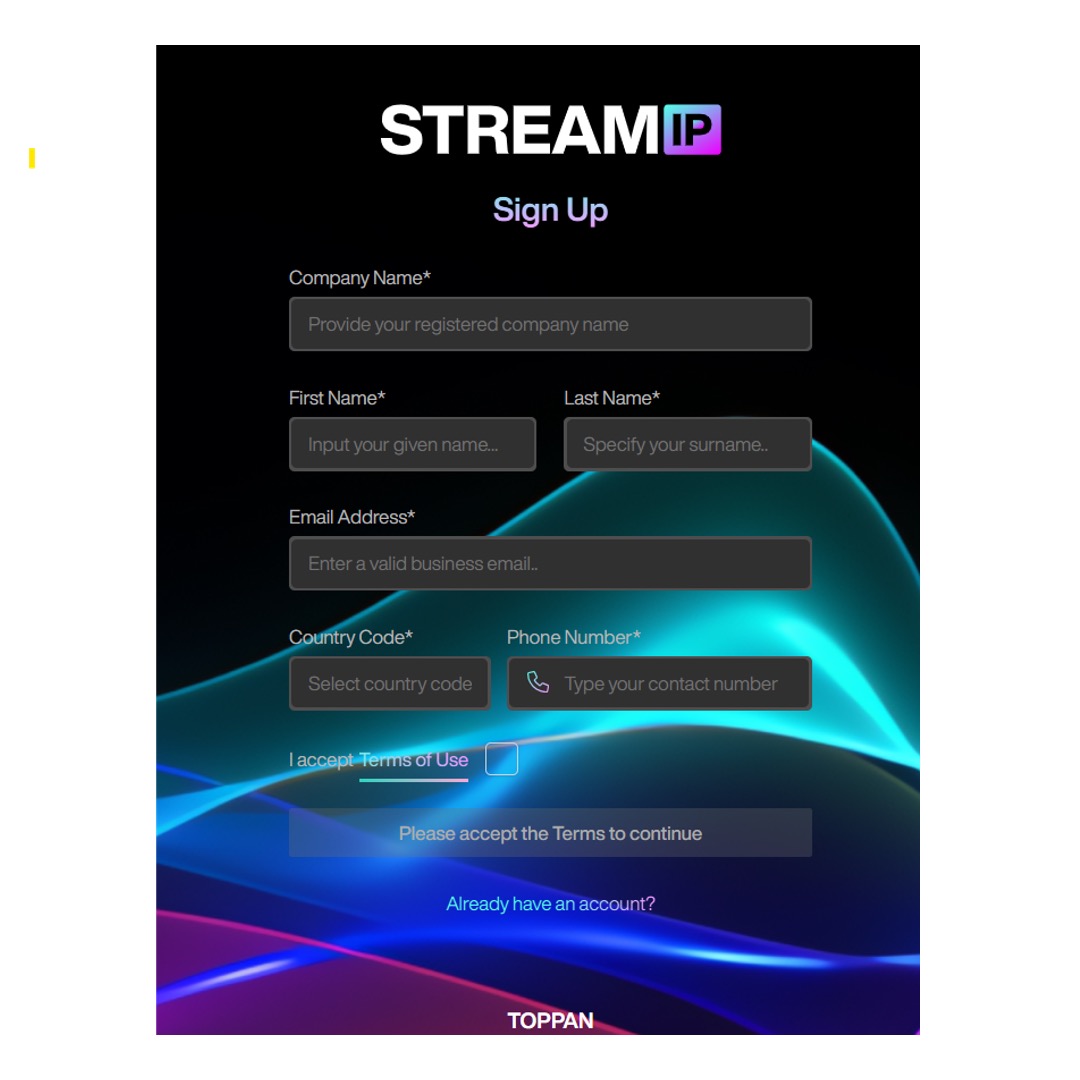
Go to STREAM IP Sign-up Page
- Navigate to the Sign-Up Page of STREAM IP.
- If you are on the Login page, click the Looking to Register button.
- Your screen will display this page.
Enter Your Details
- Enter your company’s name, your first and last name, your business email address, and your country code and phone number.
- Read and accept the Terms of Use.
- Click Register.
- You will receive a verification link via email. Open this link to finish setting up your account.
- Alternatively, you can set up an account by contacting one of our representatives at TDIP@toppandigital.com.
Log In
This section will guide you through the process of logging into your account on the STREAM IP platform.
Logging In
- In the Email field, enter your registered company email address.
-
In the Password field, type your password.
- Click the eye icon to show or hide your password entry.
- If you have forgotten your password, click Forgot Password, or refer to the Reset Password section of this guide for more guidance.
- Check Remember Me if you want to stay signed in on this device.
- Click Sign In to access your account.
- If you haven’t registered yet, click Looking to register to create a new account.
Resetting Password
- Click Forgot Password.
- On the reset screen, enter your email and click Send Reset Link.
- Open the email you receive and follow the link to set a new password.
- Once logged into STREAM IP, you can update your password at any time by going to Account Management > Personal Info, then scrolling down to the Change Password section.
Contact Us
If you need assistance or have questions, you can reach out to our support team in two ways:
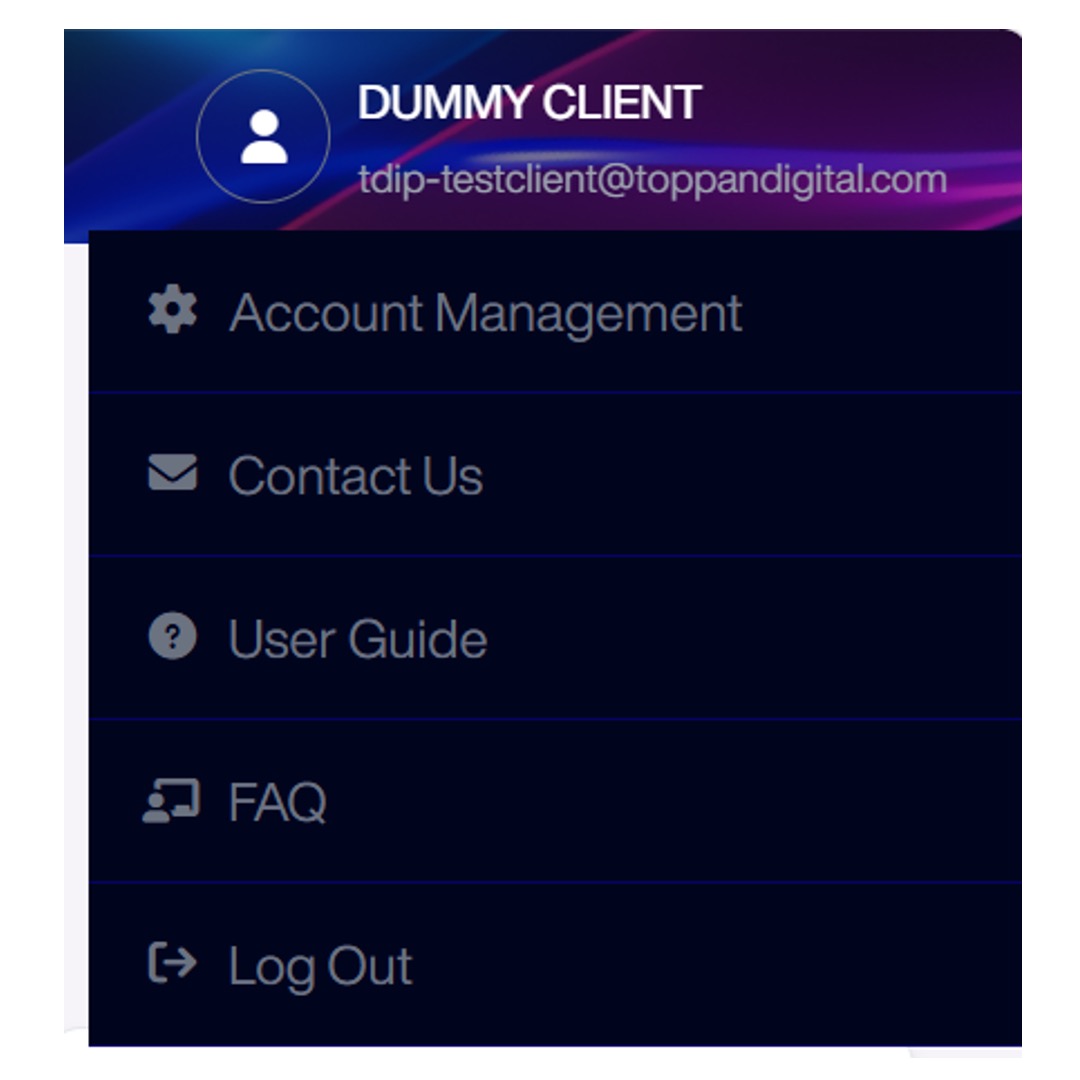
In-Platform Support
Click your profile icon in the top right corner, then select Contact Us from the Drop-down menu.
Account Management
This section will explain how to update your account details, customise language and notification settings, and indicate filing preferences.
To access account management:
In Personal Info, you can update your personal information and view all account updates.
- Click your profile icon in the top-right corner.
- Select Account Management from the drop-down menu.
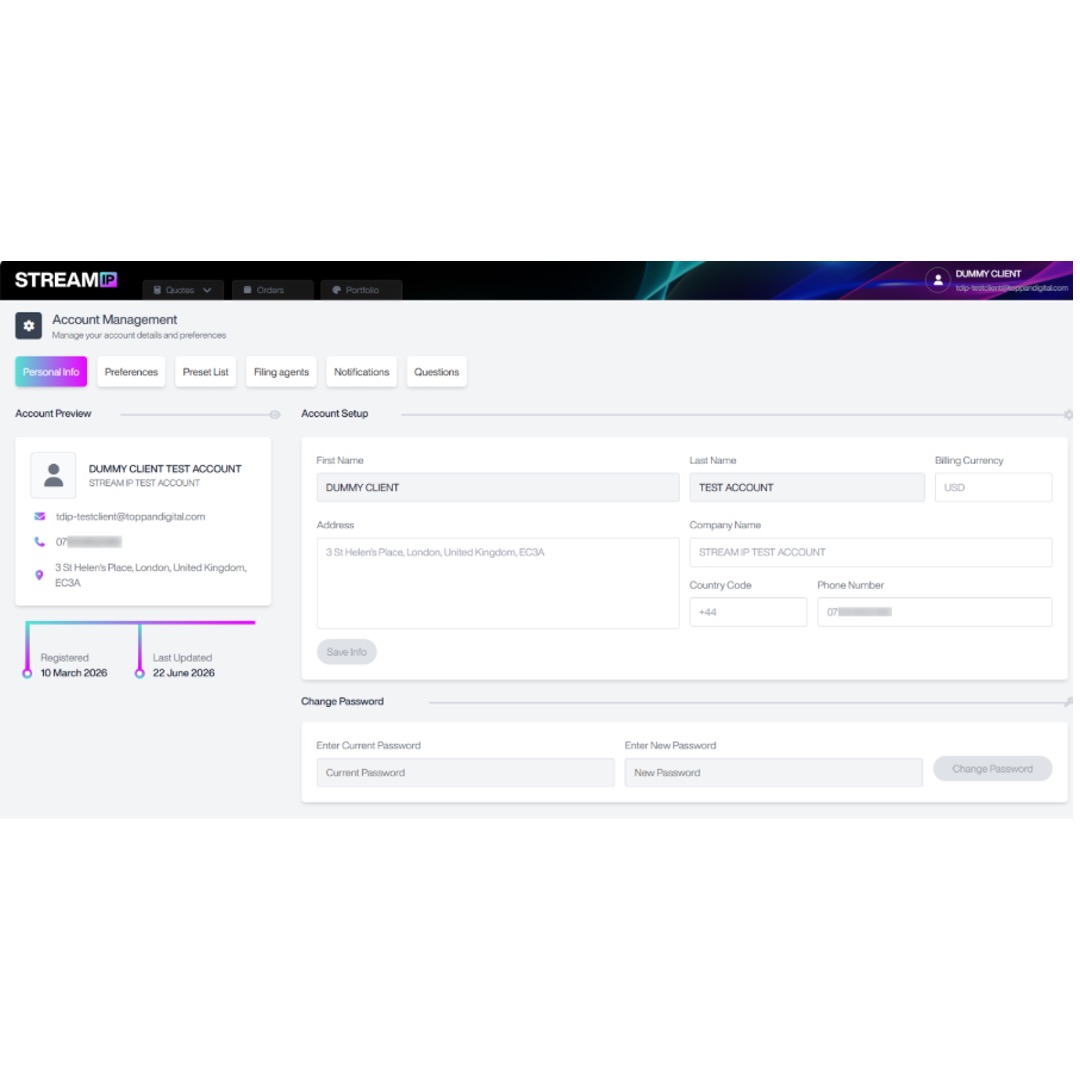
Personal Info
- Select Personal Info, and your screen will display the Personal Info page:
- Edit any fields (name, address, phone number, etc.).
- Click Save Info to apply changes.
- If you wish to change your password, scroll down to the Change Password section, enter your old and new password, and click Change Password.
- If any account updates look unfamiliar, this may indicate unauthorized changes. In such cases, we recommend changing your password immediately to protect your account.
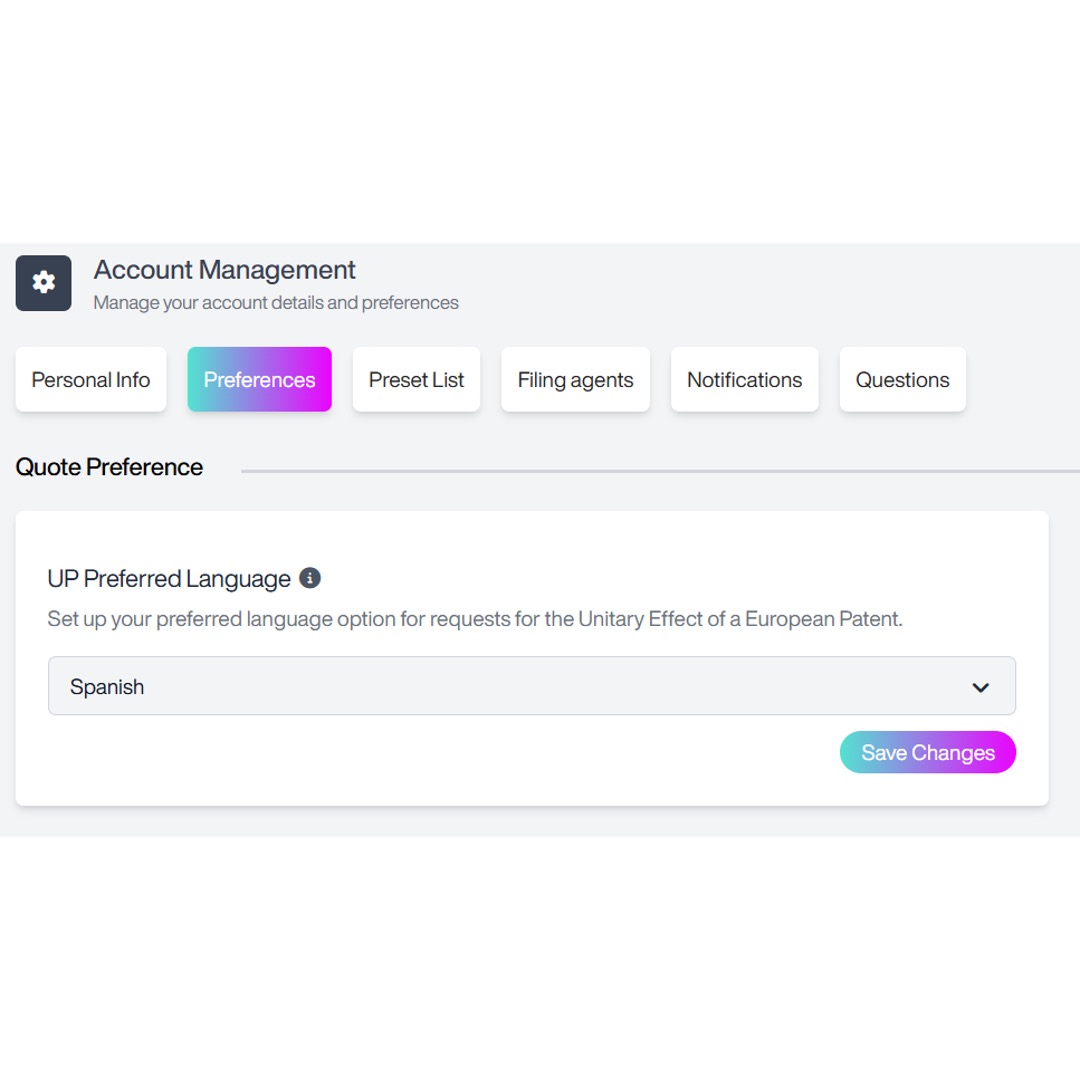
Preference
In Preferences, you can customise language settings for Unitary Patent requests.
- Select Preferences, and the following screen will appear:
- Select your preferred language for Unitary Effect requests from the drop-down menu.
- Click Save Changes.
Preset List
This feature will help you manage filing jurisdiction presets by use of system defaults or by creating custom presets. A preset is a saved list of countries used for EP, PCT, or Direct filings and languages for Other Translation. It simplifies quote creation by pre-selecting jurisdictions/languages based on your own requirements. You can create multiple presets.
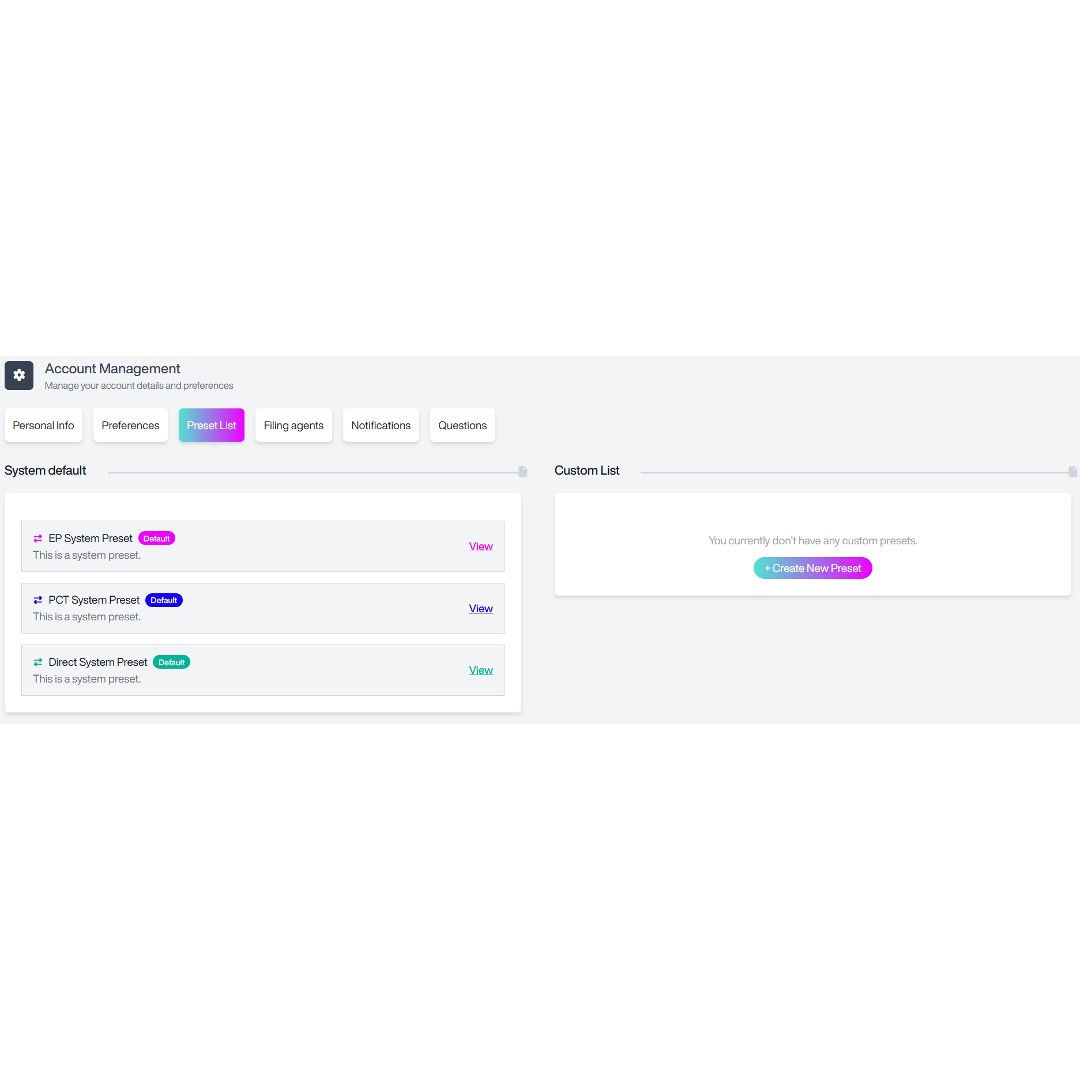
Accessing Filing Jurisdictions
Select Filing Jurisdictions, and the following screen will appear.
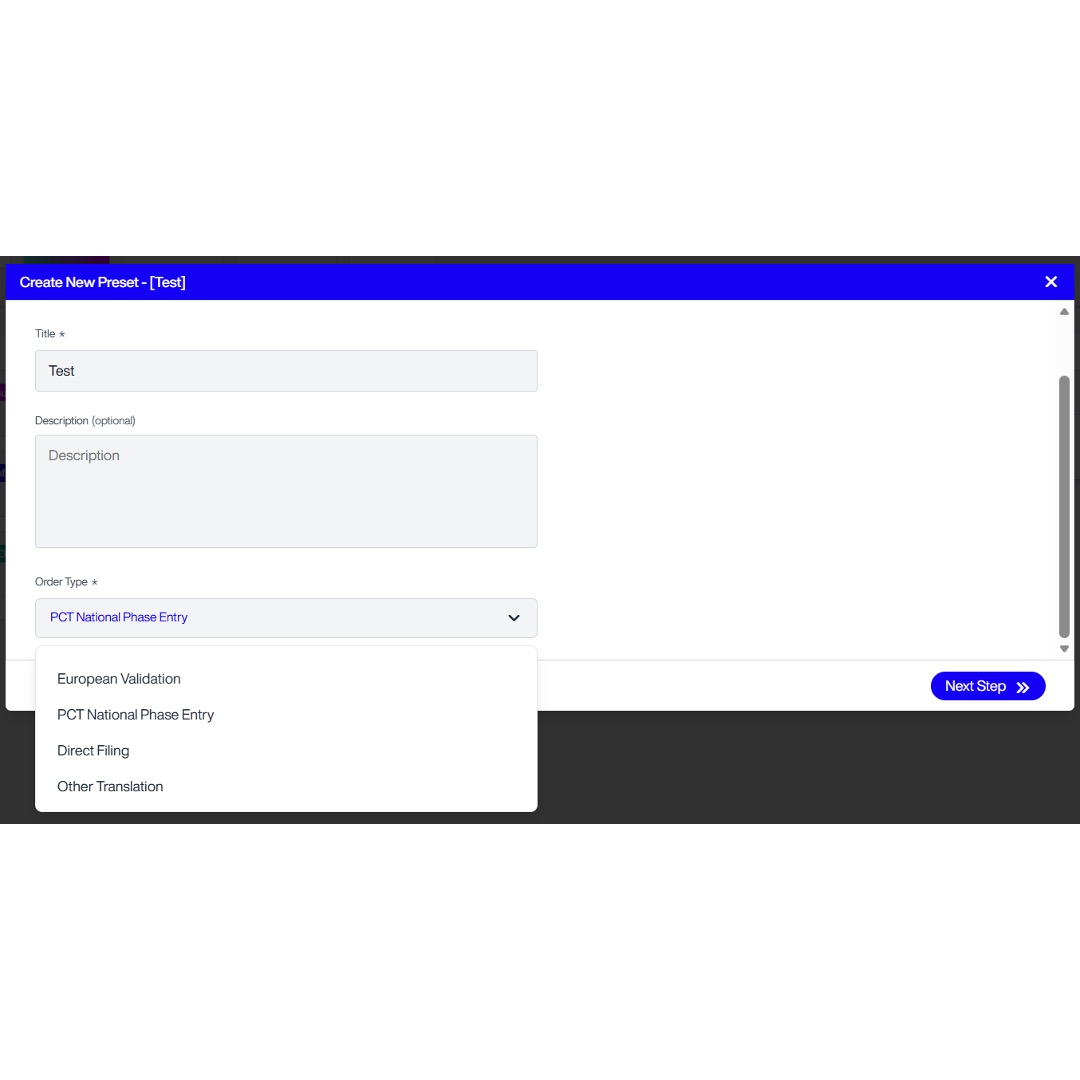
System Default Presets
System presets are displayed by default until custom presets are created. There are system presets for EP, PCT and Direct Filing.
Click View to see the list of states included in each system preset.
Please note that Other Translations does not have a system default preset. If required, you can create a custom preset for Other Translations from the Preset List.
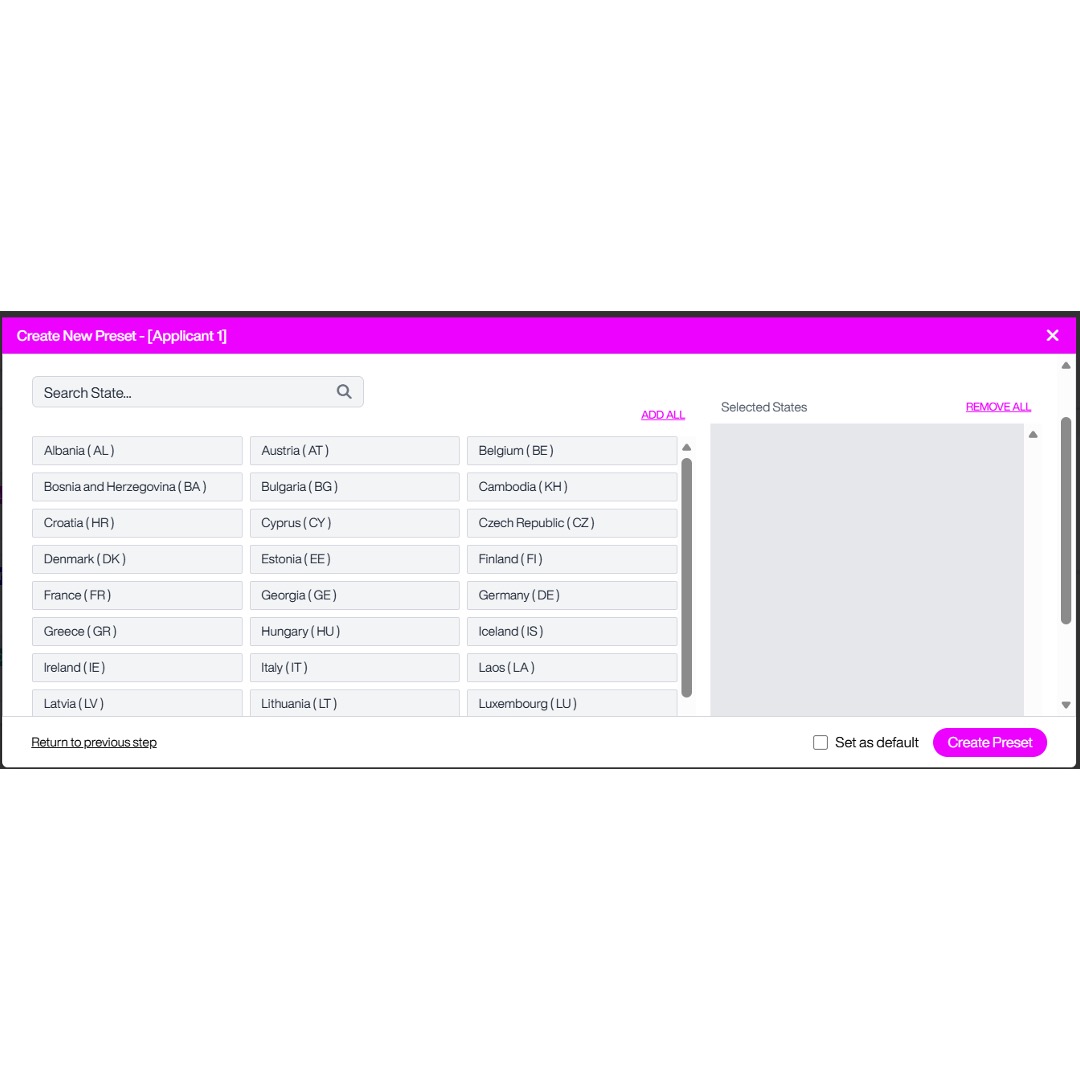
Creating a Custom Preset
- Optionally, add a description to clarify when or why to use this preset.
- Select the order type from the drop-down:
- European Validation
- Patent Cooperation Treaty
- Direct Filing
- Other Translation
- Click Next Step. The next screen will depend on the filing route selected:
- o For EP, PCT and Direct Filing presets, the next screen allows you to select the relevant states/jurisdictions for the preset. The available list will depend on the filing route selected.
- o For Other Translation presets, the next screen allows you to select the relevant target language options for the preset.
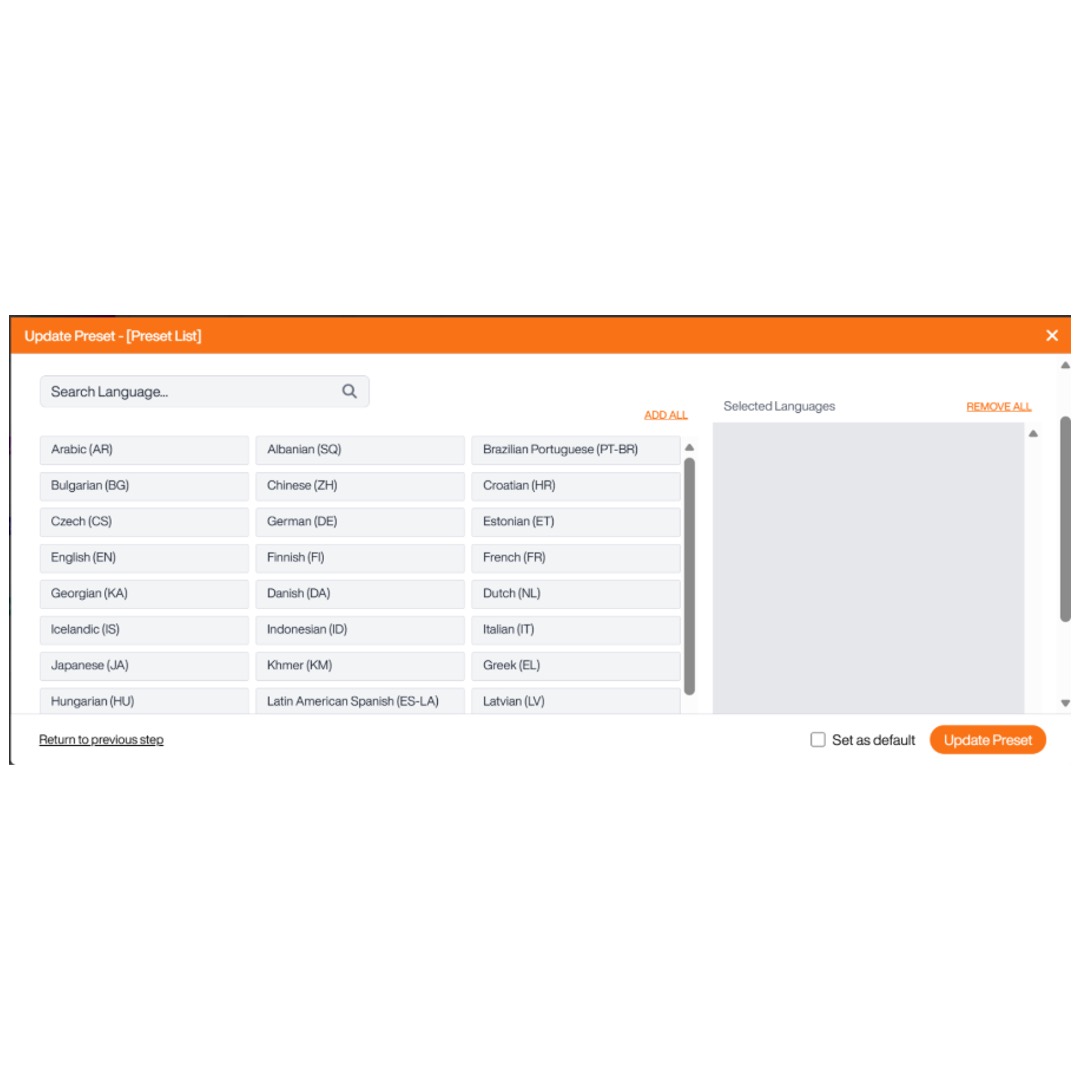
- If you wish to return to the previous step, to revise the title, description, or filing route, click Return to Previous Step.
- Click on the states you wish to add into your preset and your selections will appear in the Selected States box on the right.
- If you can’t quickly see the state, you can search by state name or state code.
- To include all available states, click Add All.
- To remove all selected states, click Remove All.
- To make this preset your default, check the Make as Default box.
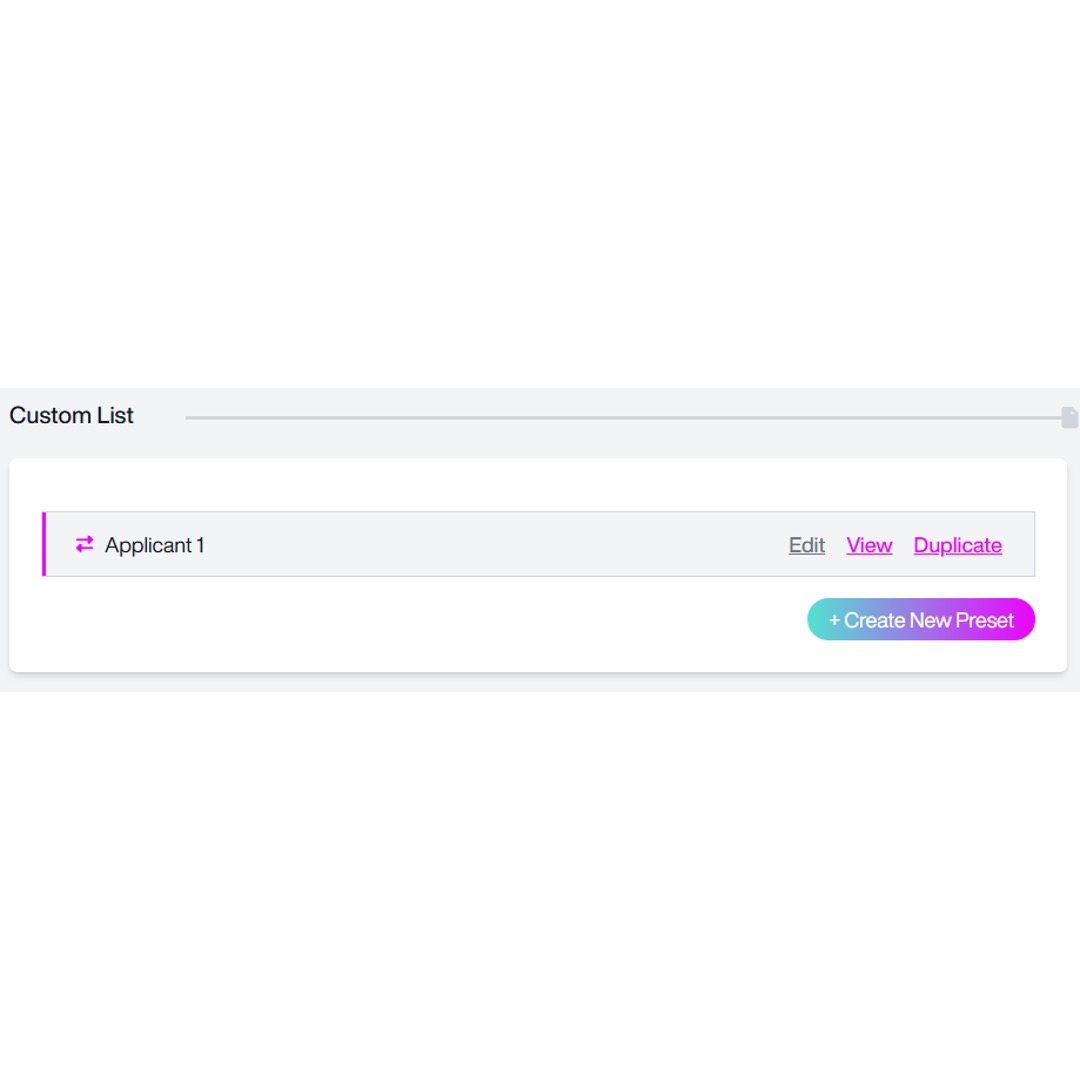
- Your new preset will now appear under Custom List:
- For any custom preset, you can:
- Edit – update the title, description, order type
- Add or remove states or languages.
- View – see the full list of included jurisdictions or selected languages.
- Duplicate – create a copy to modify without changing the original.
- Delete – to remove a preset from your system, click the red bin icon next to the preset you want to delete. Then confirm by selecting Delete Preset.
- If you wish to revert to a system default, click Set as Default for that filing route.
Filing Agents
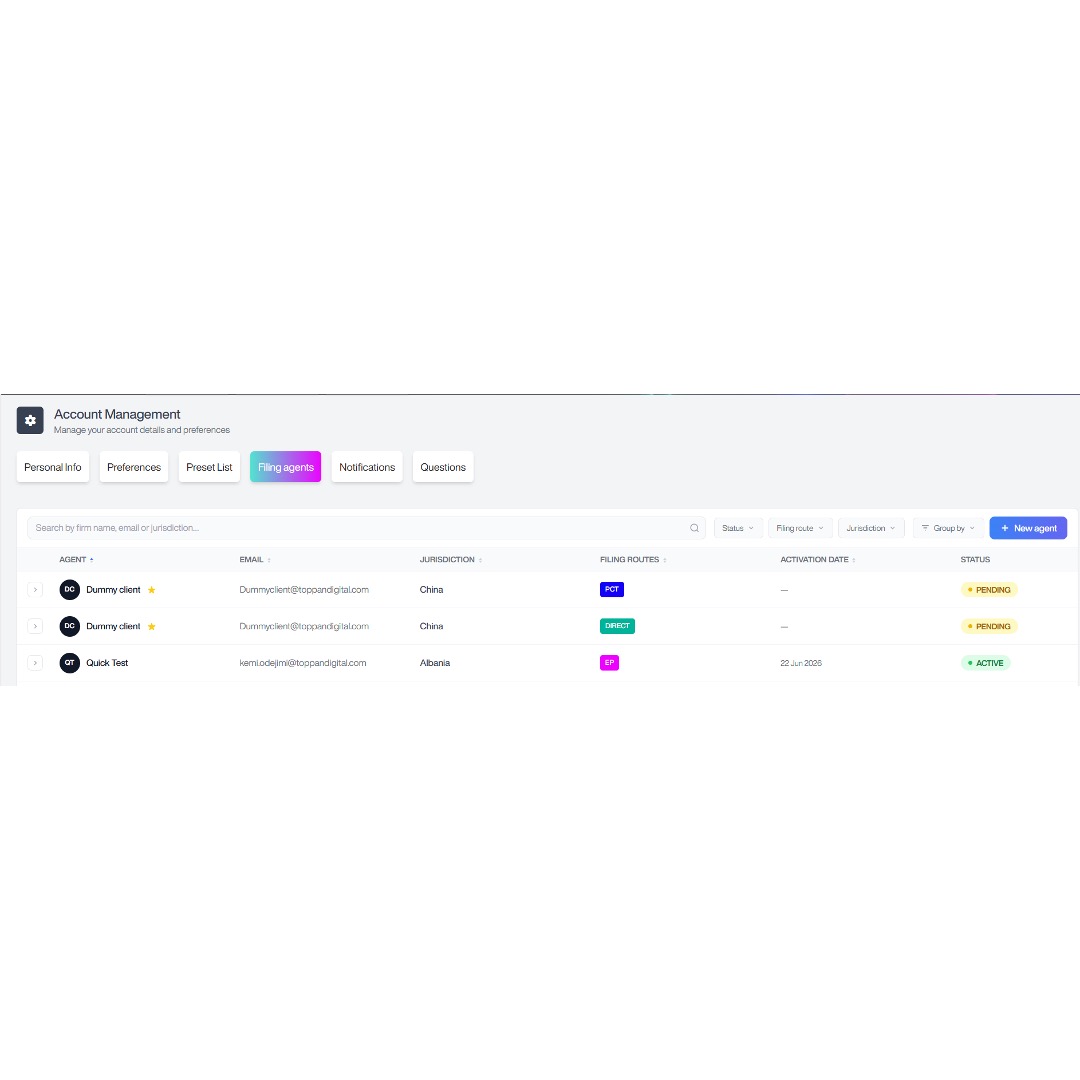
This section explains how to add and manage filing agents for EP, PCT and Direct Filing. Filing agents can be added for selected filing routes and jurisdictions, and once approved, they can be used when generating quotes.
Please note that filing agents do not apply to Other Translations.
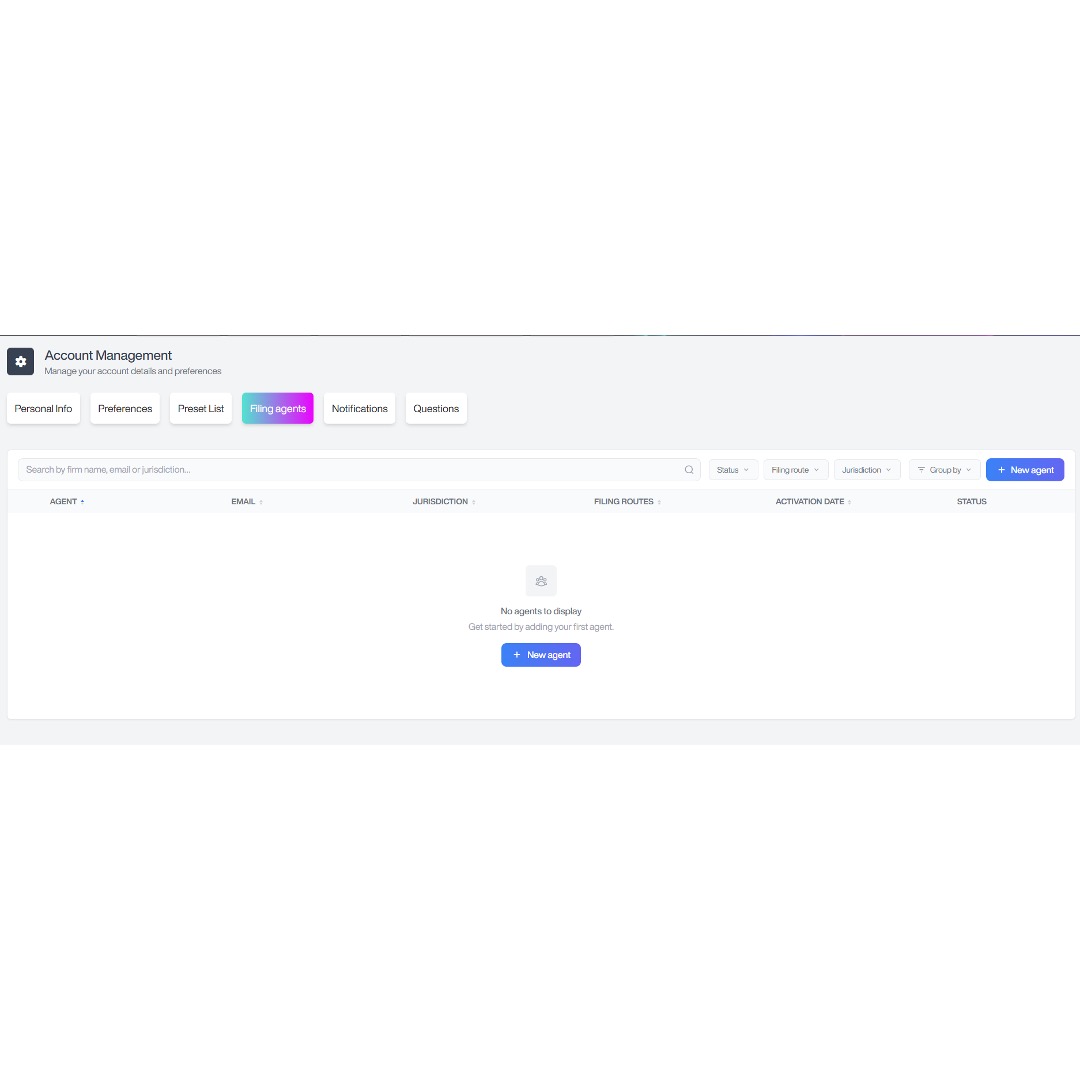
- Select Filing Agents, and the Filing Agents page will appear.
- If no agents have been added, the page will display No agents to display.
- Click New Agent to add a filing agent.
- The first step is to select the filing routes and jurisdictions for the agent.
- By default, European Validation, PCT National Phase Entry and Direct Filing are selected, and the available jurisdictions are displayed.
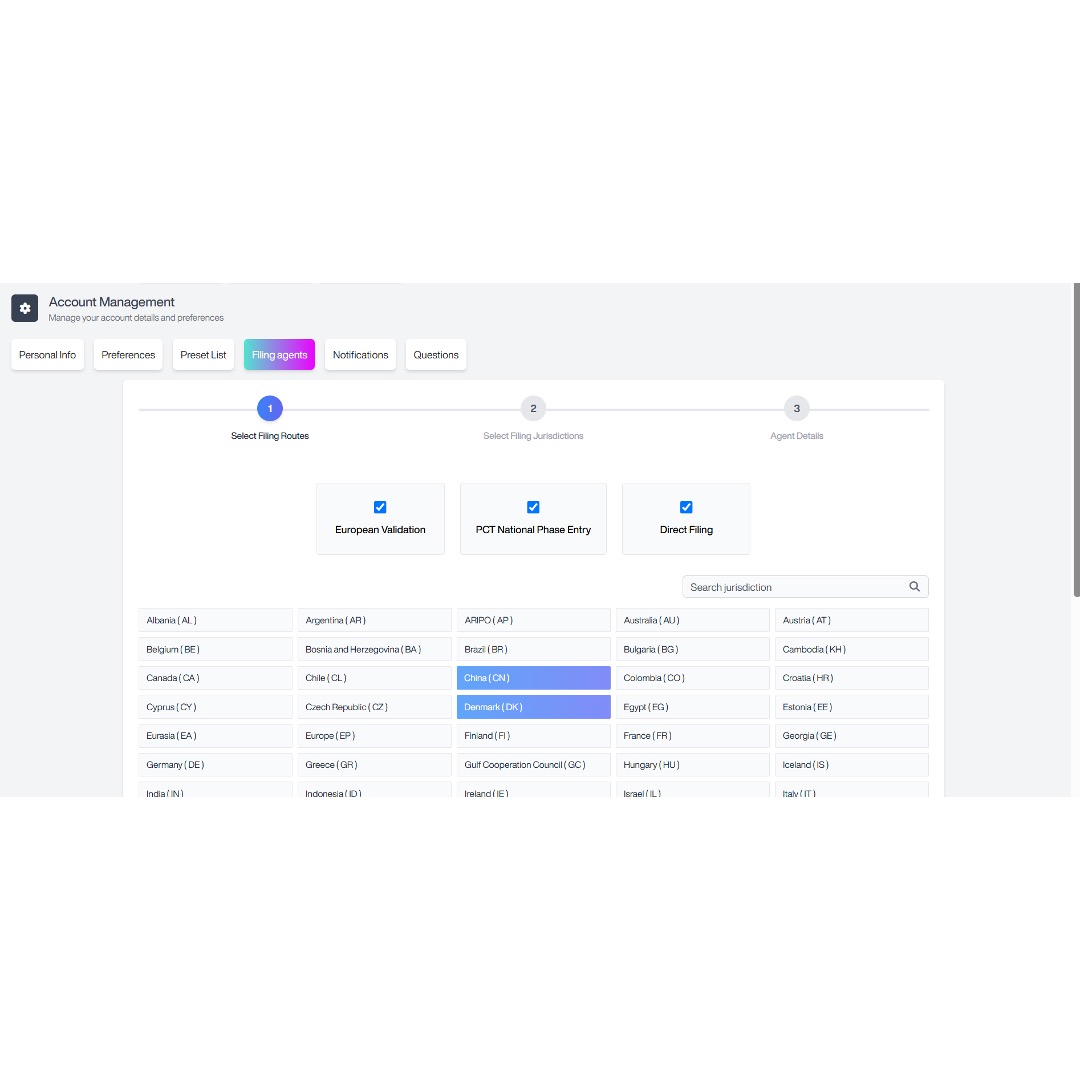
- To narrow the list of jurisdictions, untick any filing route that does not apply. For example, if the agent should only be used for PCT, leave PCT National Phase Entry selected and untick the other filing routes.
- Select the jurisdictions that the filing agent should apply to.
- Once the required jurisdictions have been selected, proceed to the agent details step.
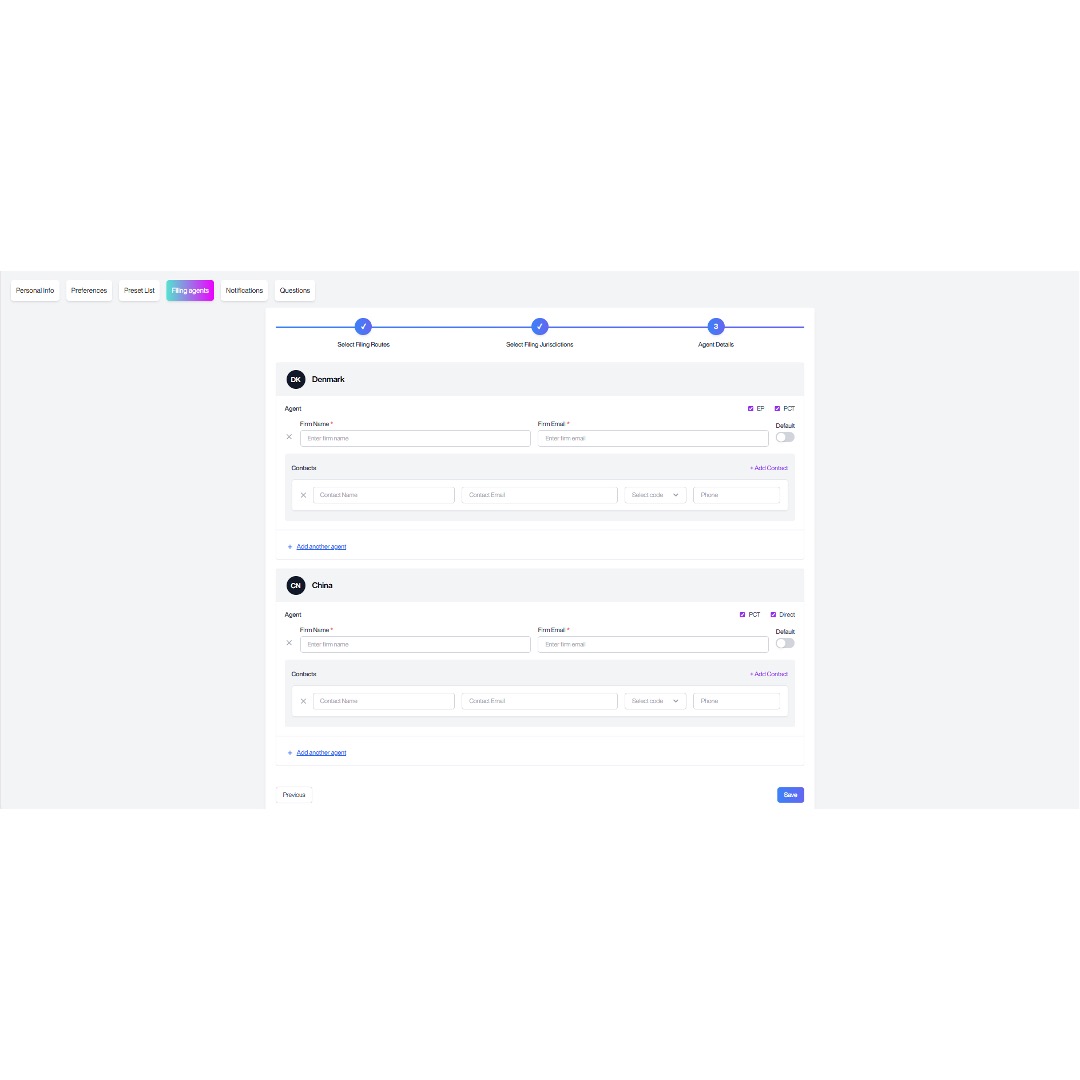
- For each selected jurisdiction, enter the required agent information:
-
- Firm Name.
- Firm Email.
You can also add contact details if required: Contact Name, Contact Email, Country Code, Phone Number.
- If a selected jurisdiction is available for more than one filing route, the applicable filing routes will be shown against that jurisdiction. You can untick any filing route that should not apply to the agent.
- If you need to add more than one agent for a jurisdiction, click Add another agent.
- If you want one agent to be used as the default for a jurisdiction/filing route, select the Default toggle for that agent.
- Click Save to submit the agent details.
- Once saved, the agent will appear in the Filing Agents list.
- Newly added agents will show as Pending while TDIP reviews and onboards the agent.
- Once the agent has been activated, the Activation Date will be populated and the agent can be used during quote creation where applicable.
Notifications
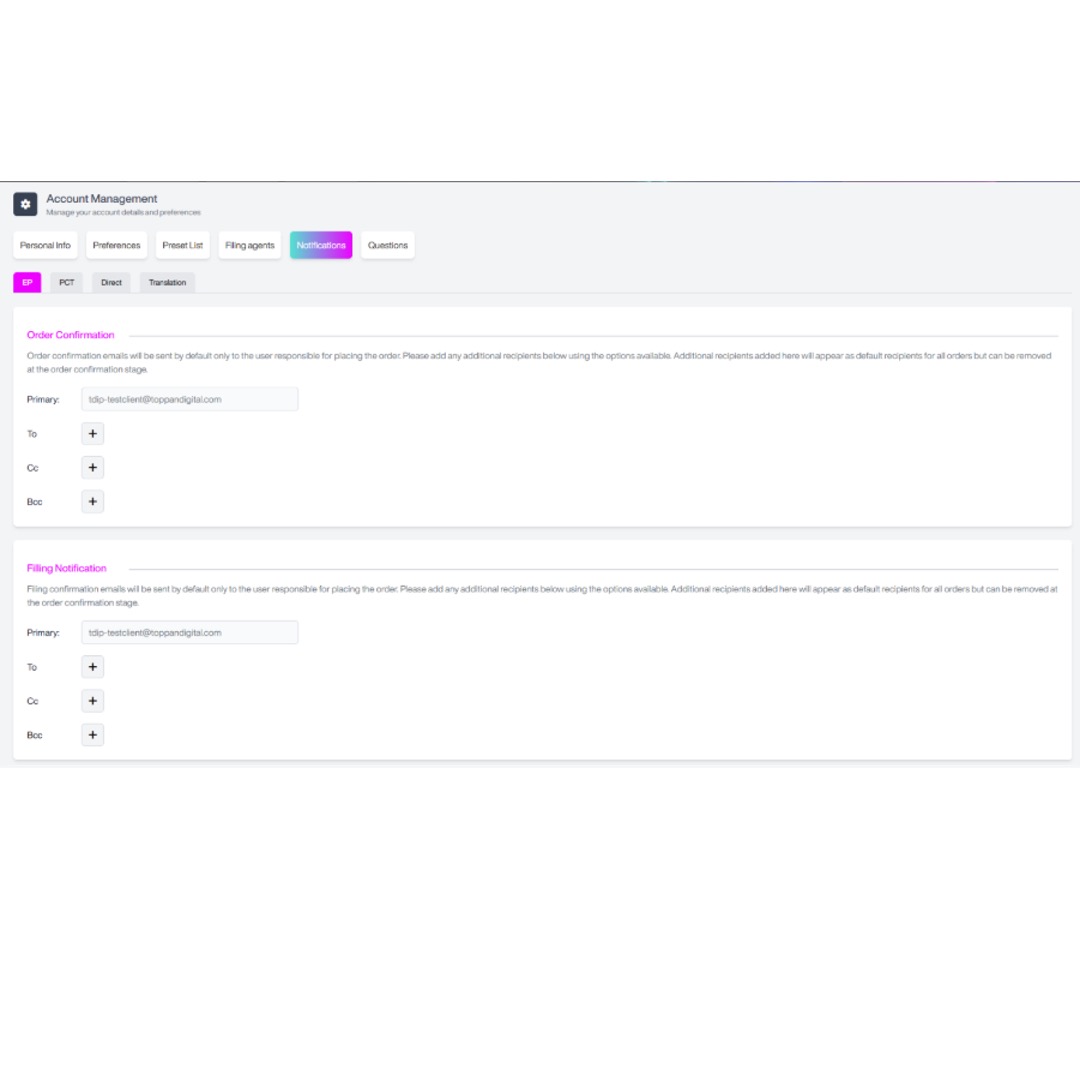
This section explains how to customise email notification settings, and outlines when notifications will be sent.
Accessing Notification Preferences
- Select Notifications, and the Notification Preferences page will appear:
- At the top of the Notification Preferences page, select the 0rder type you want to manage notifications for.
Set-up
- You will need to set up Notification Preferences for each filing route via the EP, PCT, and Direct Filing and Other Translations tabs.
- Your primary email address is the one listed in your account. To update it, please contact support at TDIP@toppandigital.com.
- To add additional recipients, click the + button next to To, enter the email address, and click Create Email.
- To Cc someone, click the + next to Cc, enter their email, and click Create Email.
- To Bcc someone, click the + next to Bcc, enter their email, and click Create Email.
Notification Types
- This can be done separately for order confirmation and filing notification emails.
- Order Confirmation is sent immediately after placing an order and confirms what has been ordered.
- Filing Notification is sent when a country filing has been completed.
Questions
This section will guide you through answering filing-specific questions that help generate tailored quotes based on applicant details, jurisdictions, and disclosures.
You will be asked questions depending on your filing route, which will help generate a more accurate quote by factoring in variables such as company size.
EP Questions
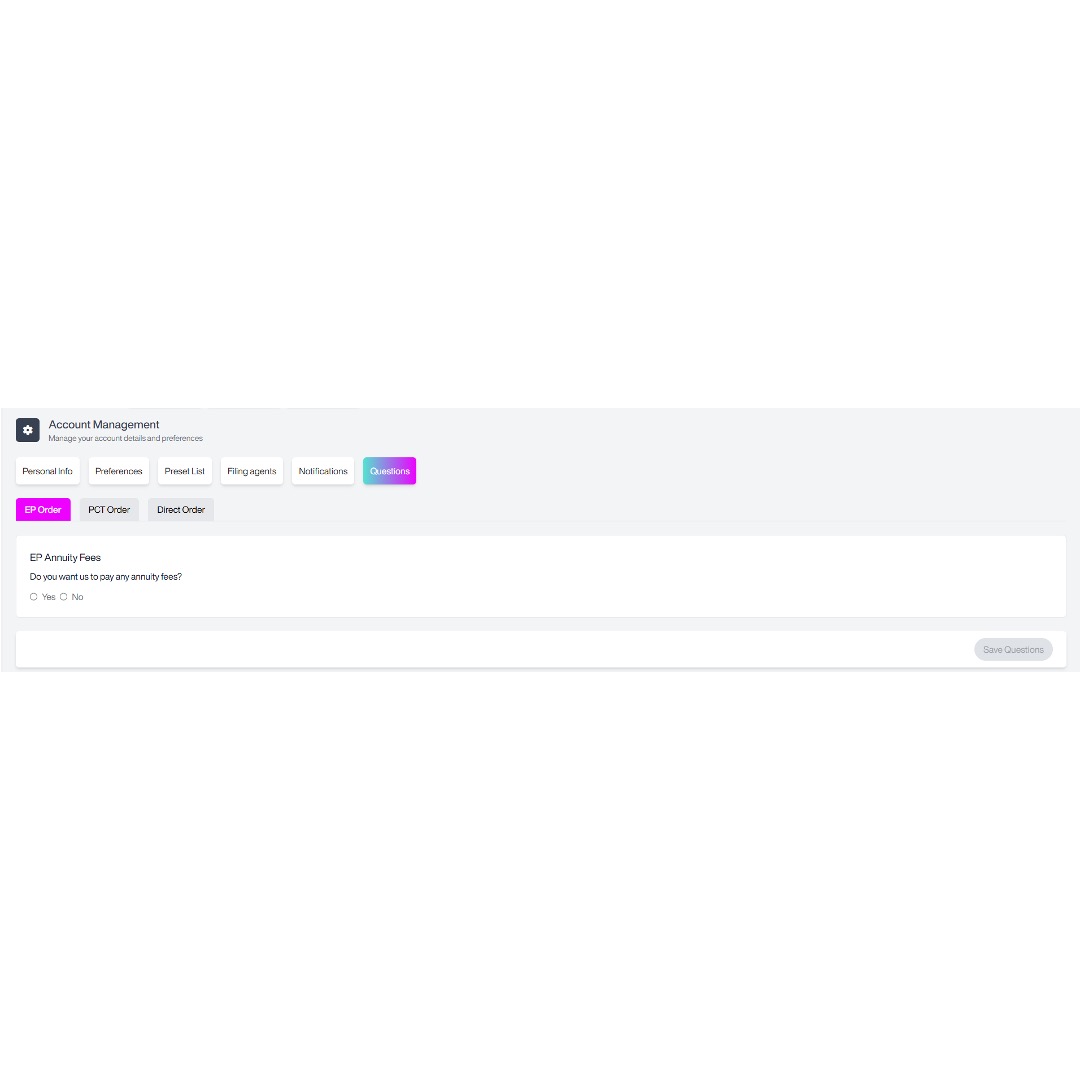
- Select EP Order, and the following screen will appear:
- You’ll be asked about annuity fees, which keep your patent active over the patent’s lifespan.
- Choose whether you want TOPPAN IP to manage any annuity payments. If you would like TOPPAN IP to manage annuity payments, select either:
- First annuities only.
- All annuity fees due for the lifespan of the patent.
- Click Save Questions to confirm your preference.
PCT Questions
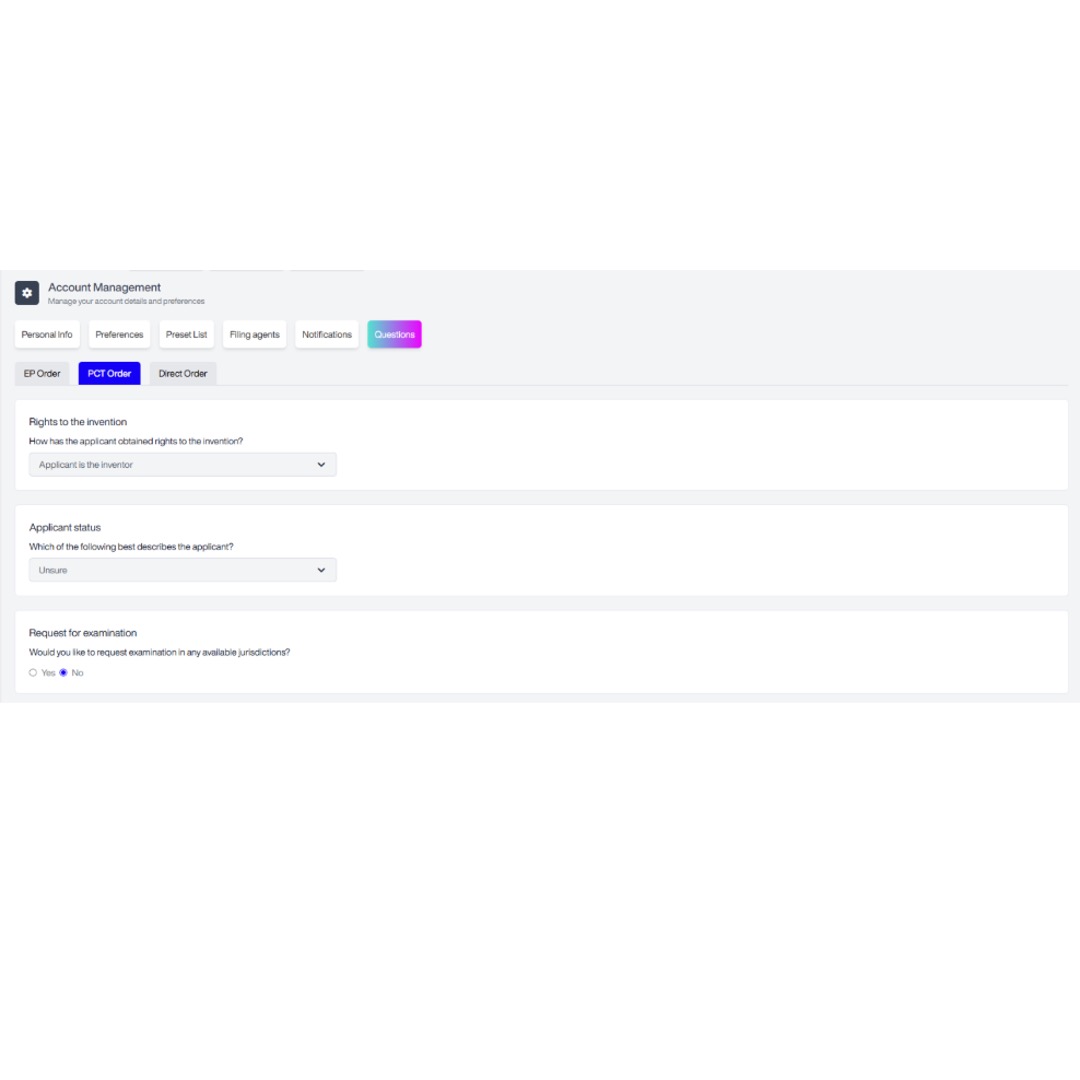
- Select PCT Order, and the following screen will appear:
- Rights to the invention: select how the applicant obtained rights to the invention (assignment from the inventor, employment agreement, applicant is the inventor, or unknown).
- Applicant status: Is the applicant an individual/multiple individuals, a company with <500 employees, a company with >500 employees, a non-profit organisation, or unsure.
- Request for examination: Would you like to request examination in any available jurisdictions? If you select yes, you will be asked to select at least one option.
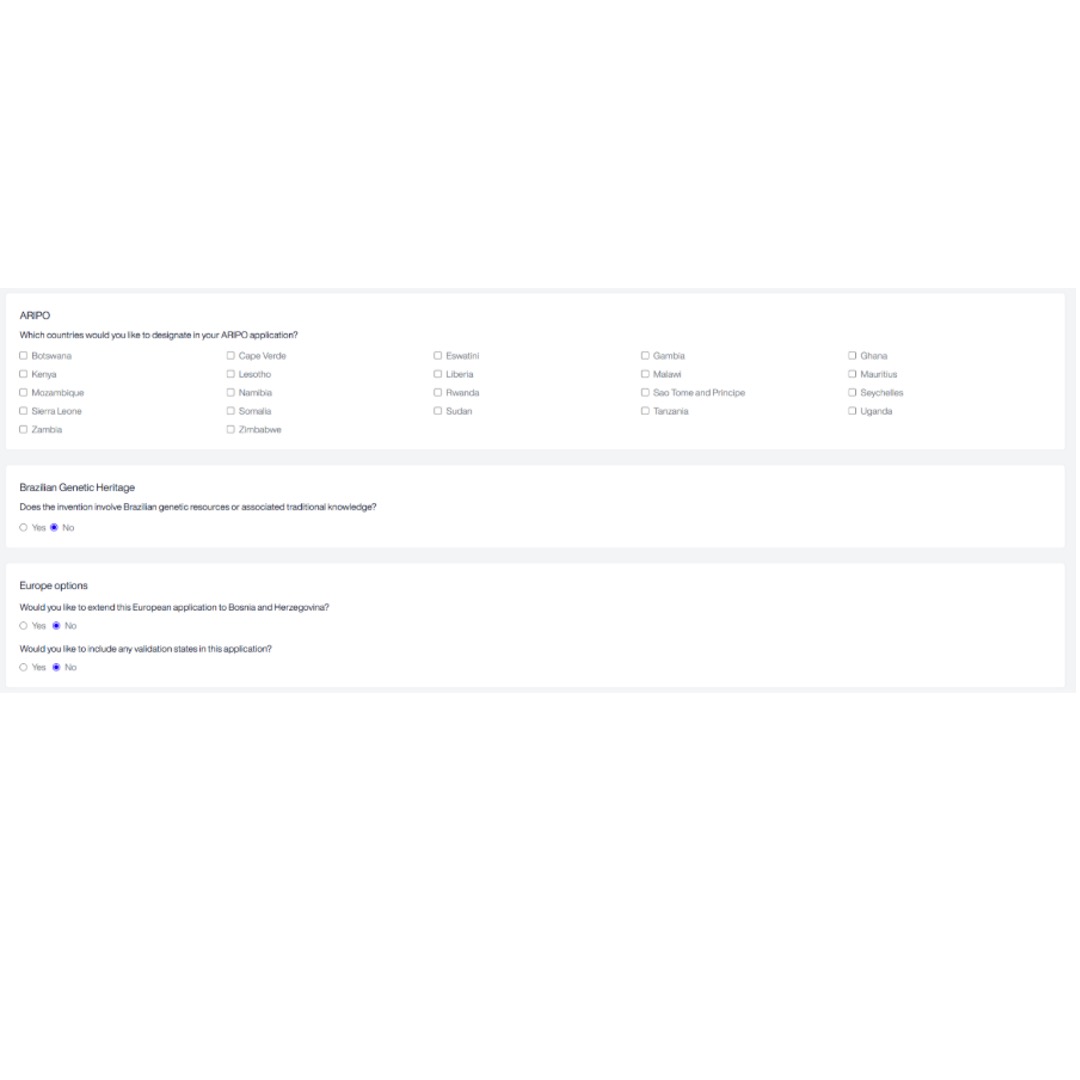
- ARIPO: Select which countries you would like to designate in your ARIPO application.
- Genetic Heritage Disclosures: Does the patent involve Brazilian genetic resources or associated knowledge, or relate to or involve the use of biological material?
- Extension of European Patent to Bosnia and Herzegovina: Select yes or no.
- Extension of European Patent to validation states: Select whether you’d like to include any validation states in the application. If you select yes, you will be asked to check which validation states to include.
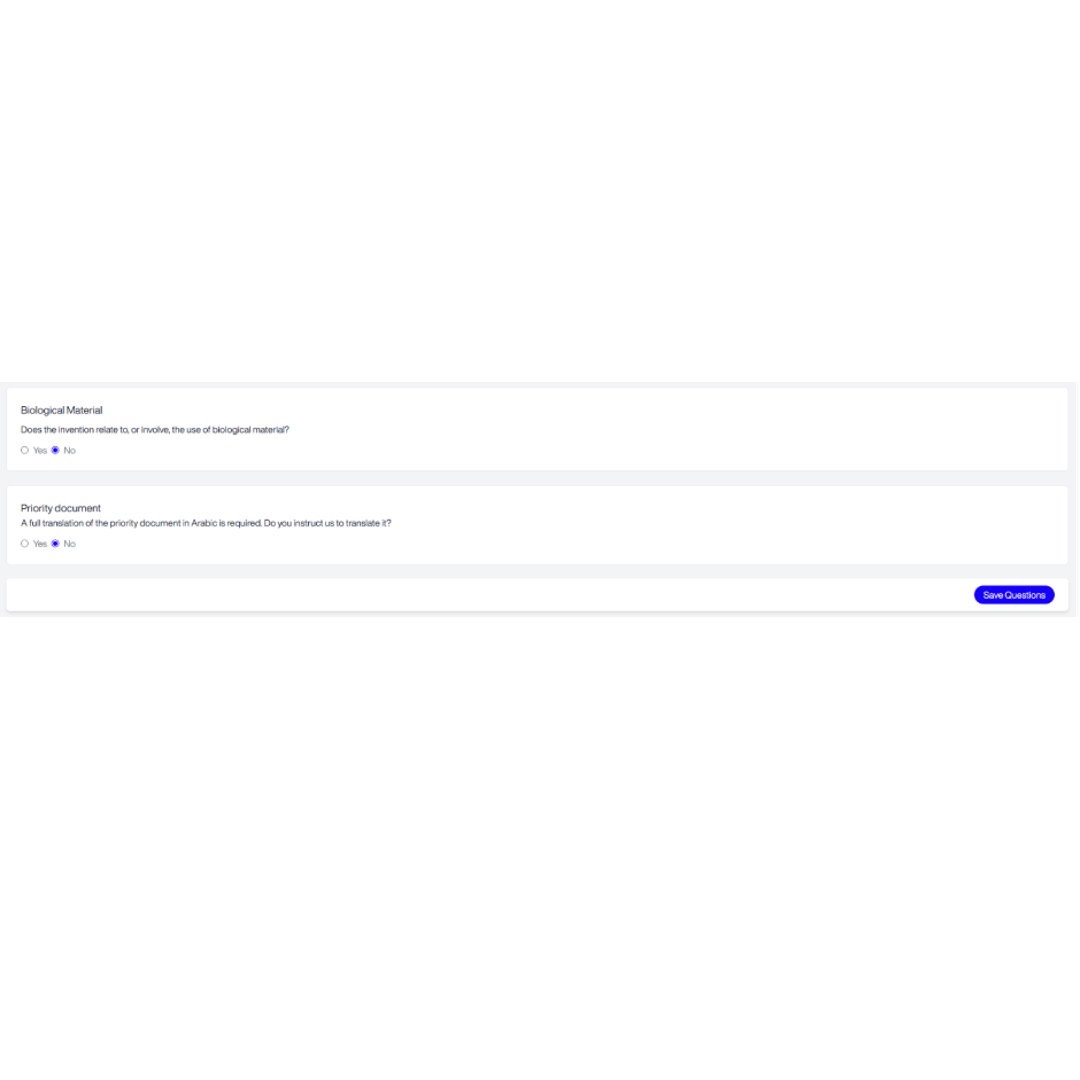
- Biological Material Disclosures: Does the invention relate to, or involve, the use of biological material?
- Priority document: A full translation of the priority document is required. Do you instruct us to translate it? Please note that this will incur additional costs.
- Click Save Questions to confirm your answers.
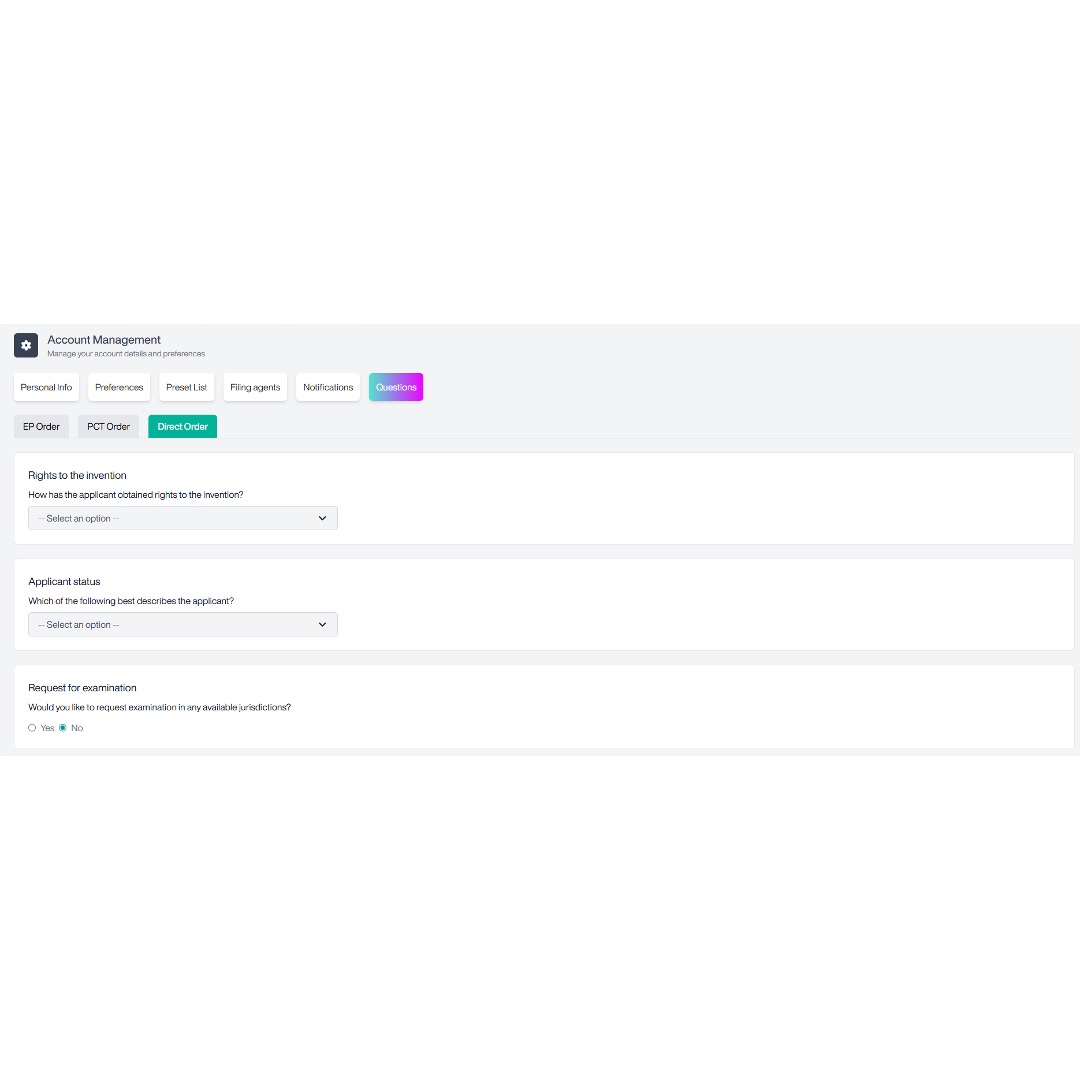
Direct Filing Questions
Select Direct order questions, and the following screen will appear:
- Rights to the invention: select how the applicant obtained rights to the invention (assignment from the inventor, employment agreement, applicant is the inventor, or unknown).
- Applicant status: Is the applicant an individual/multiple individuals, a company with <500 employees, a company with >500 employees, a non-profit organisation, or unknown.
- Request for examination: Would you like to request examination in any available jurisdictions?
- ARIPO: Select which countries you would like to designate in your ARIPO application.
- Genetic Heritage Disclosures: Does the patent involve Brazilian genetic resources or associated knowledge, or relate to or involve the use of biological material?
- Extension of European Patent to Bosnia and Herzegovina: Select yes or no.
- Extension of European Patent to validation states: Select whether you’d like to include any validation states in the application. If you select yes, you will be asked to check which validation states to include.
- Biological Material Disclosures: Does the invention relate to, or involve, the use of biological material?
- Priority document: A full translation of the priority document is required. Do you instruct us to translate it? Please note that this will incur additional costs.
- Once you have completed the questions, click Save Questions to confirm your answers.
Get New Quote
This section will guide you through the steps to generate a quote for each of the filing routes.
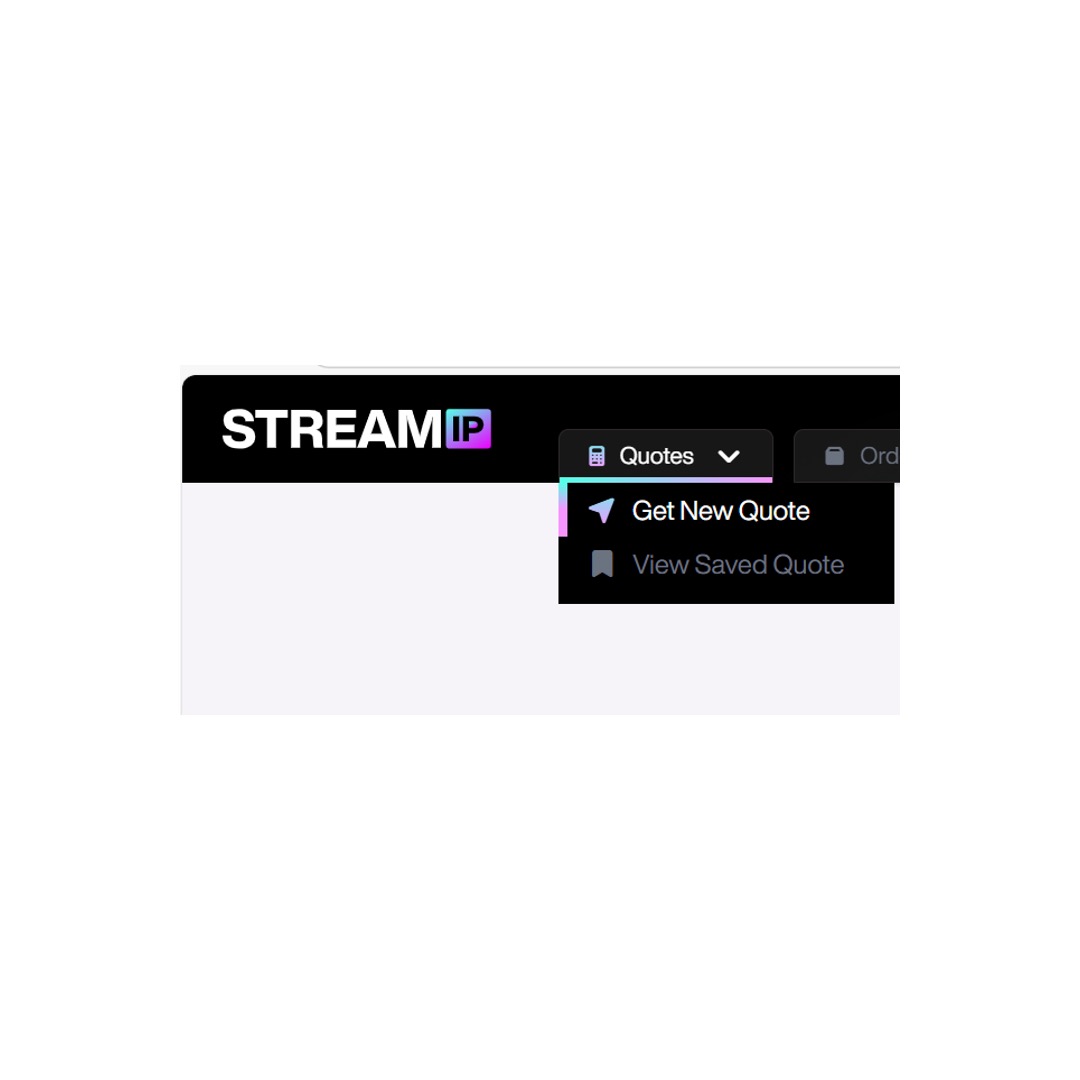
Getting to the New Quote page.
Select Get New Quote from the drop-down box on Quote
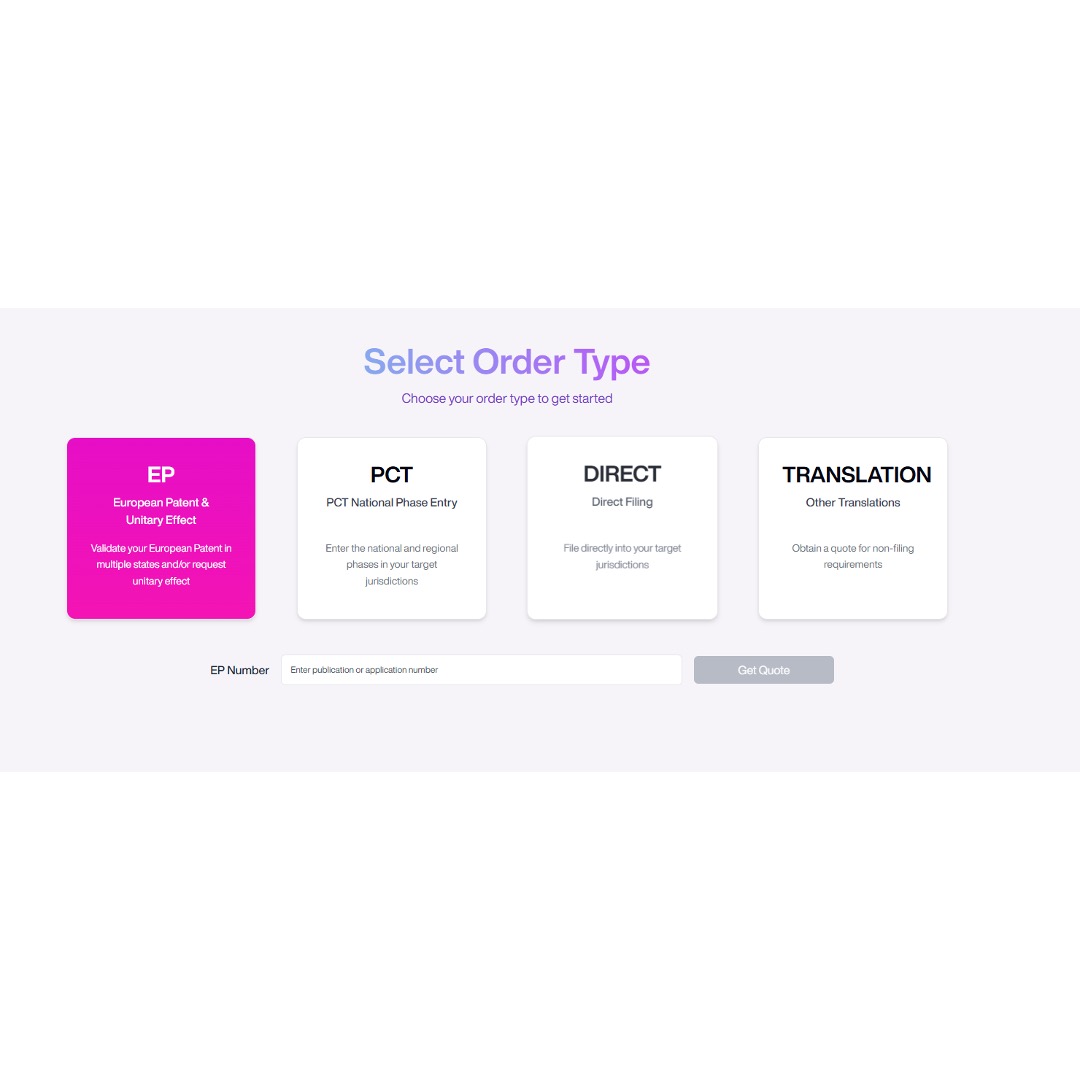
Get New Quote- EP
- Click the (EP) European Patent & Unitary Effect button, and an input box appears to enter the EP Number:
- Enter your EP number. Your EP number can be a publication number (e.g., EP1234567) or an application number (EP12345678.9). You can input your number with or without the EP prefix.
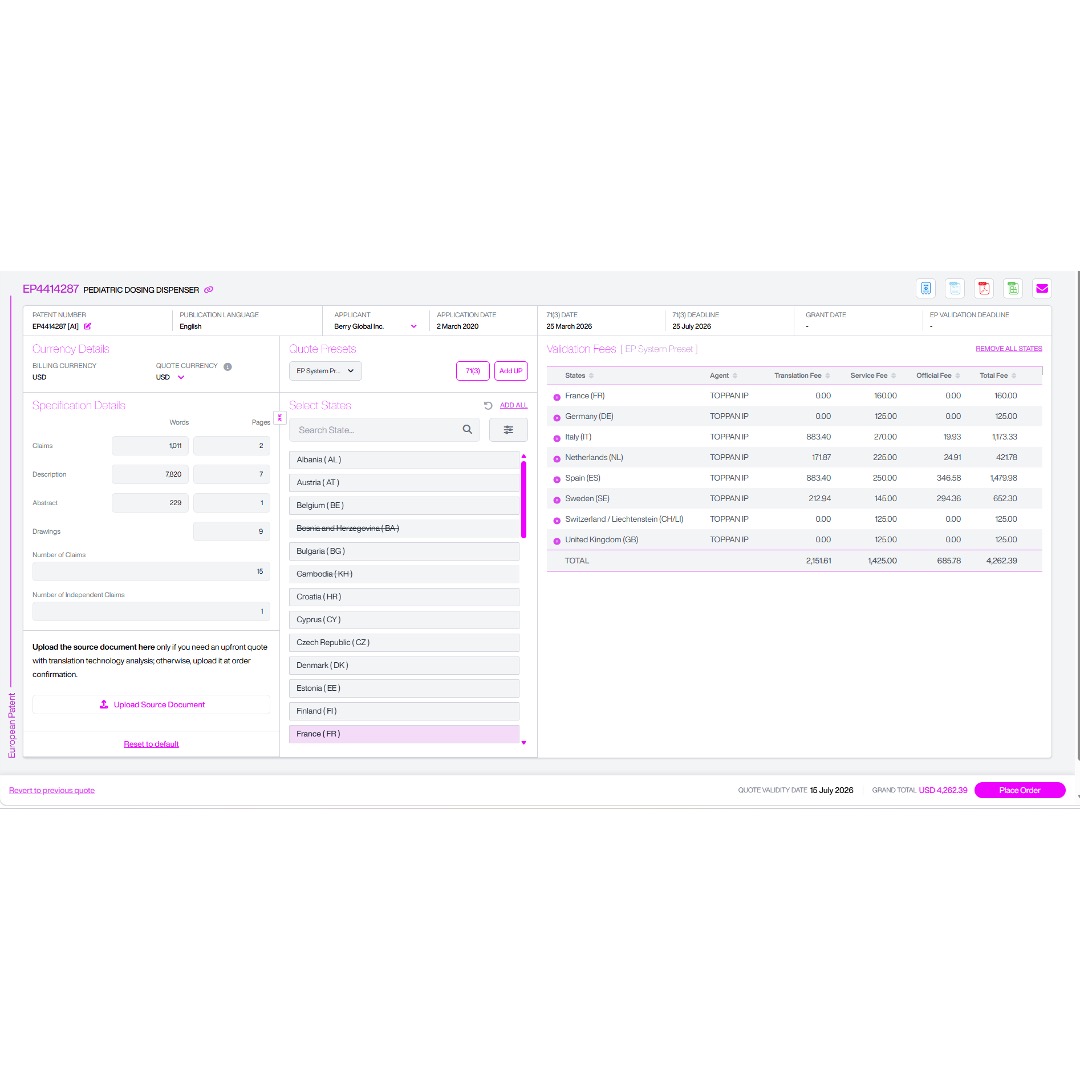
- Click Get Quote, and the following screen will appear:
- Your EP number and patent title display at the top.
- Click the link beside the title to open the record in the European Patent Register.
- In the row beneath the patent number and title, you’ll see:
- Patent number and publication language.
- Applicant and application date.
- Article 71(3) date and 71(3) deadline.
- Grant date.
- EP validation deadline.
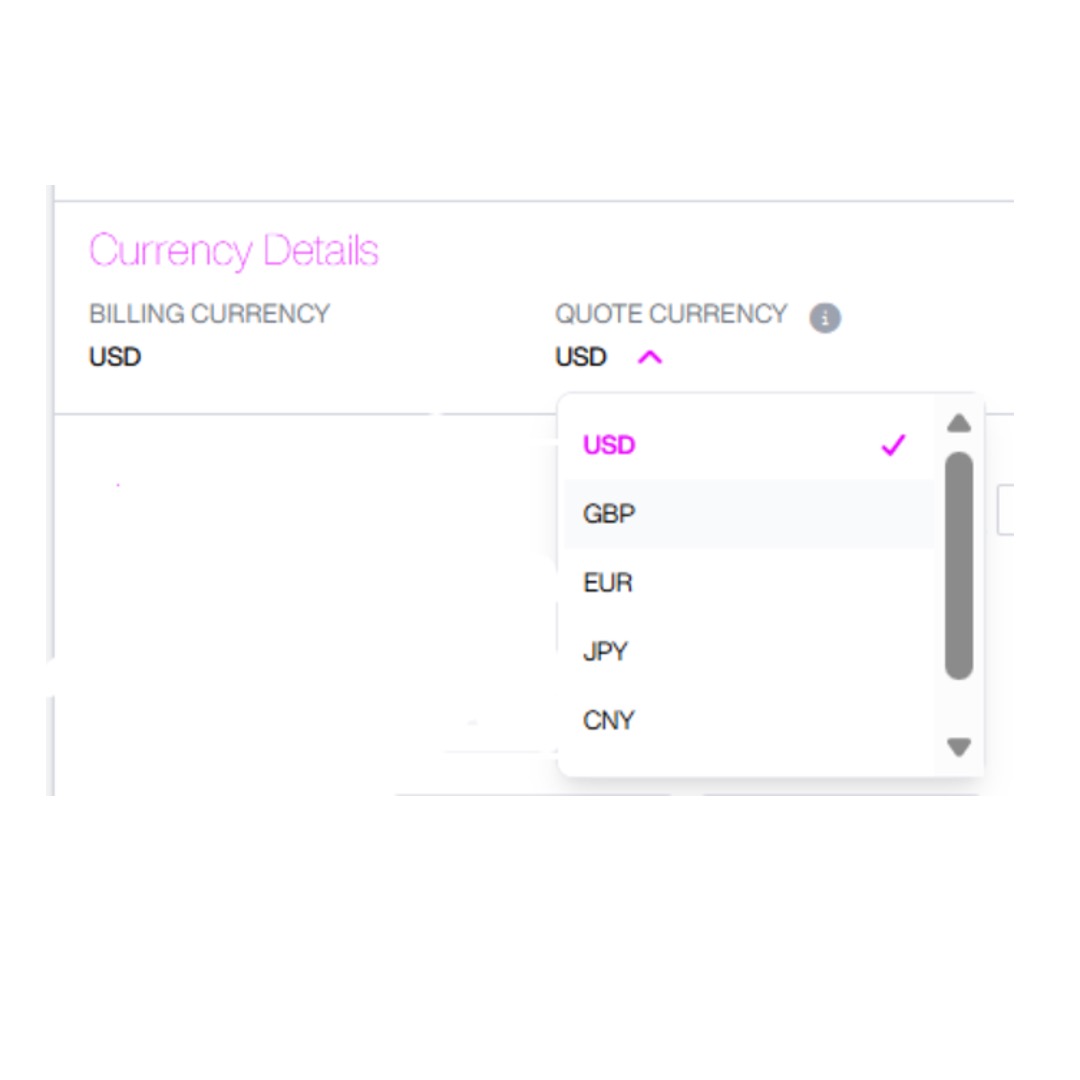
- The Currency Details section displays your account billing currency and allows you to select the quote currency for the current quote.
- Billing Currency displays the default currency associated with your account.
- Quote Currency allows you to choose the currency in which you would like the quote to be displayed.
- Select the Quote Currency drop-down and choose the required currency
- The fee table will update to display the quote values in the selected currency.
Note: Changing the Quote Currency only affects how the current quote is displayed. Your invoice will always be issued in your account Billing Currency, regardless of the Quote Currency selected.
Exporting a Quote
- Under Specification Details, you can view page counts, word counts, and claim counts. If you wish to update these details, click any field to overwrite it with your latest numbers.
- You can choose to upload a source document. Uploading a source document allows us to calculate potential translation memory savings.
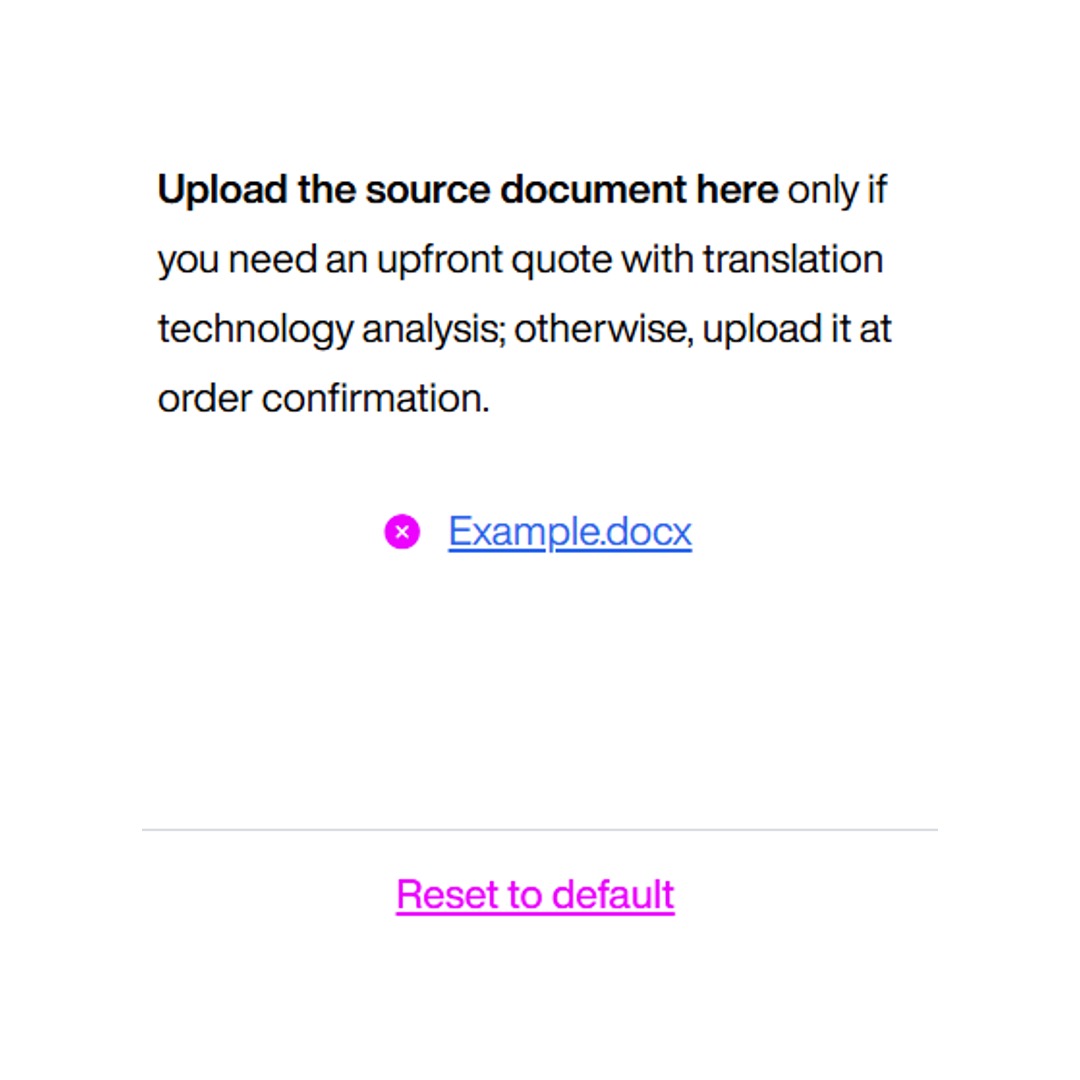
- To upload your source document, click the Upload Source Document button to open your file browser. Select the desired file and click Open. Once uploaded, the document will appear at the bottom of the Specification Details section:
- To remove a source document from the platform, click the X next to the document name.
- To revert the Specification Details to their original settings, click Reset to Default, then confirm by selecting Yes.
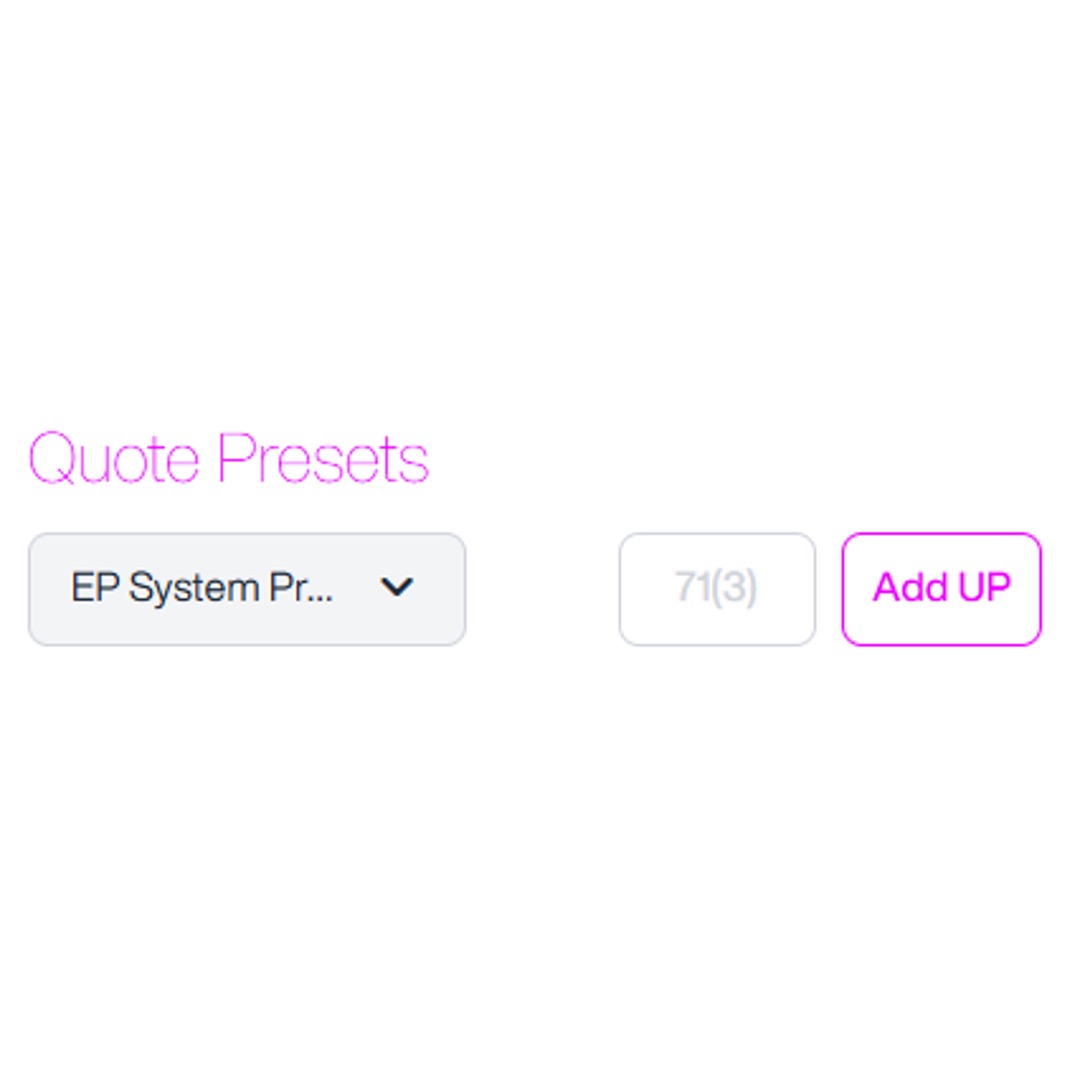
- If you’ve already created a preset which you’d like to use to select the states included in the quote, go to the Quote Presets section:
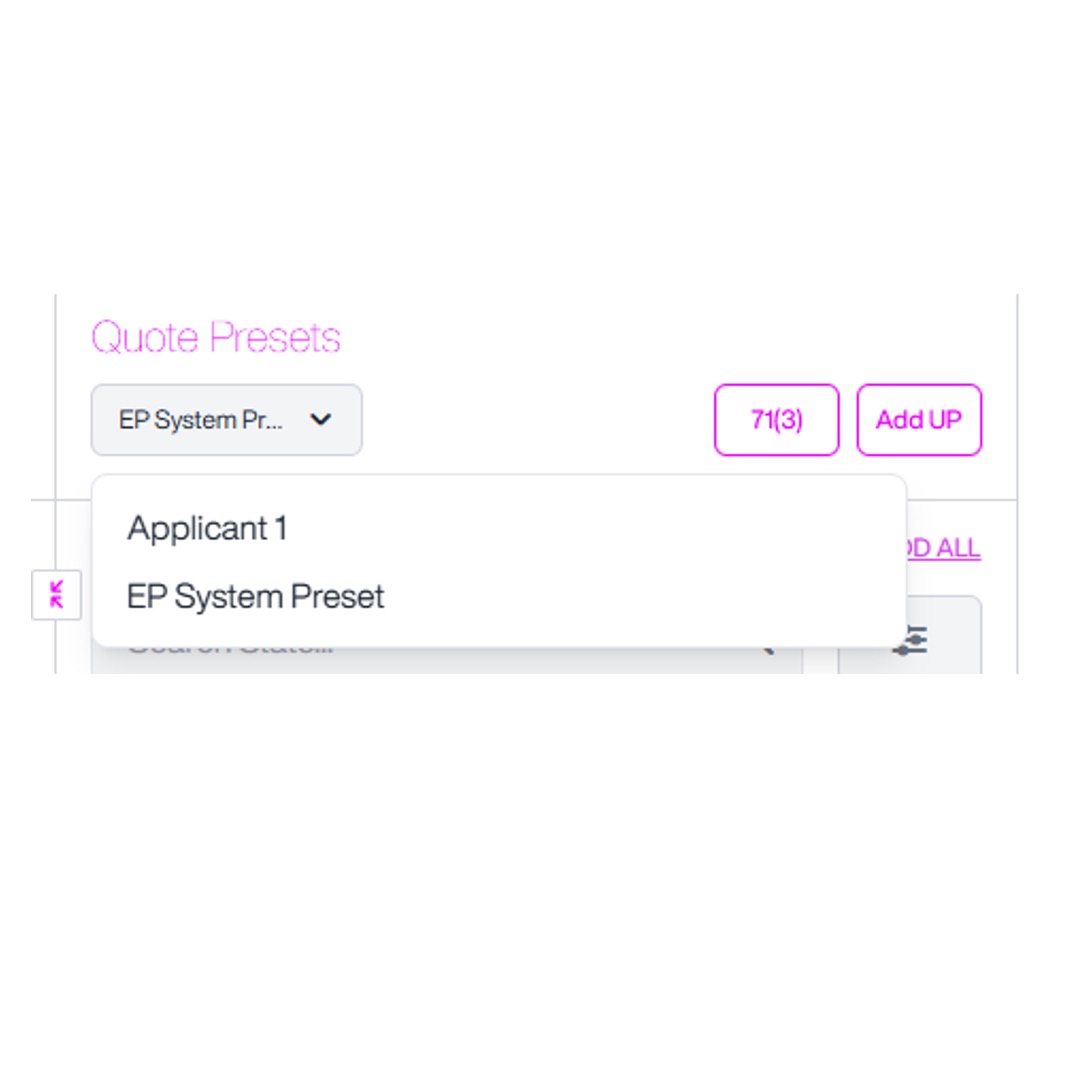
- Click the drop-down menu and select the preset you want to apply to your quote:
- For help with setting up a preset, please refer to section 3.3.2 Creating a Custom Preset of this guide.
- If you do not want to use a default or custom preset for the states included in the quote, you can either click Remove All States or click on a highlighted state to remove it.
- In Select States, search or scroll to find states.
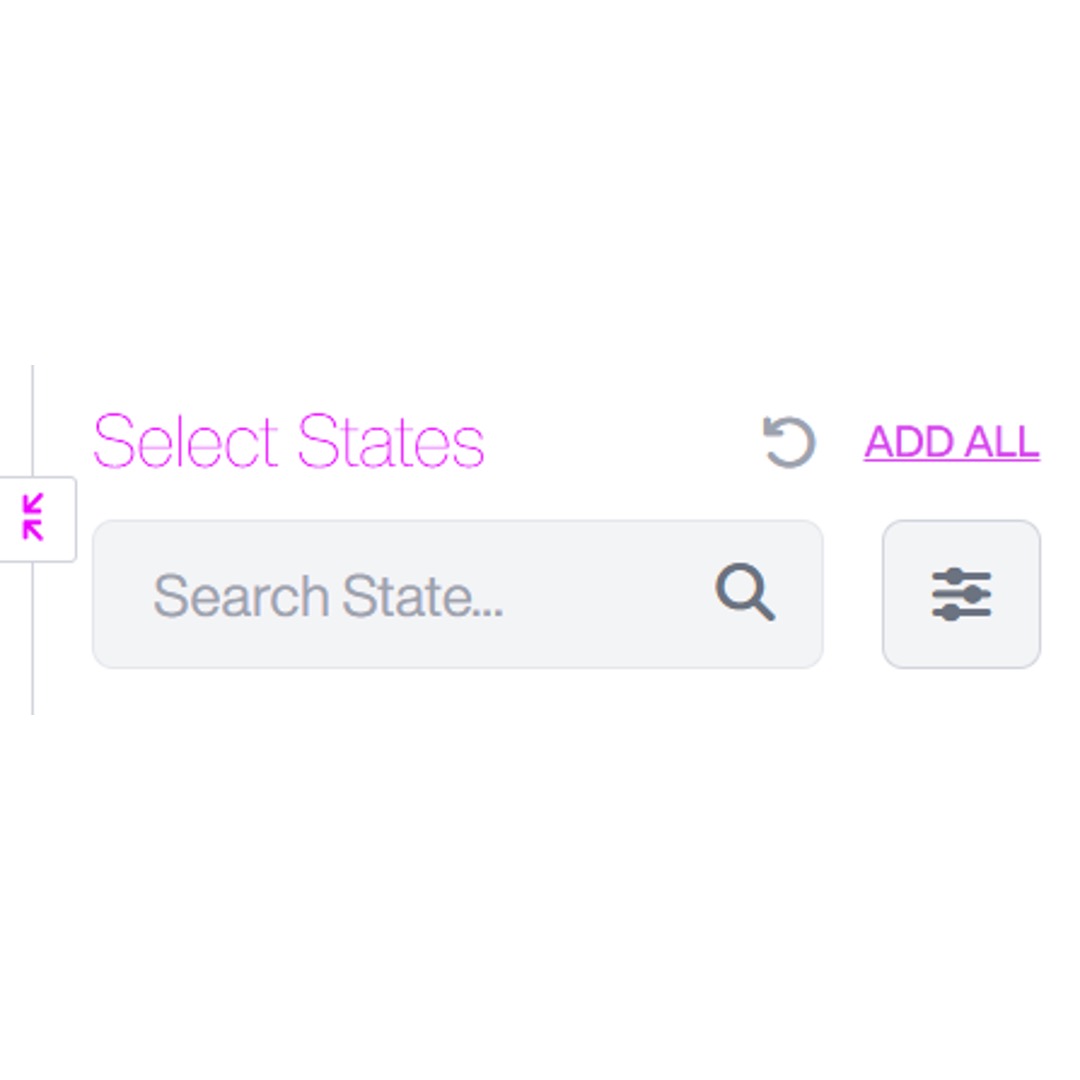
- You can expand the view of the state list by clicking the button with two diagonal arrows to the left of Select States:
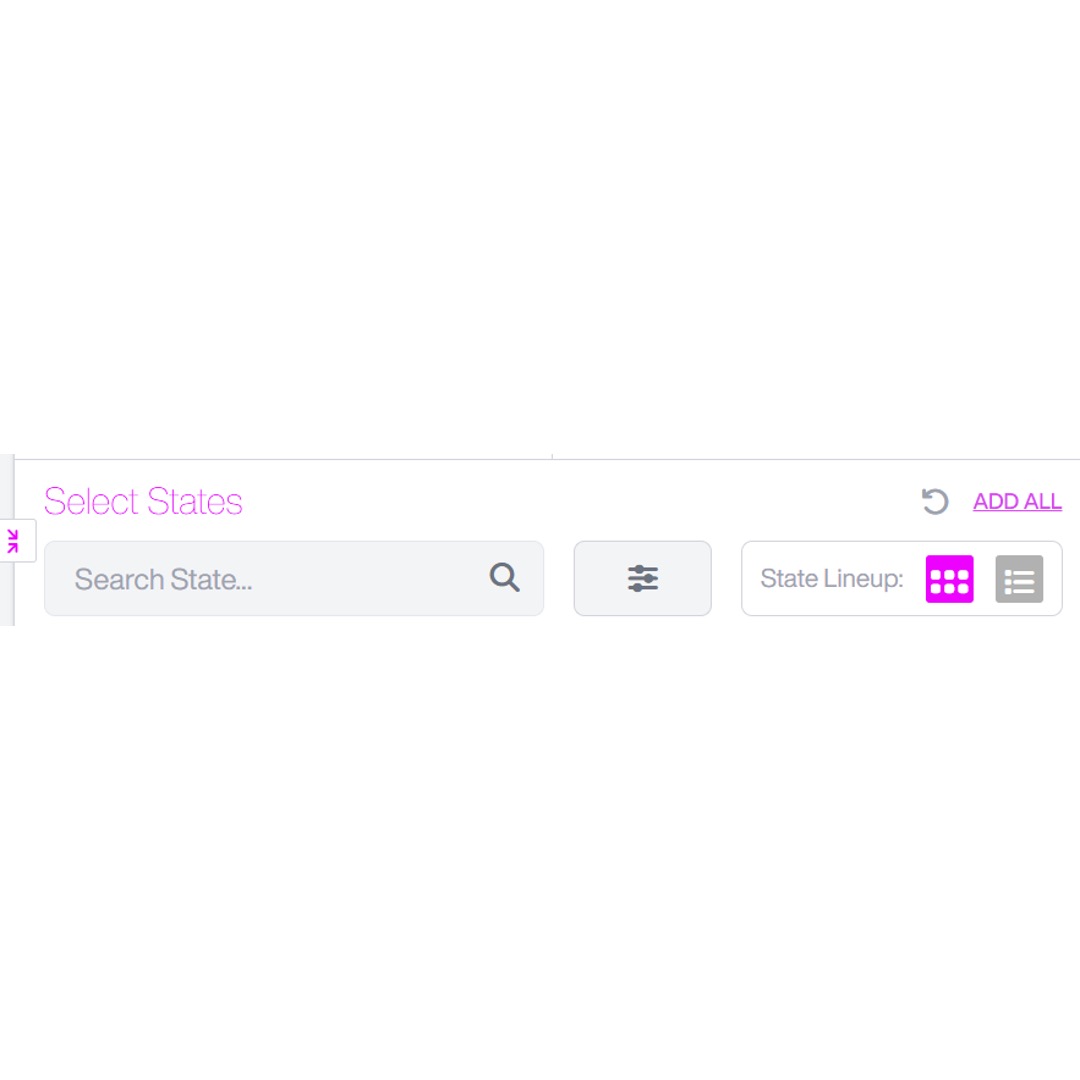
- This will open a pop-up displaying the full list of states:
- Use the search bar to search for a state using code or name.
- Click the filter icon next to the search bar to apply filters or change the sorting method.
- To change how the state list is displayed, use the State Lineup option to the right:
- The left button displays a left-to-right view, where the list is sorted alphabetically across rows.
- The right button displays a top-to-bottom view, where the list is sorted alphabetically down columns.
- Click a state to add it to Validation Fees or click Add All if you want all available states to appear in your quote.
- Click Recalculate to refresh the fee breakdown.
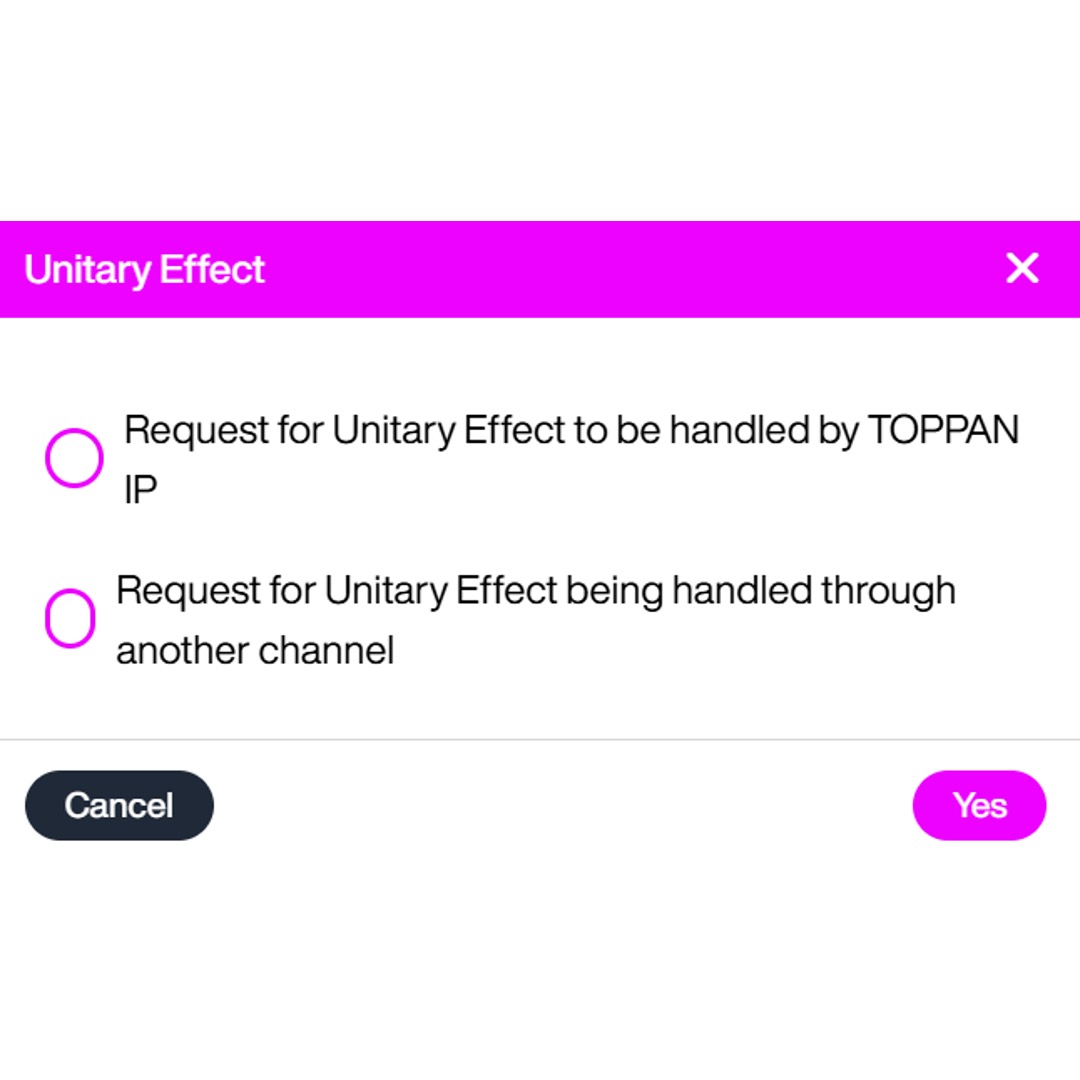
- If you want to add a Unitary Patent quote, click Add UP, and the following screen will appear:
- Choose whether you’d prefer to use TOPPAN IP or add UP via another channel.
- Using TOPPAN IP creates a fully integrated experience, with end-to-end support. This will default to TOPPAN IP also preparing the UP translations. If you do not want TOPPAN IP to prepare the UP translations, please uncheck the ‘TOPPAN IP to prepare UP translation’ box.
- Use another agent if you need local representation, if you require advice beyond standard filing, or you prefer to use an agent with an established relationship. This will default to TOPPAN IP not preparing the UP translations. If you want TOPPAN IP to prepare the UP translations, please check the ‘TOPPAN IP to prepare UP translation’ box.
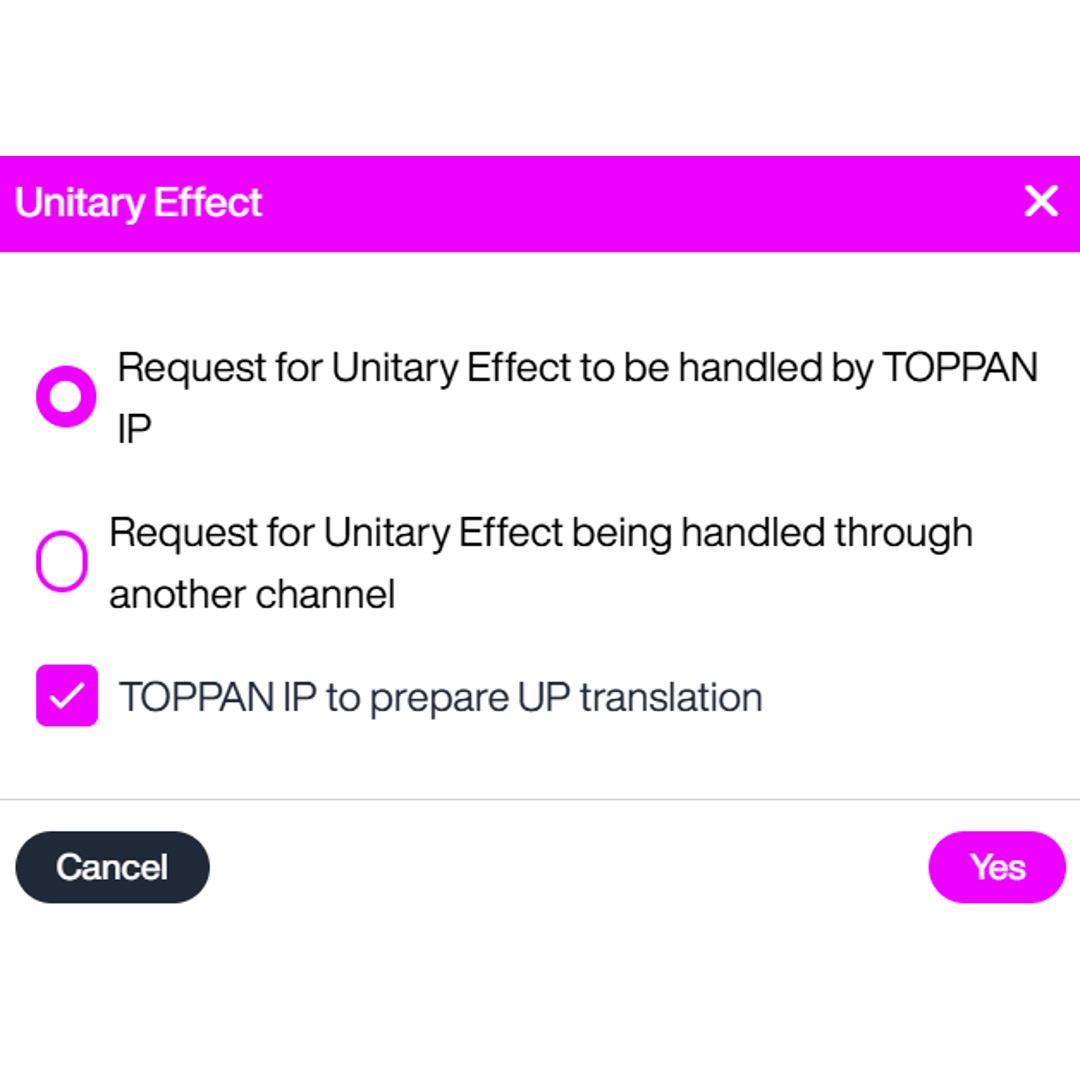
- Click Yes to save these changes.
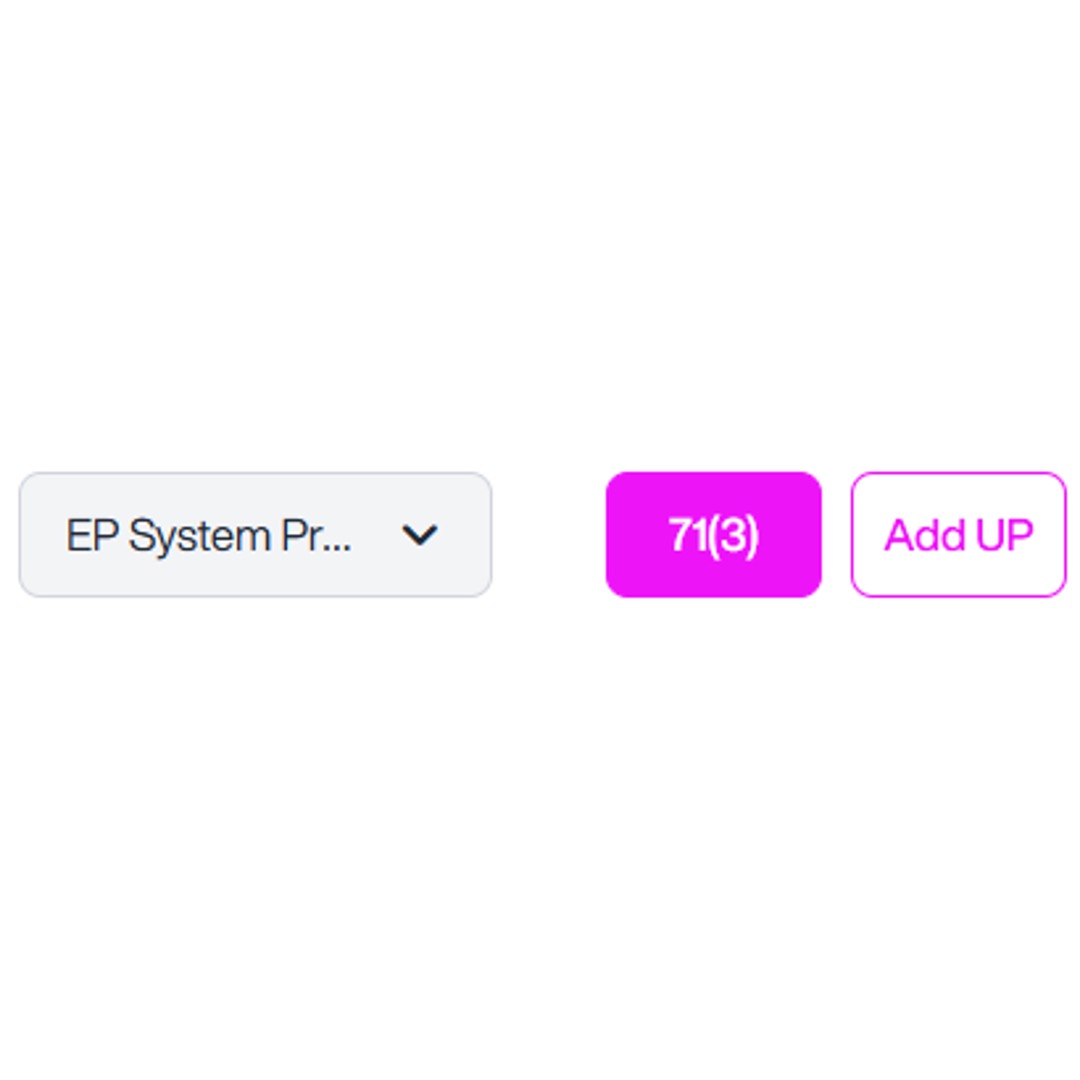
- If 71(3) formalities have not been completed in full or in part by your EP attorney, you can request them by clicking 71(3):
- You can request:
- A translation of the claims into one or both other official languages.
- EPO filing formalities via our EPO representative network agent.
- Click Yes to save these changes.
- Under Validation fees you’ll see per-state information:
- States included
- Agent name
- Translation fee
- Service fee
- Official fee
At the bottom, a summary row shows totals for translation, service, official fees, and the grand total. Click Place Order to place your order with TOPPAN IP.
Get New Quote- PCT
This section will guide you through the steps to generate a quote to file a patent via PCT National Phase. To generate a PCT National Phase Entry quote:
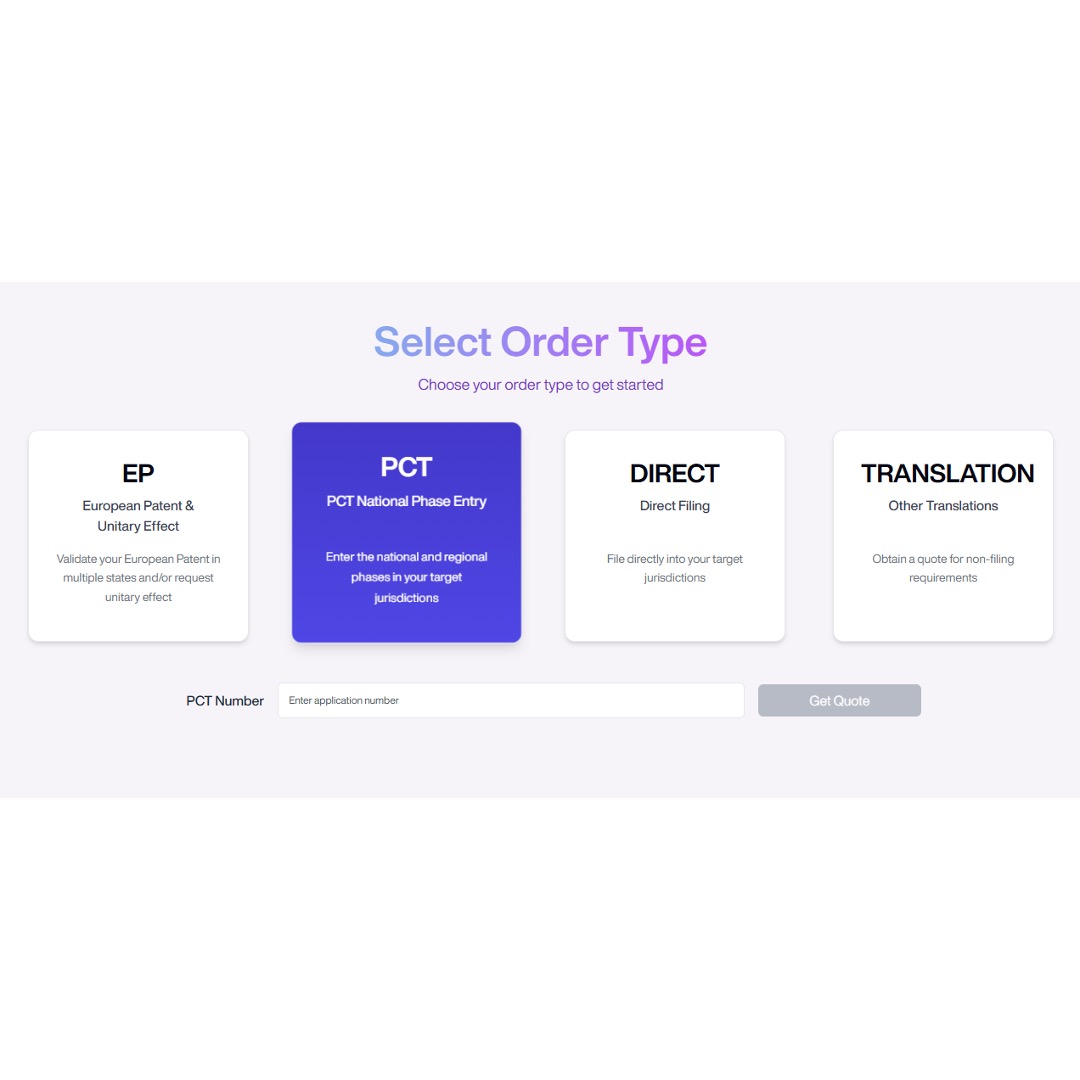
Get New Quote- PCT
- From the Select Quote or Order Type page, click PCT.
- Enter the PCT application number and click Get Quote.
- STREAM IP retrieves the application details and displays:
- Patent Number
- Publication Language
- Applicant
- Priority Claims
- Earliest Priority Date
- International Filing Date
- Publication Date
- Entity Details
- 30-Month Due Date
- 31-Month Due Date
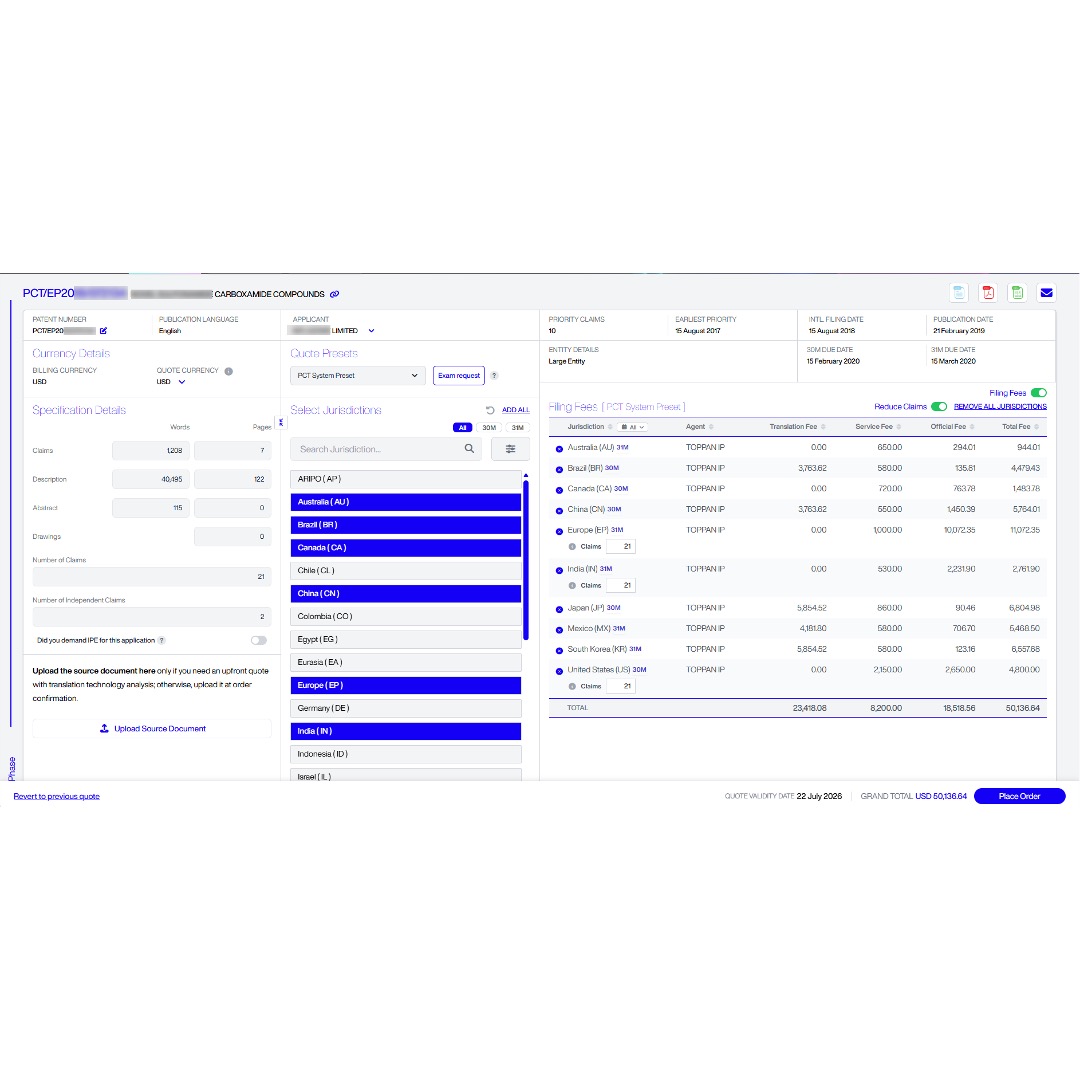
Currency Details
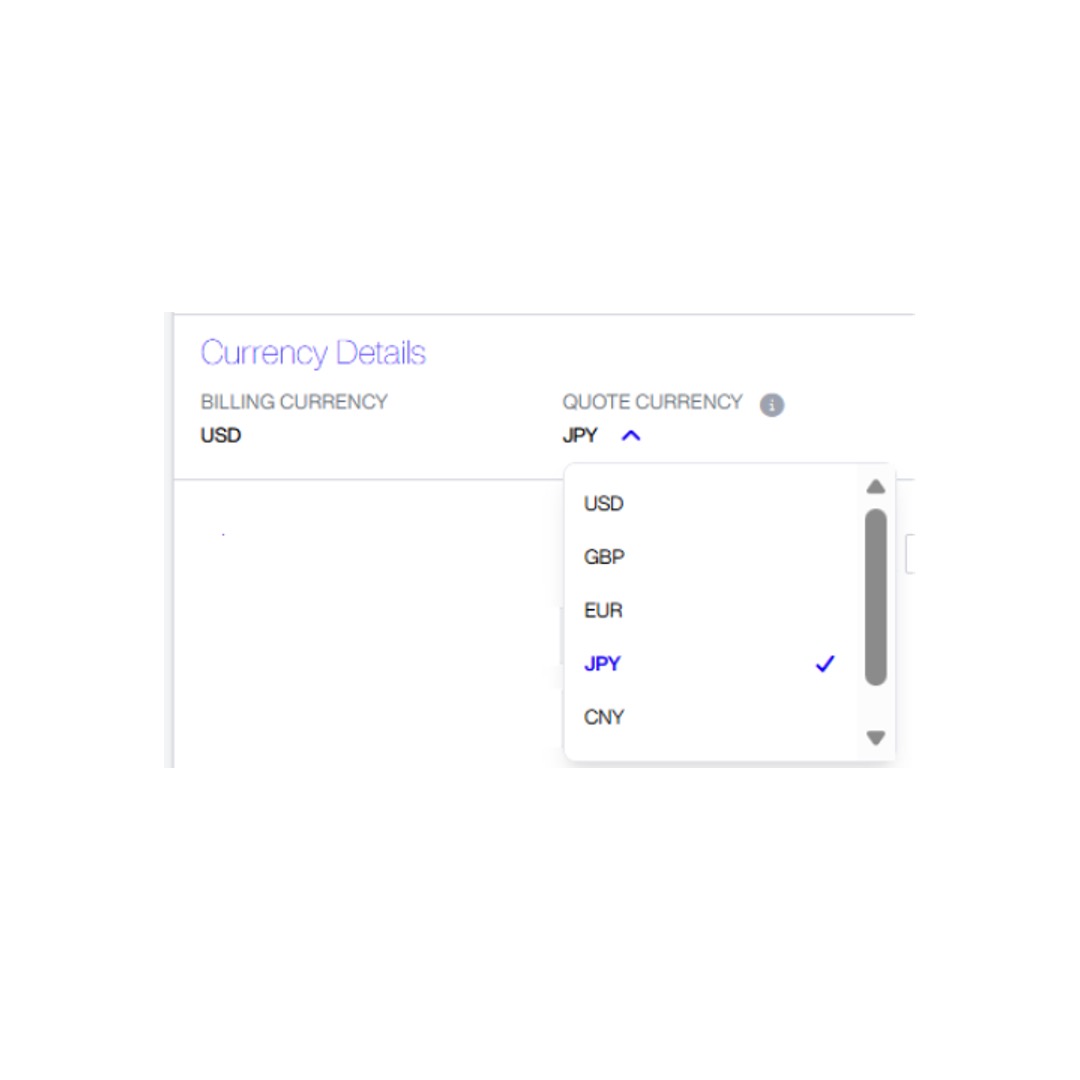
- The Currency Details section displays:
- Billing Currency – your account’s default billing currency.
- Quote Currency – the currency used to display the current quote.
- Select a different Quote Currency if required and click Recalculate.
- The fee table automatically refreshes to display values in the selected currency.
Note: Changing the Quote Currency only affects how the current quote is displayed. Your invoice will always be issued in your account Billing Currency, regardless of the Quote Currency selected.
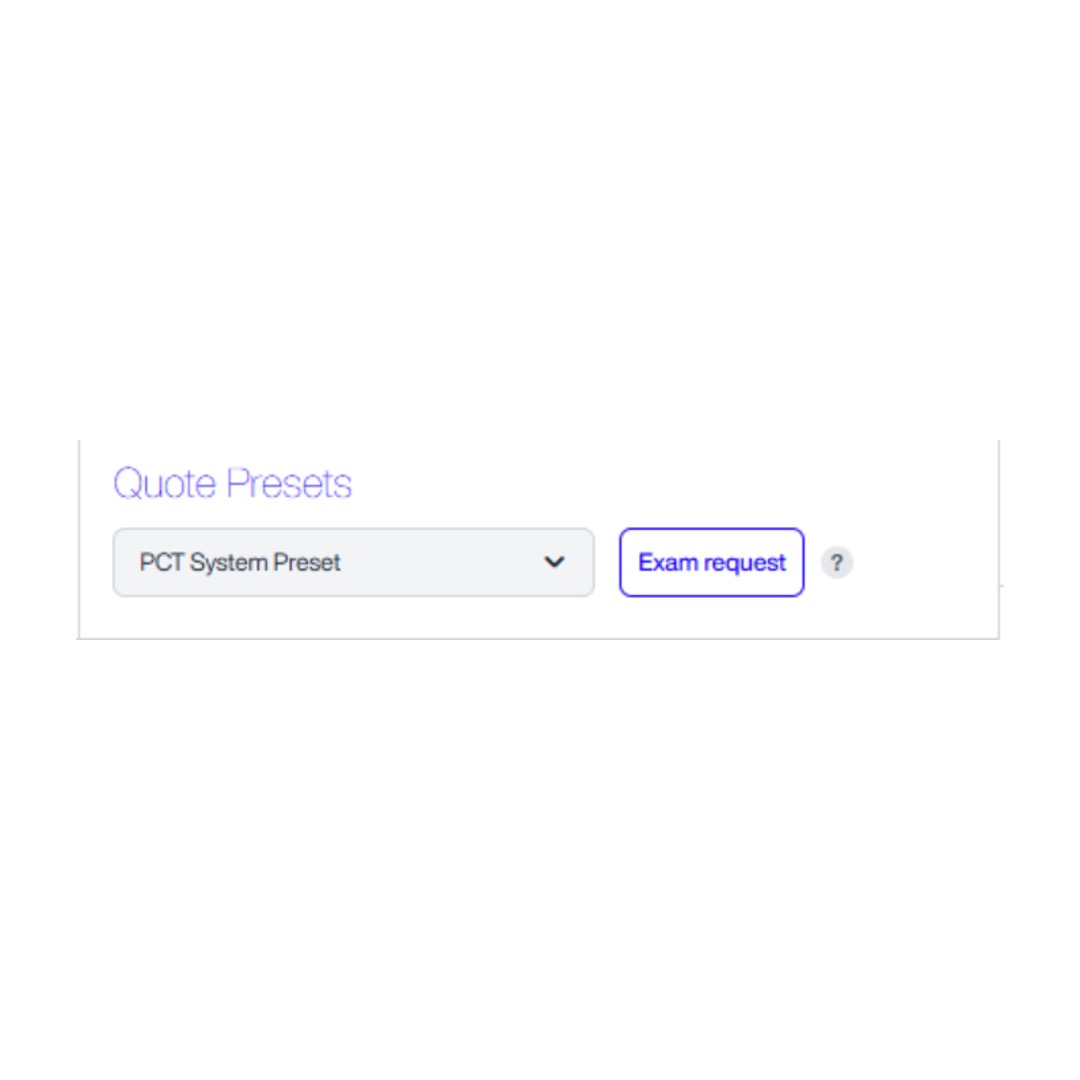
Quote Preset
- The Quote Presets section displays the preset currently applied to the quote.
- Select another preset from the drop-down if required.
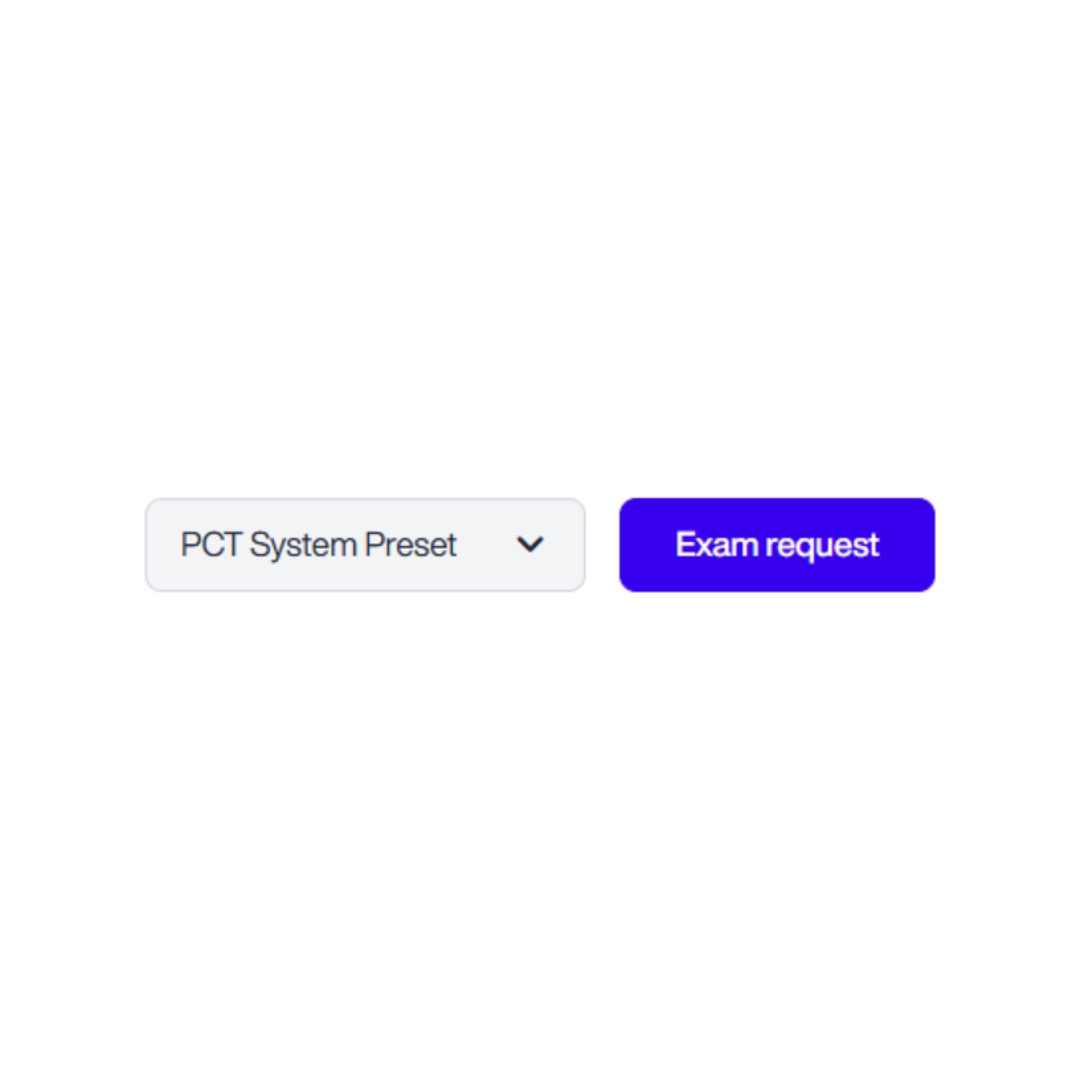
- Click Exam Request where examination requests are applicable.
Tip: Hover over the information icon beside Exam Request for additional guidance.
- For help with setting up a preset, please refer to the ‘Creating a Custom Preset’ section of this guide.
- If you do not want to use a default or custom for the jurisdictions included in the quote, you can either click Remove All Jurisdictions or click on a highlighted jurisdiction to remove it.
Specification Details
- Under Specification Details, you can view or overwrite the details:
- Claims
- Description
- Abstract
- Drawings
- Number of Claims
- Number of Independent Claims
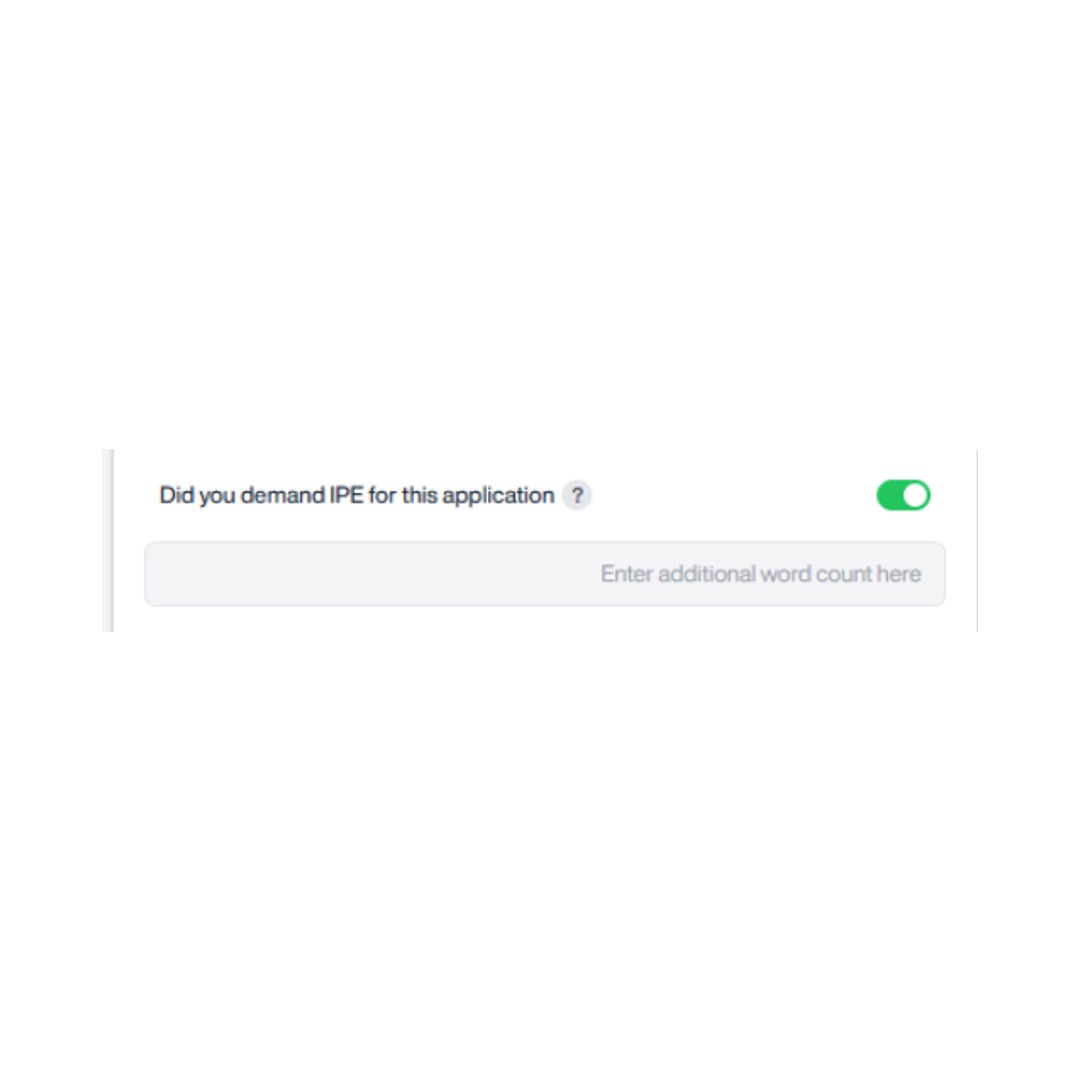
- If Did you demand IPE for this application? is set to Yes, enter the Additional Word Count where applicable.
Tip: Hover over the information icon beside IPE Demand for guidance on when this option should be used.
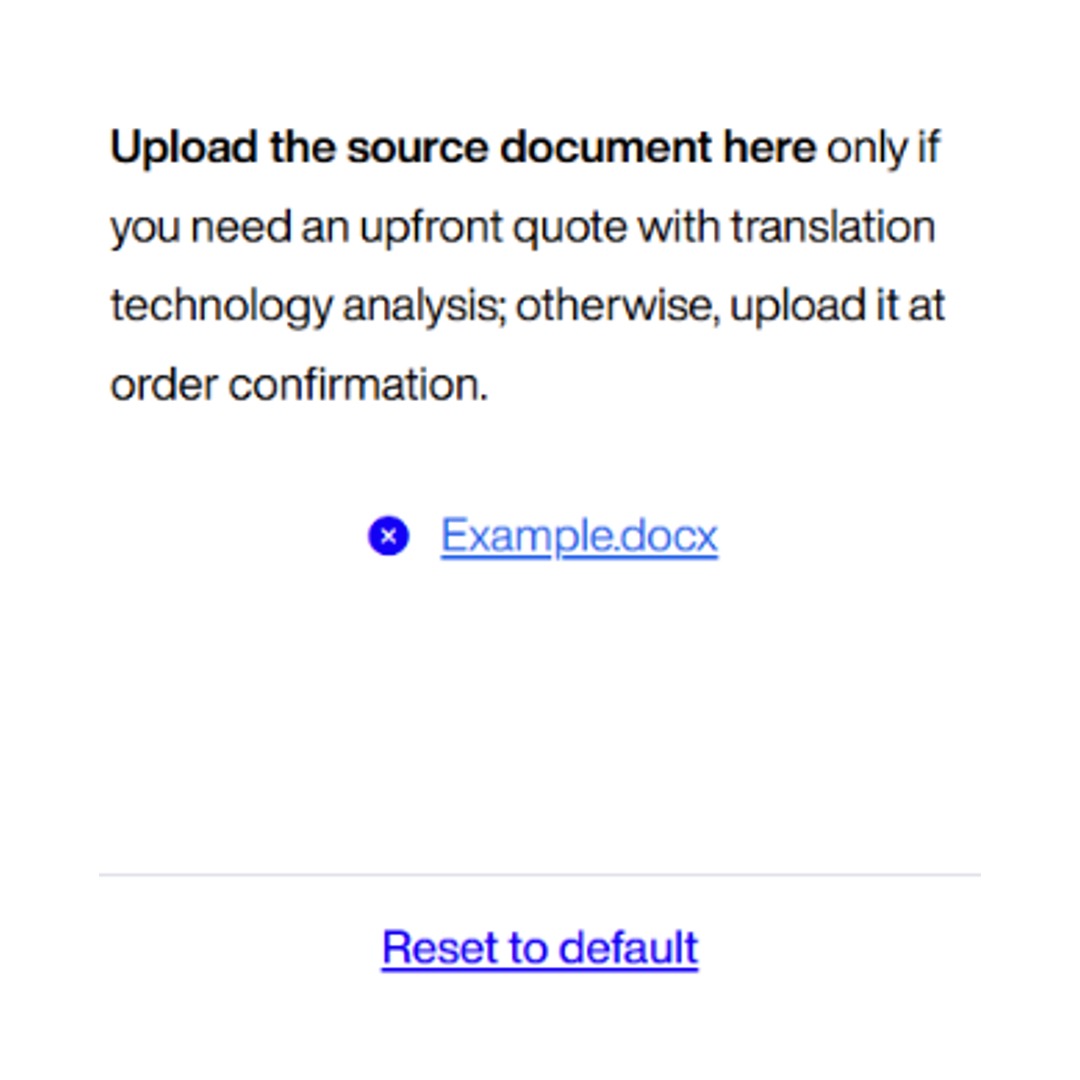
- Upload the source document if you require an upfront quote with Translation Technology Analysis. Otherwise, upload it during Order Confirmation
- To remove a source document from the platform, click the X next to the document name.
- To revert the Specification Details to their original settings, click Reset to Default, then confirm by selecting Yes.
Select Jurisdiction
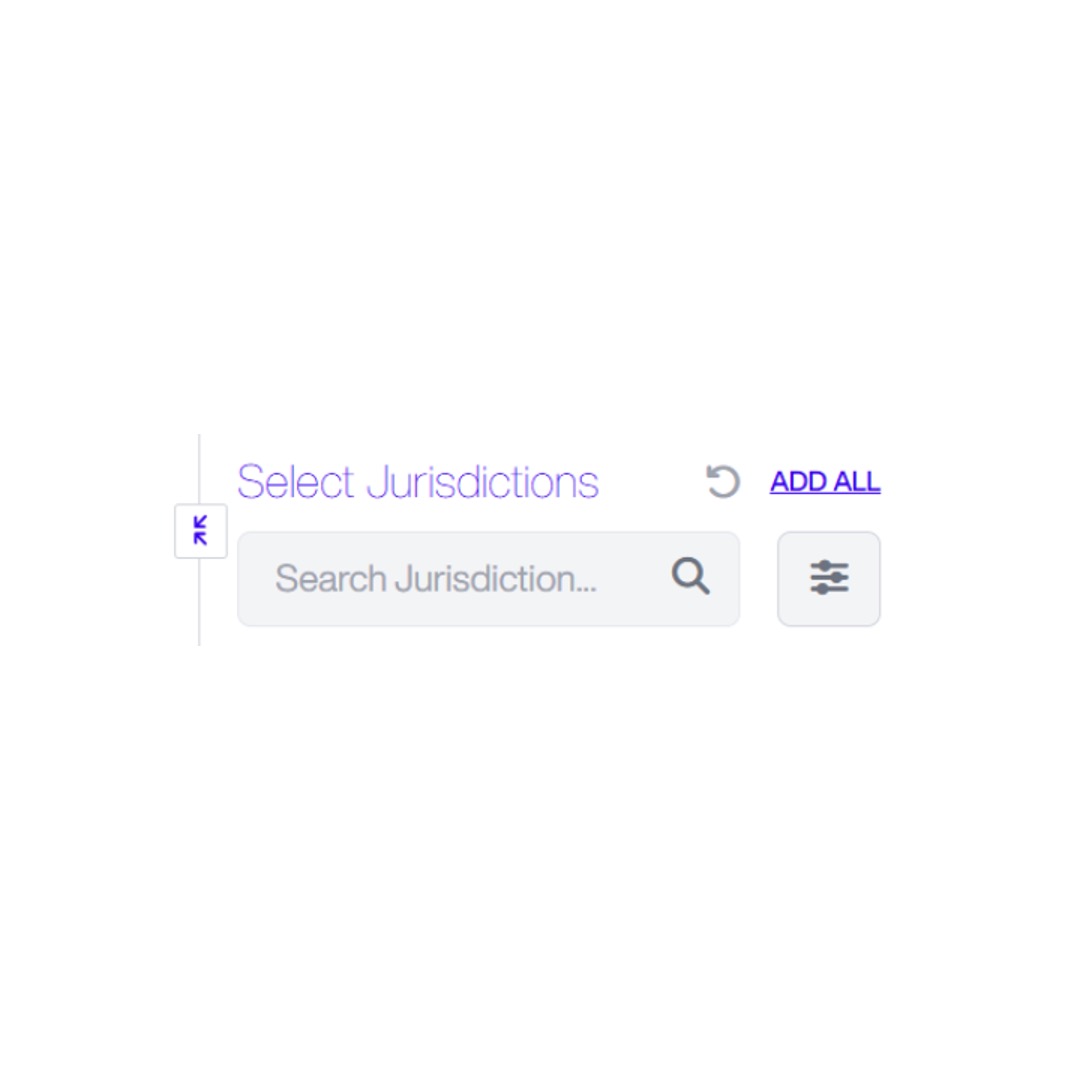
- In Select Jurisdictions, search or scroll to find states.
- You can expand the view of the state list by clicking the button with two diagonal arrows to the left of select jurisdictions
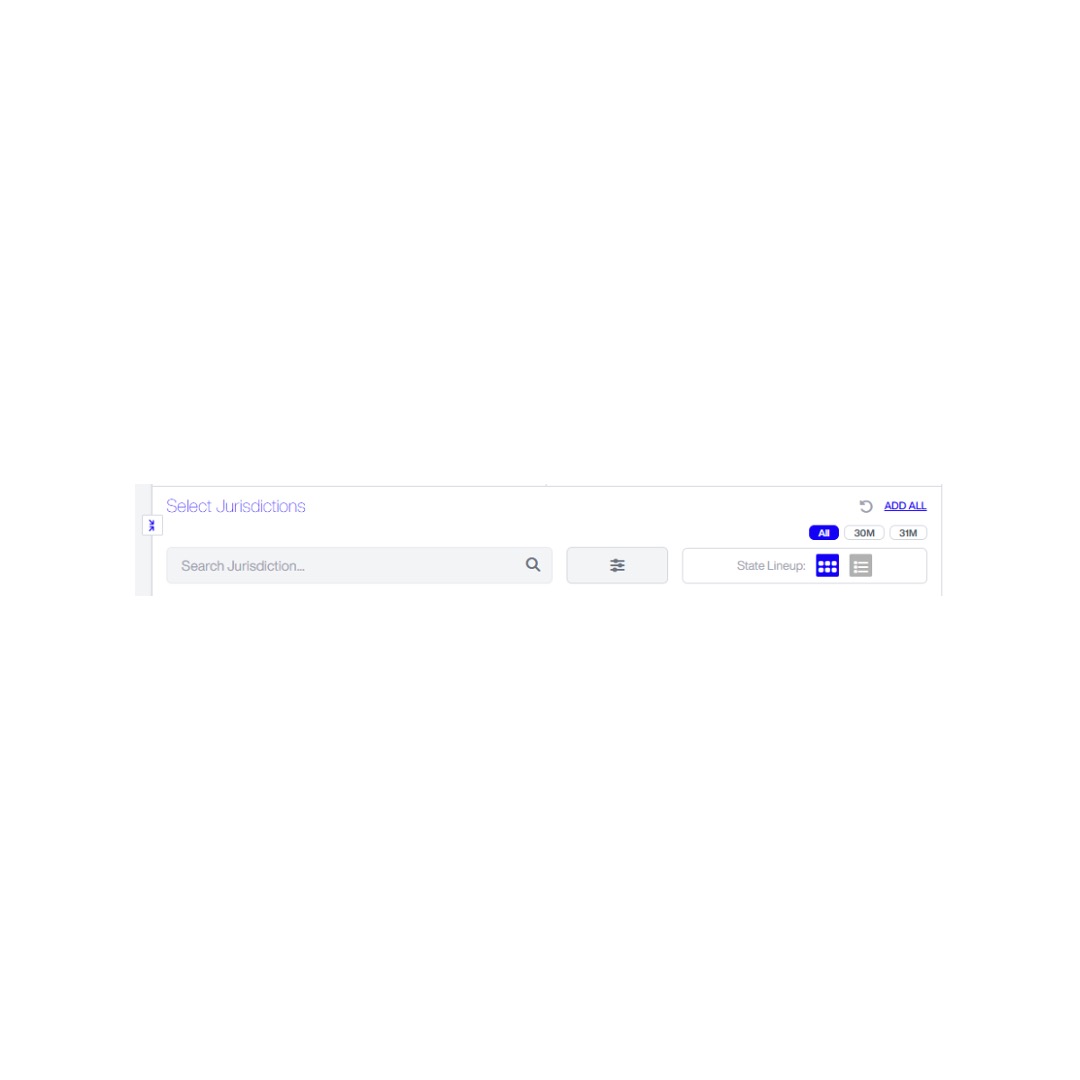
- This will open a pop-up displaying the full list of filing jurisdictions
- Use the search bar to search for a jurisdiction using code or name.
- Click the filter icon next to the search bar to apply filters or change the sorting method.
- To change how the state list is displayed, use the State Lineup option to the right:
- The left button displays a left-to-right view, where the list is sorted alphabetically across rows.
- The right button displays a top-to-bottom view, where the list is sorted alphabetically down columns.
- Click a jurisdiction to add it to the quote or click Add All if you want all available jurisdictions to appear in your quote.
- Use the 30M / 31M filter to display jurisdictions based on their applicable national phase deadline.
- Click the Filter icon to apply additional jurisdiction filters where required.
- Click Recalculate to refresh the fee breakdown.
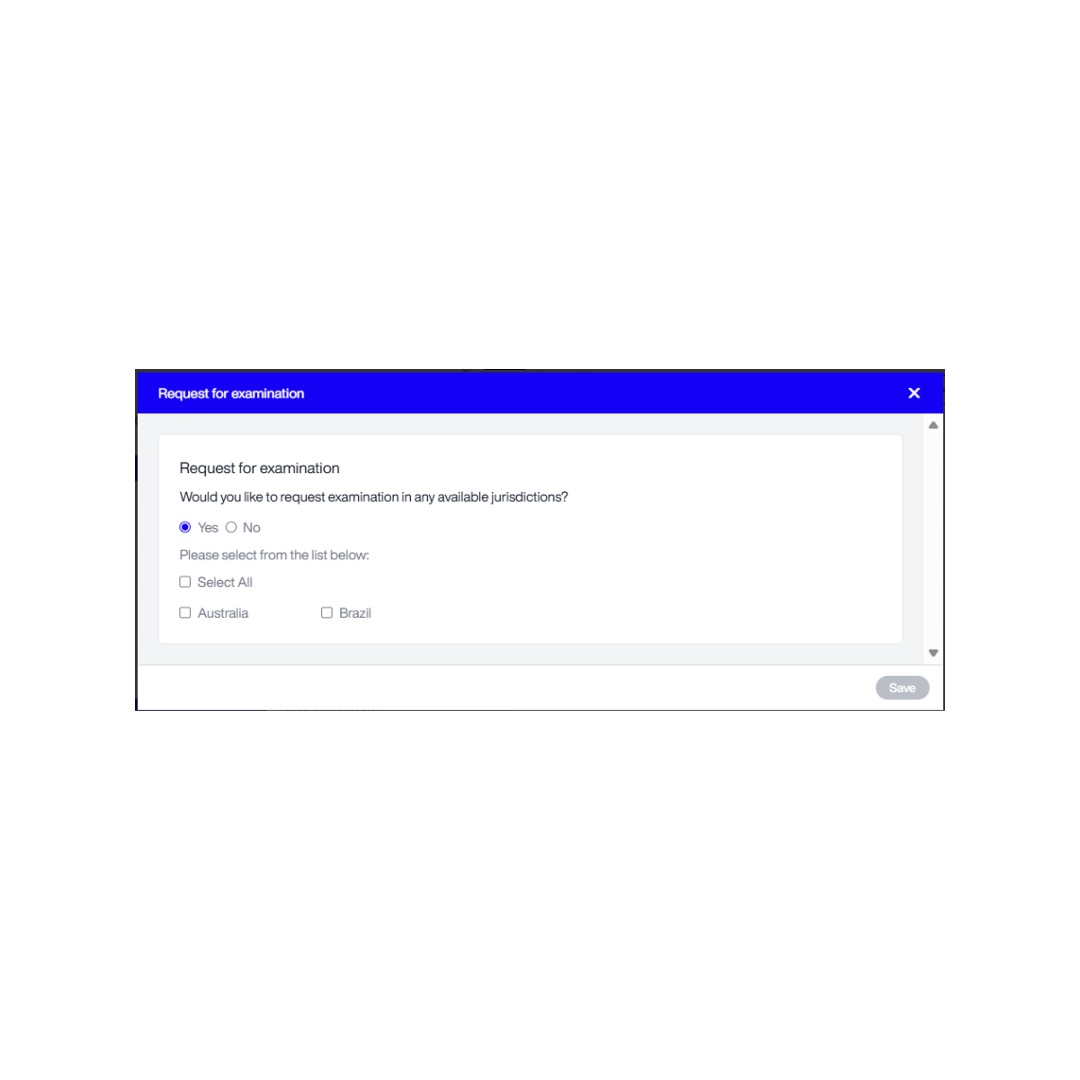
If you have selected filing services as well, this further information is required:
- To request an examination, click Exam Request
- Check the box next to each state where you want to request examination.
- Alternatively, click Select All to request examination in all available jurisdictions.
- Click Save to confirm your request for examination.
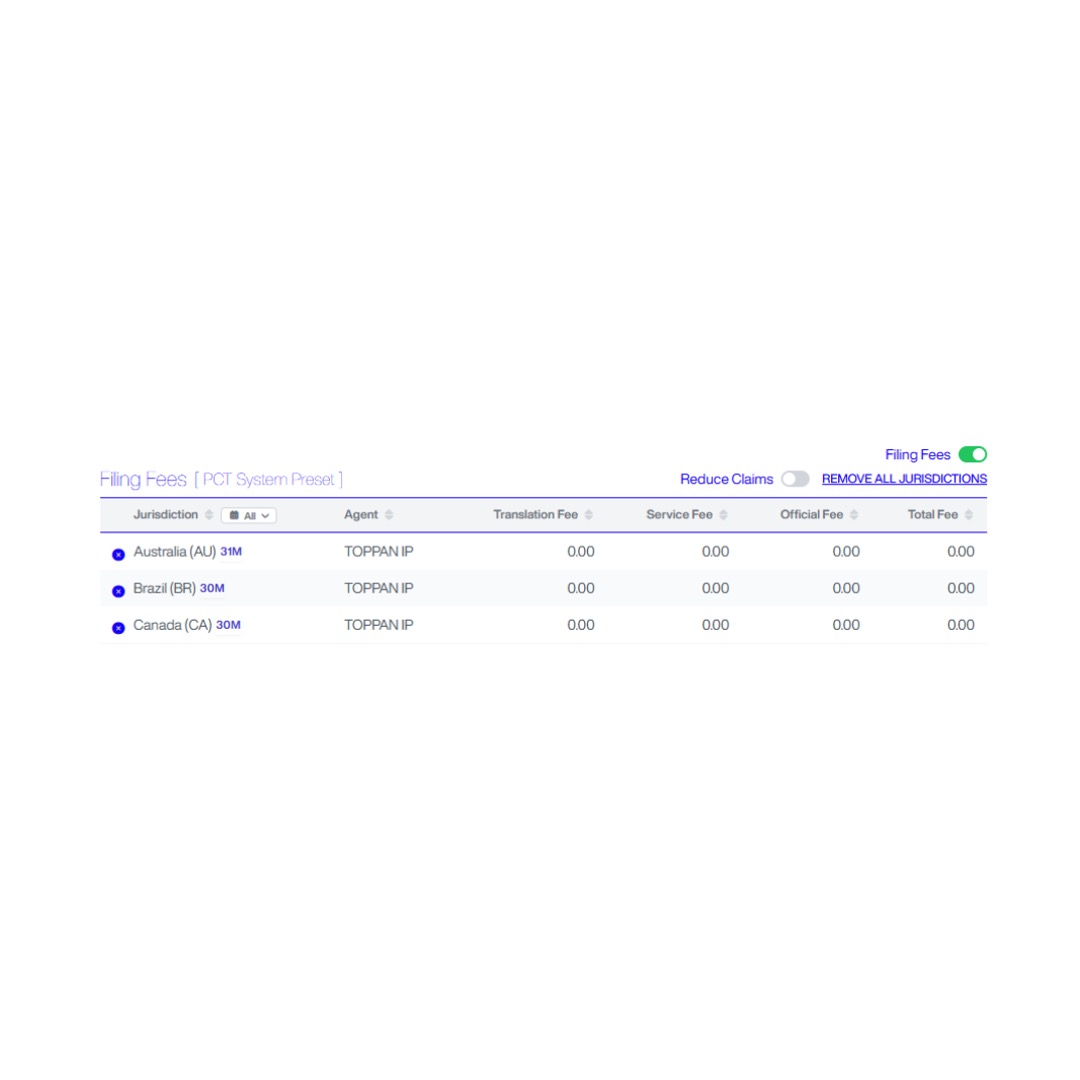
Translation & Filing Fees
- By default, the Filing Fees toggle is enabled. The fee table displays both translation and filing fees for the selected jurisdictions.
- To view translation fees only, switch the Filing Fees toggle Off.
- When the Filing Fees toggle is turned off, the fee table changes to display the Translation Fees
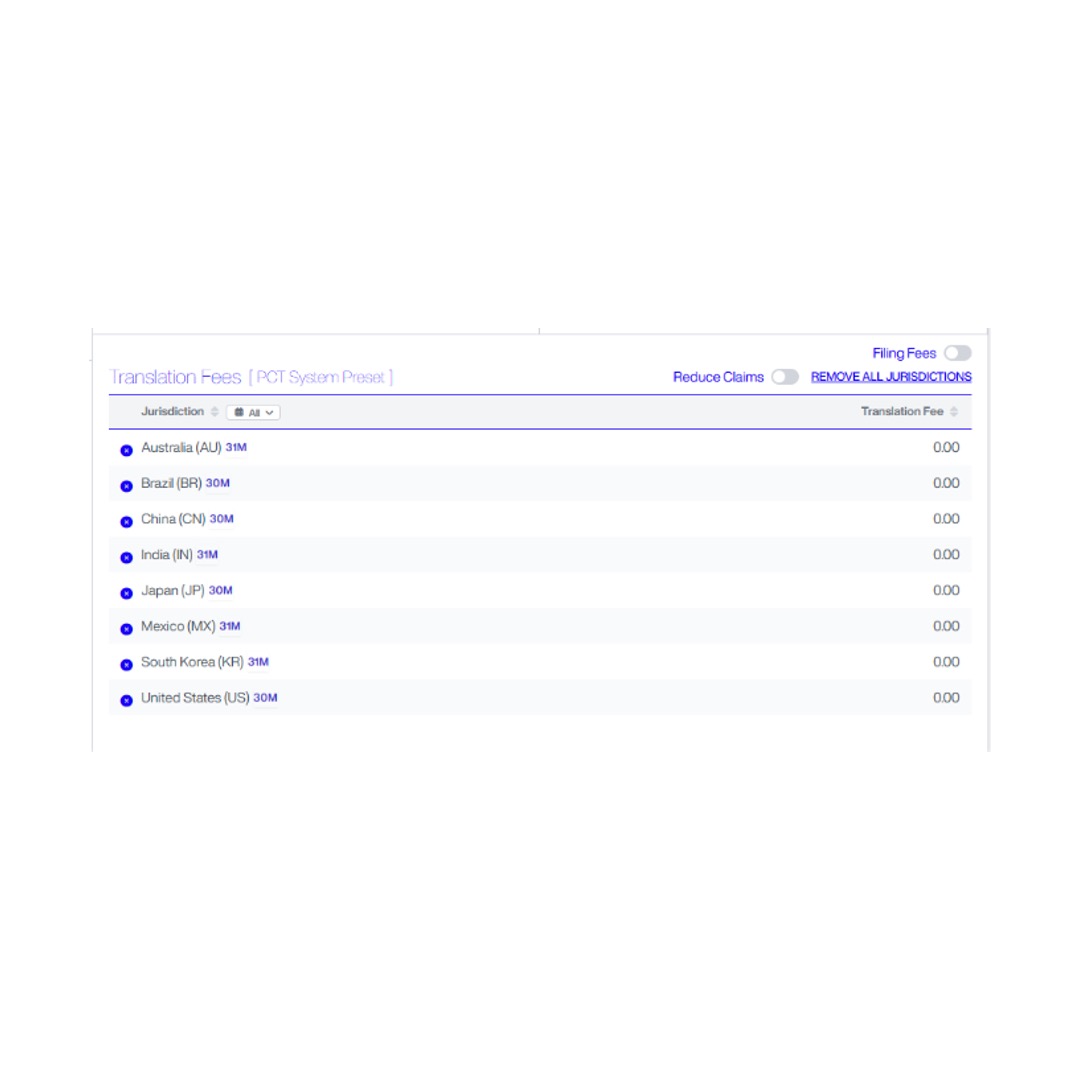
- Use the Reduce Claims toggle where applicable. Turn the Reduce Claims toggle On if you want to enter a different claim count for one or more jurisdictions.
- When enabled, an additional Claims field is displayed beneath each applicable jurisdiction in the fee table.
- Enter the required claim count for each jurisdiction where the number of claims differs from the application’s default claim count and click
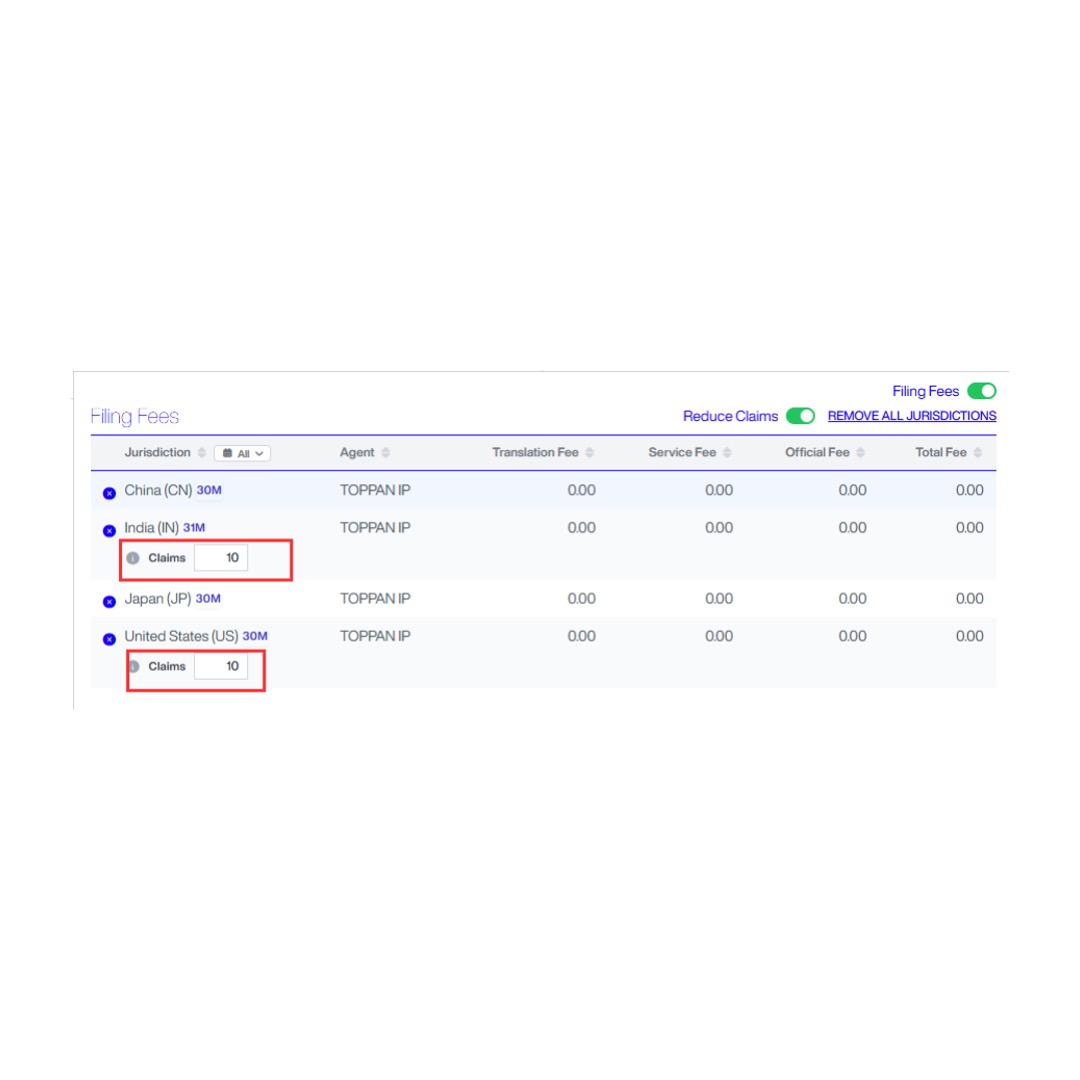
- Click Remove All Jurisdictions to clear all selected jurisdictions.
- If Filing Agents have been configured in Account Management, the default Filing Agent for each jurisdiction is displayed automatically.
- Review the fee table, which includes:
- Translation Fee
- Service Fee
- Official Fee (when Filing Fees are enabled)
- Total Fee
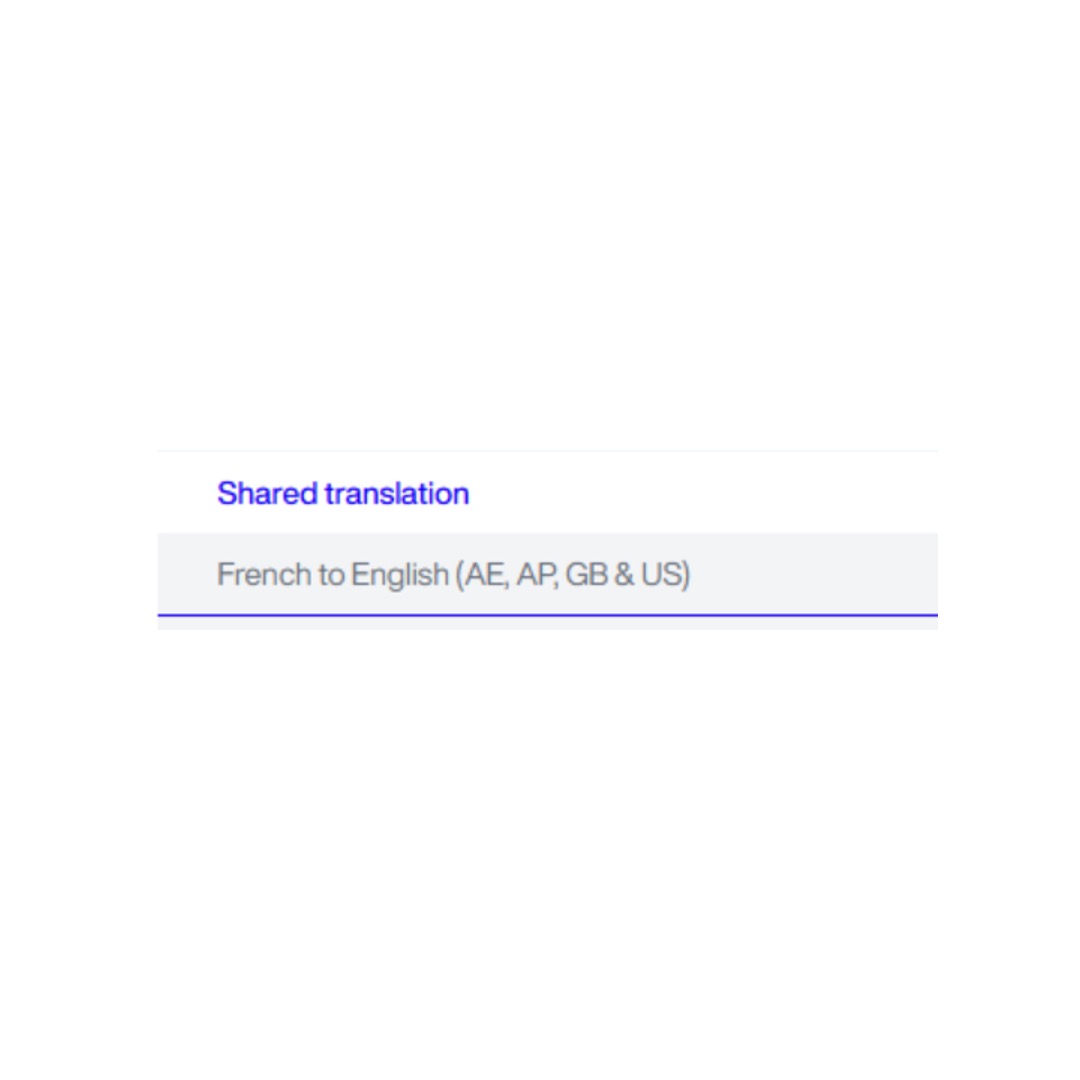
- Where multiple jurisdictions share the same translation requirements, STREAM IP groups them under a Shared Translation
- The shared translation fee is displayed once and applies to all jurisdictions listed beneath it (for example, French to English (AE, AP, GB & US)).
- This prevents duplicate translation charges while clearly showing which jurisdictions share the same translation.
Export Quote
Once you have reviewed the fee table, you can export the quote using the available Export options.
- Click Export and select one of the available options:
- PDF
- Word
- Excel
- Email
- The exported document contains the current quote information based on your selected jurisdictions and quote settings.
Note: The exported quote reflects the current quote configuration, including the selected Quote Currency.
Review the totals displayed at the bottom of the table before continuing. Click Place Order to place your order with TOPPAN IP.
Get New Quote- Direct Filing
This section will guide you through the steps to generate a quote to file a patent via Direct Filing.
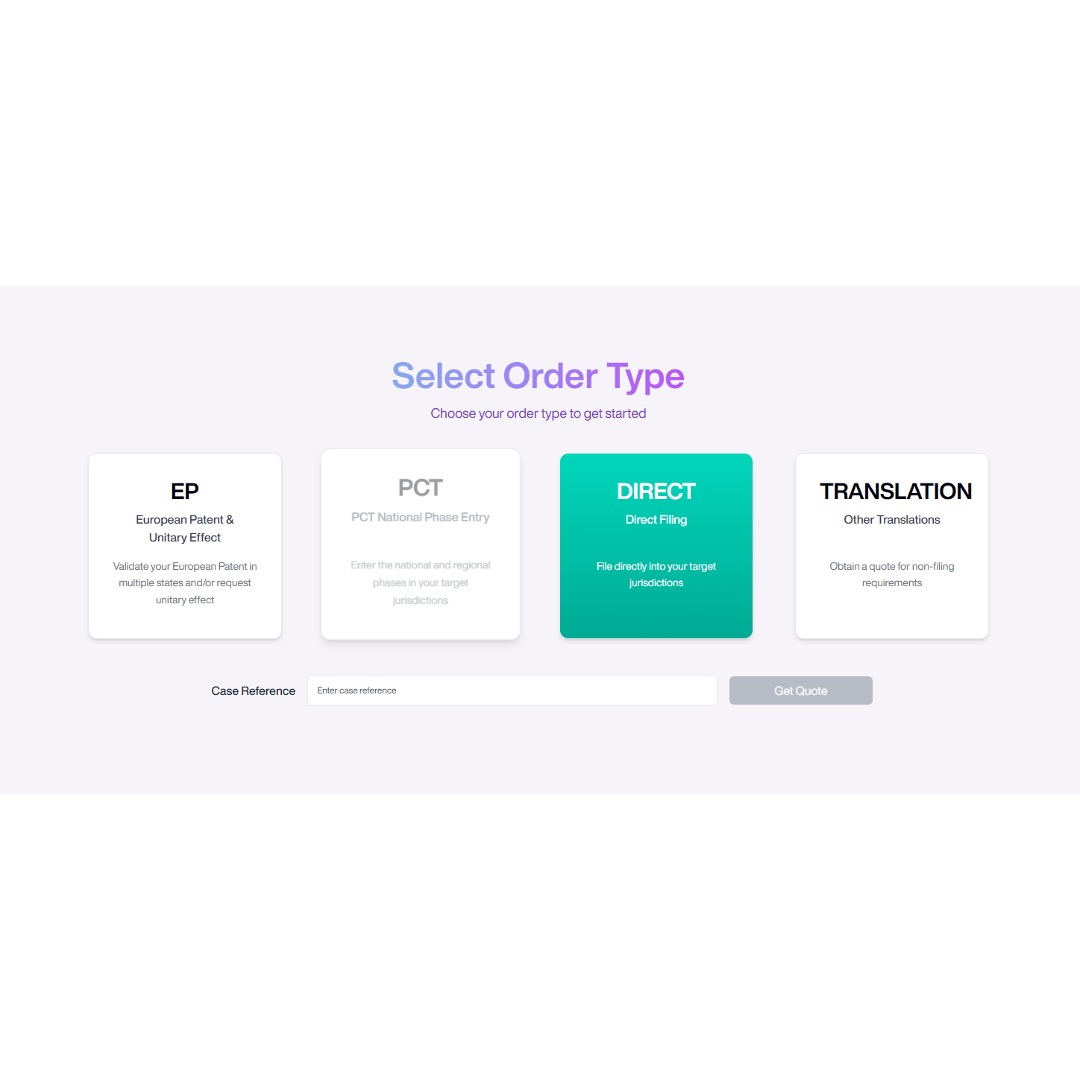
Get New Quote- Direct Filing
This section will guide you through the steps to generate a quote to file a patent via Direct Filing.
- Select Get New Quote from the drop-down box on Quote:
- Click the Direct Filing button, and an input box will appear for your case reference:
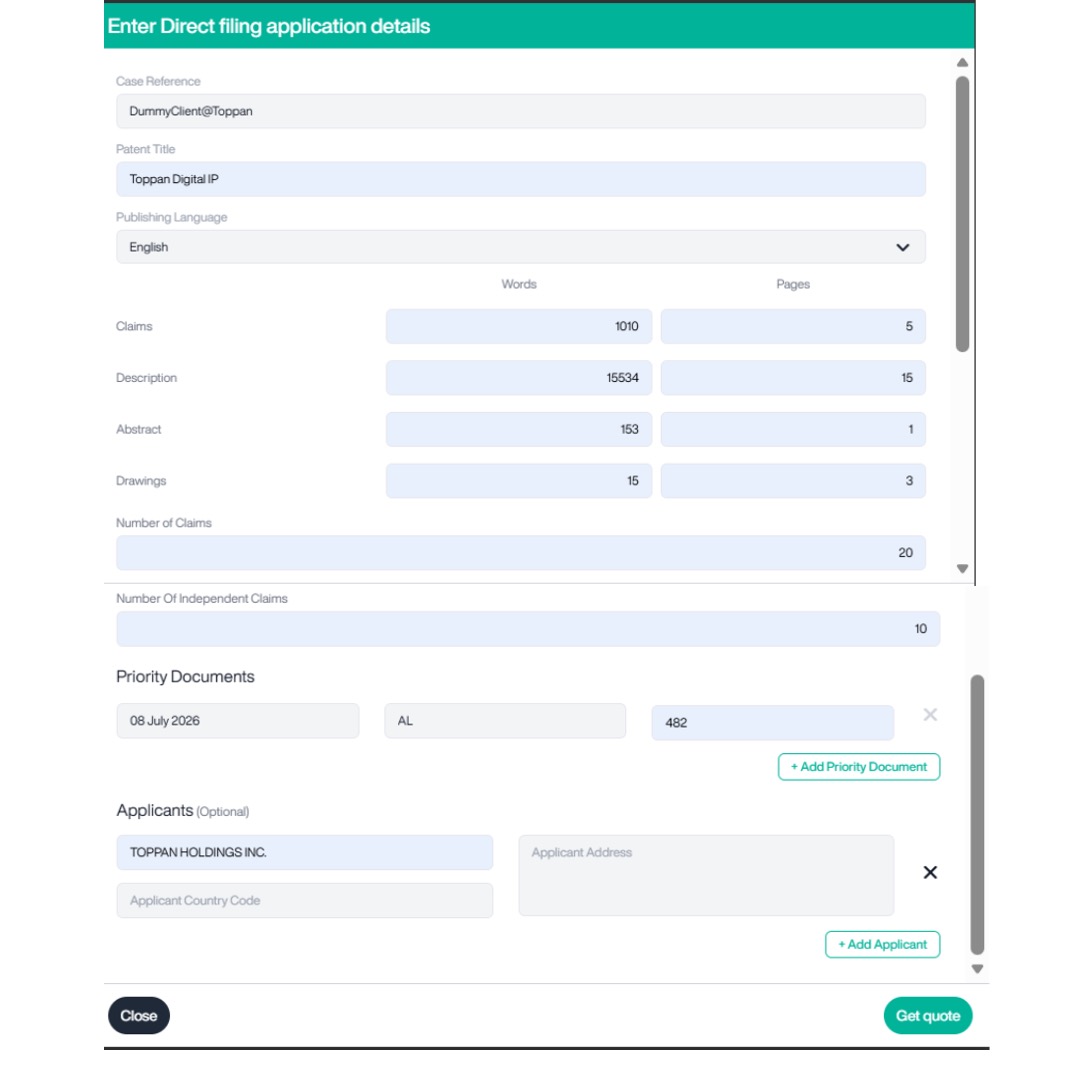
- Enter the Case Reference. This becomes the unique identifier due to the absence of a published patent number.
- Click Get Quote to open the Direct Filing quote configuration page.
- You will need to fill in information about your patent, including:
- Patent Title.
- Publishing Language.
- Pages and Words of Claims, Description, Abstract, Drawings, and SEQ Listings.
- Number of Claims.
- Number of Independent Claims.
- Priority Date.
- Priority Count.
- Priority Number.
- Applicant Name.
- Applicant Country.
- Applicant Address.
- Select Get quote to see the quote.
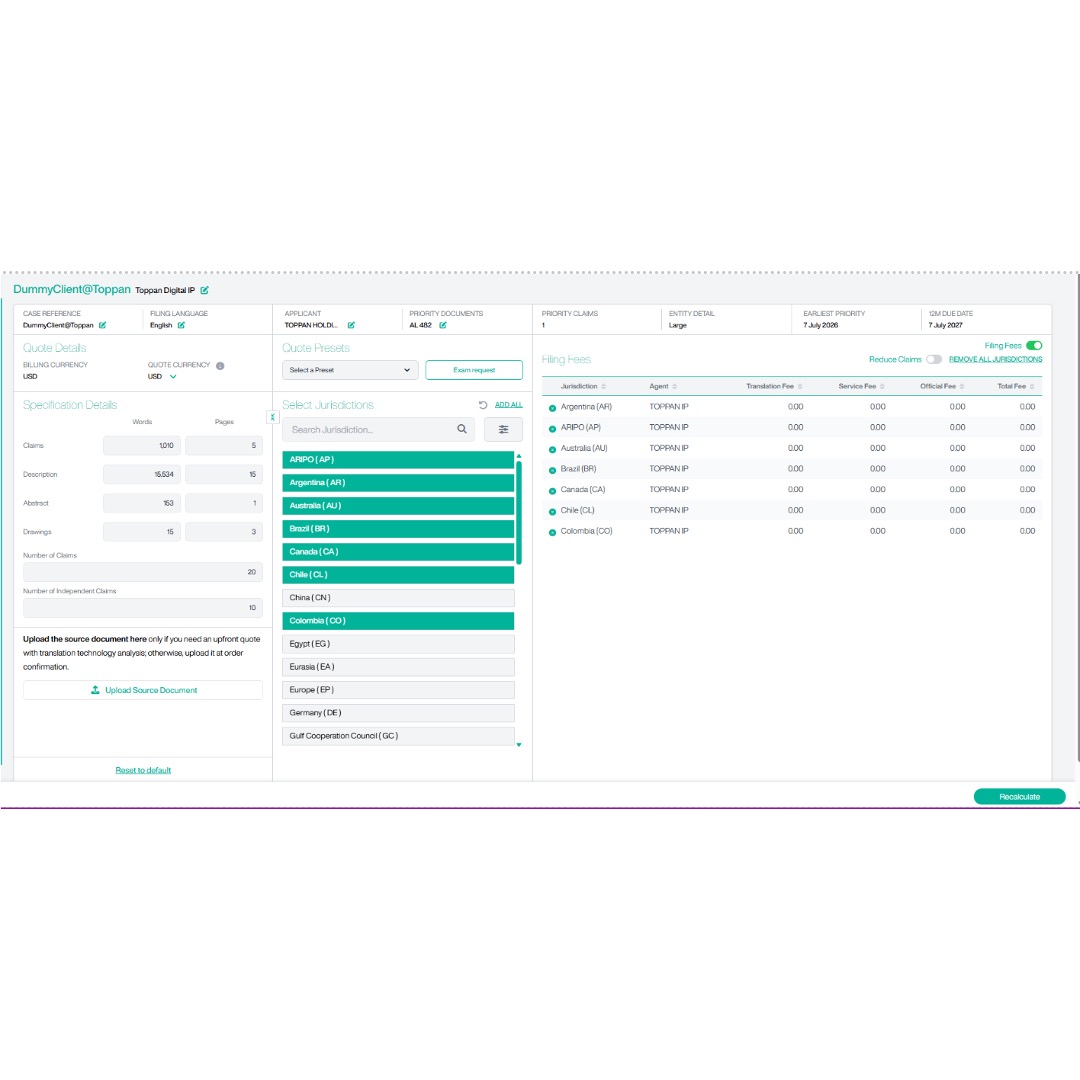
Application Details
The application details are displayed at the top of the page to provide a summary of the Direct Filing application. Depending on the information entered, this may include:
- Case Reference
- Filing Language
- Applicant
- Priority Documents
- Priority Claims
- Entity Detail
- Earliest Priority Date
- 12-Month Due Date
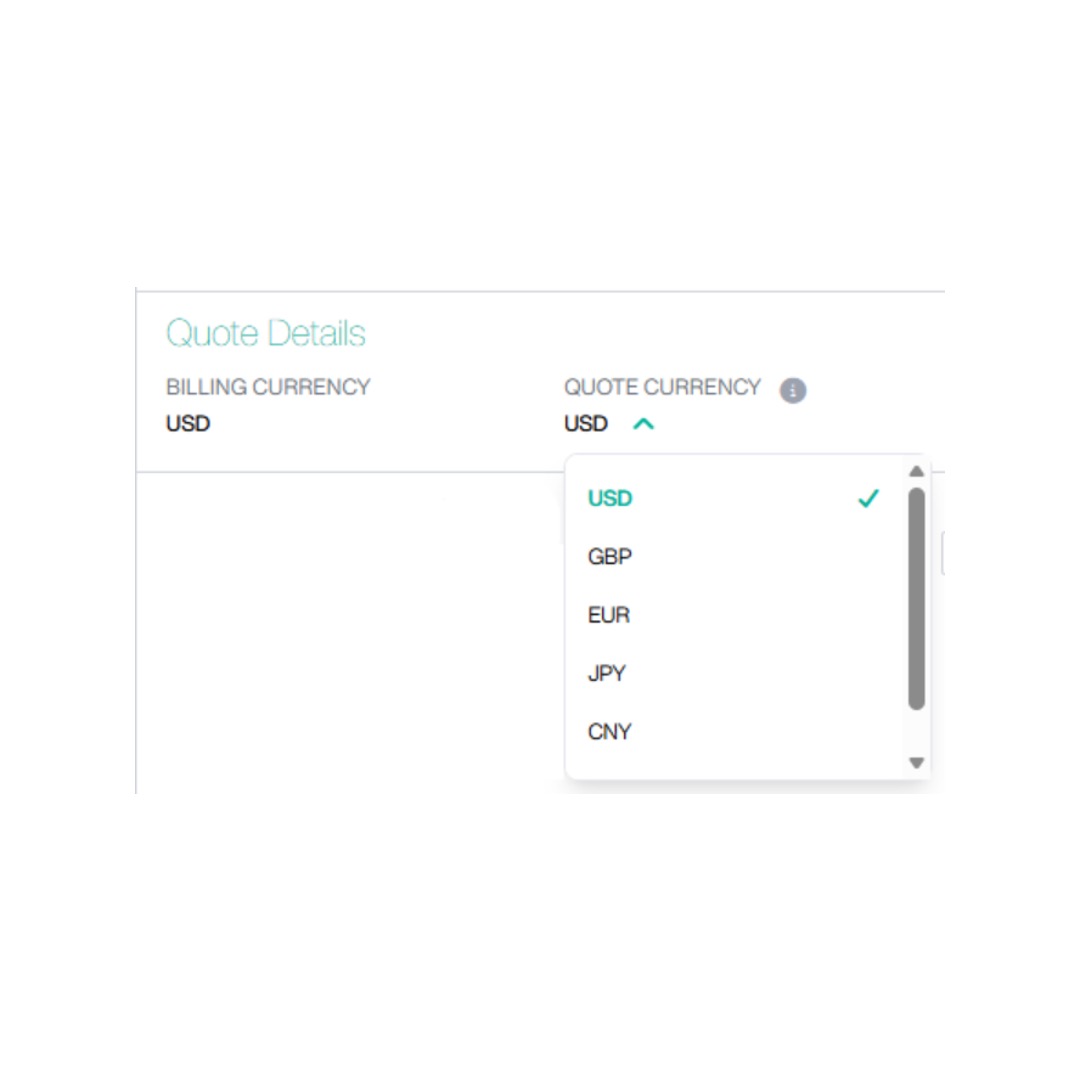
Quote Details
The Quote Details section displays the billing currency associated with your account and allows you to select the currency in which the quote will be displayed.
- Billing Currency
The Billing Currency is determined by your account settings and cannot be changed when generating a quote.
- Quote Currency
Use the Quote Currency drop-down to select the currency in which you would like the quote to be displayed.
- To remove a source document from the platform, click the X next to the document name.
- To revert the Specification Details to their original settings, click Reset to Default, then confirm by selecting Yes.
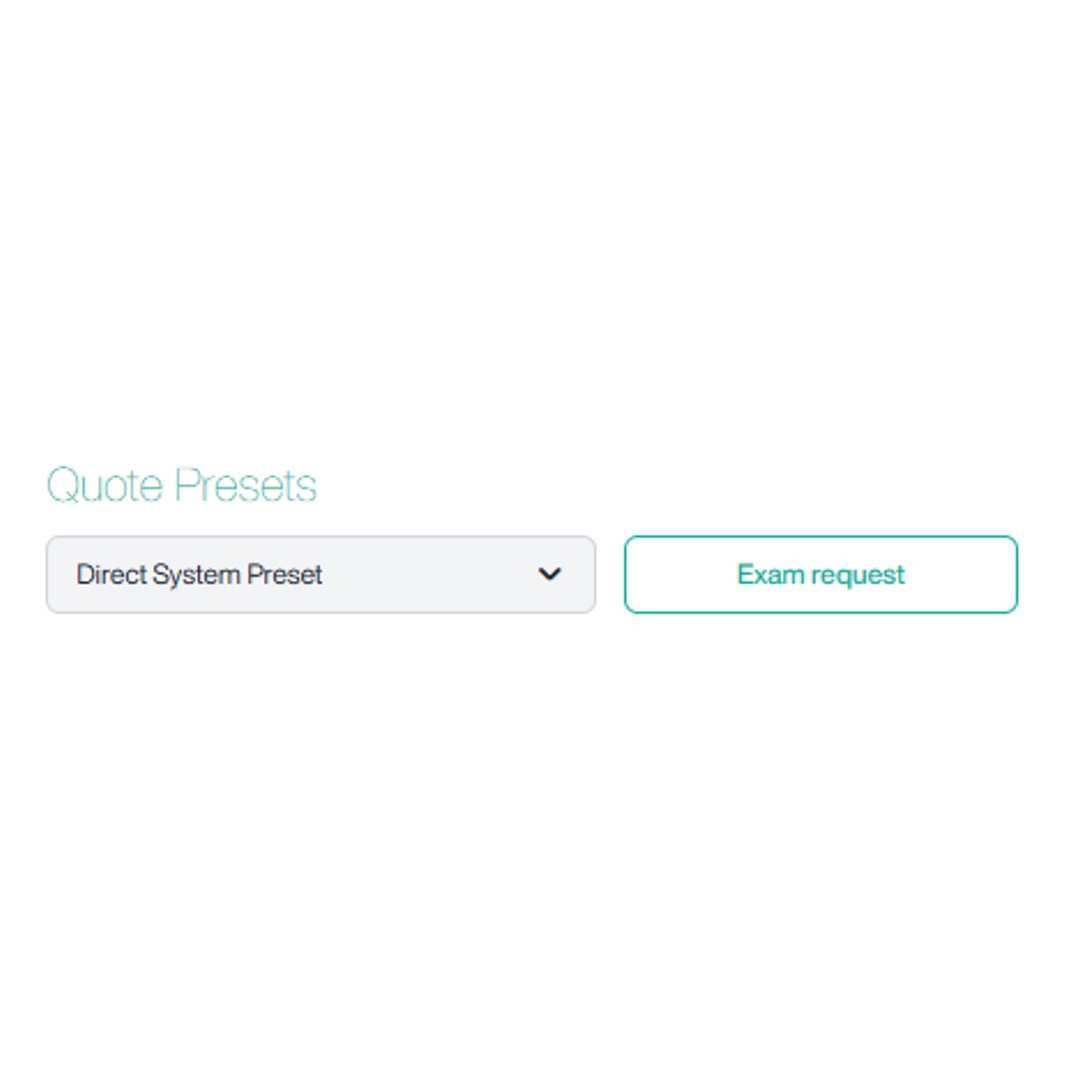
Quote Presets
Quote Presets allow you to quickly populate your preferred filing jurisdictions without selecting each jurisdiction individually.
- Select an existing preset from the drop-down list.
- The selected preset will automatically populate the relevant jurisdictions. For help with setting up a preset, please refer to the ‘Creating a Custom Preset’ section of this guide.
- If you do not want to use a default or custom for the states included in the quote, you can either click Remove All Jurisdictions or click on a highlighted jurisdiction to remove
- If no preset is available, continue by selecting jurisdictions manually.
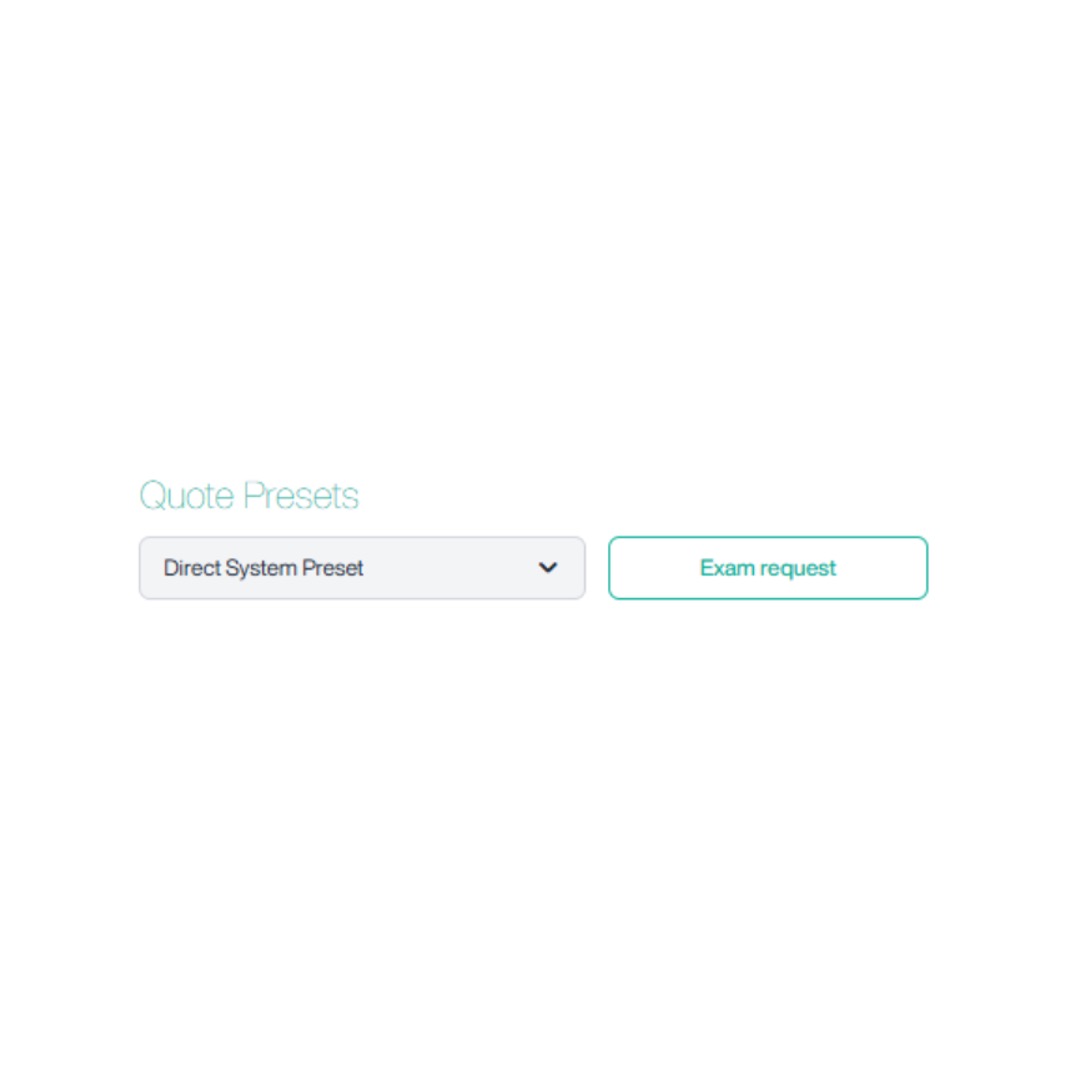
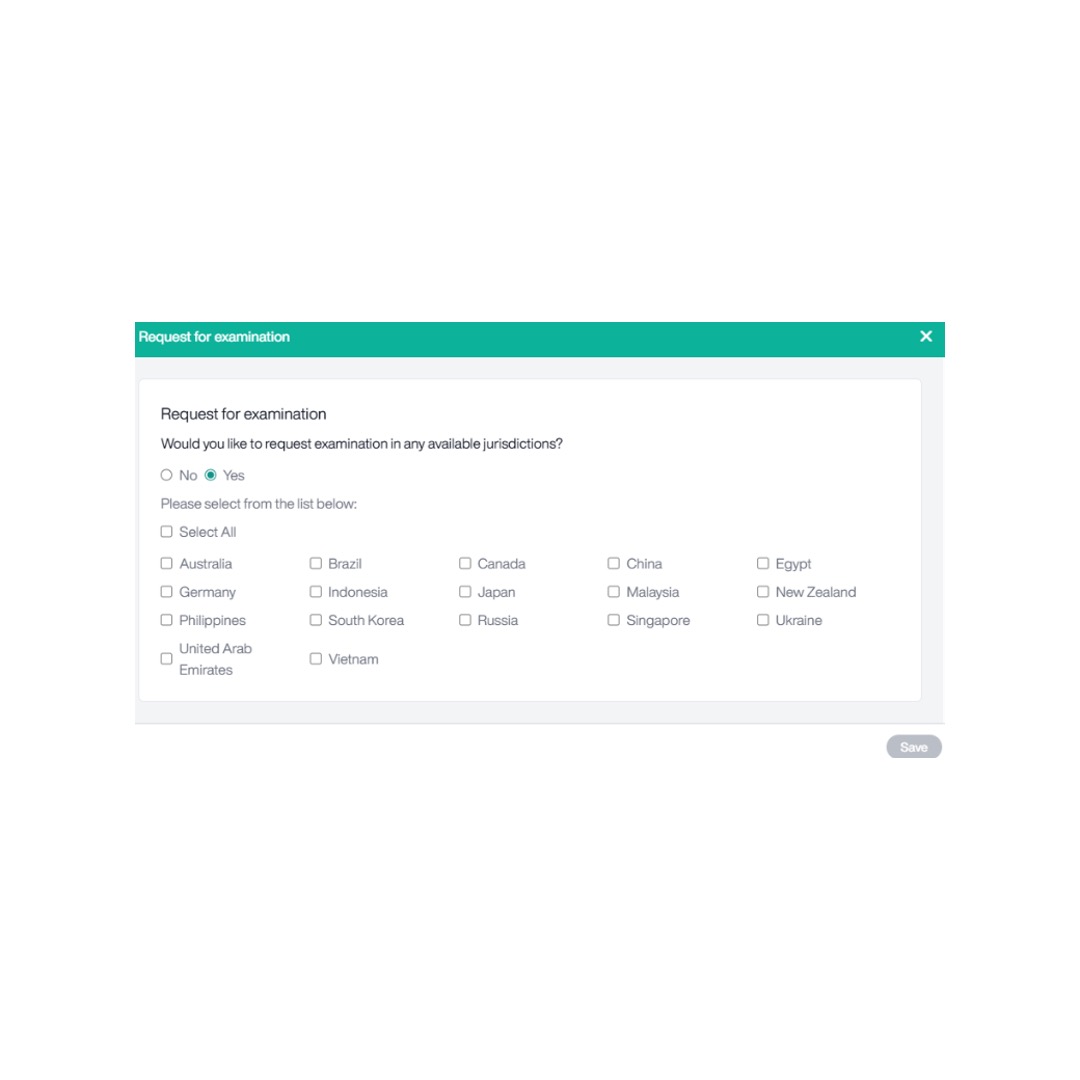
Examination Request
Click Exam Request to specify whether examination should be requested in any available jurisdictions.
- Select Yes if you would like to request examination.
- Choose one or more jurisdictions from the available list, or select Select All to choose every available jurisdiction.
- Click Save to apply your selection.
Specification Details
The Specification Details section displays the specification information used to calculate the quote. Review the values and update them where required before generating your final quote.
- The specification includes:
- Claims (words and pages)
- Description (words and pages)
- Abstract (words and pages)
- Drawings (pages)
- Number of Claims
- Number of Independent Claims
To update any of these details, click any field to overwrite it with your latest numbers.
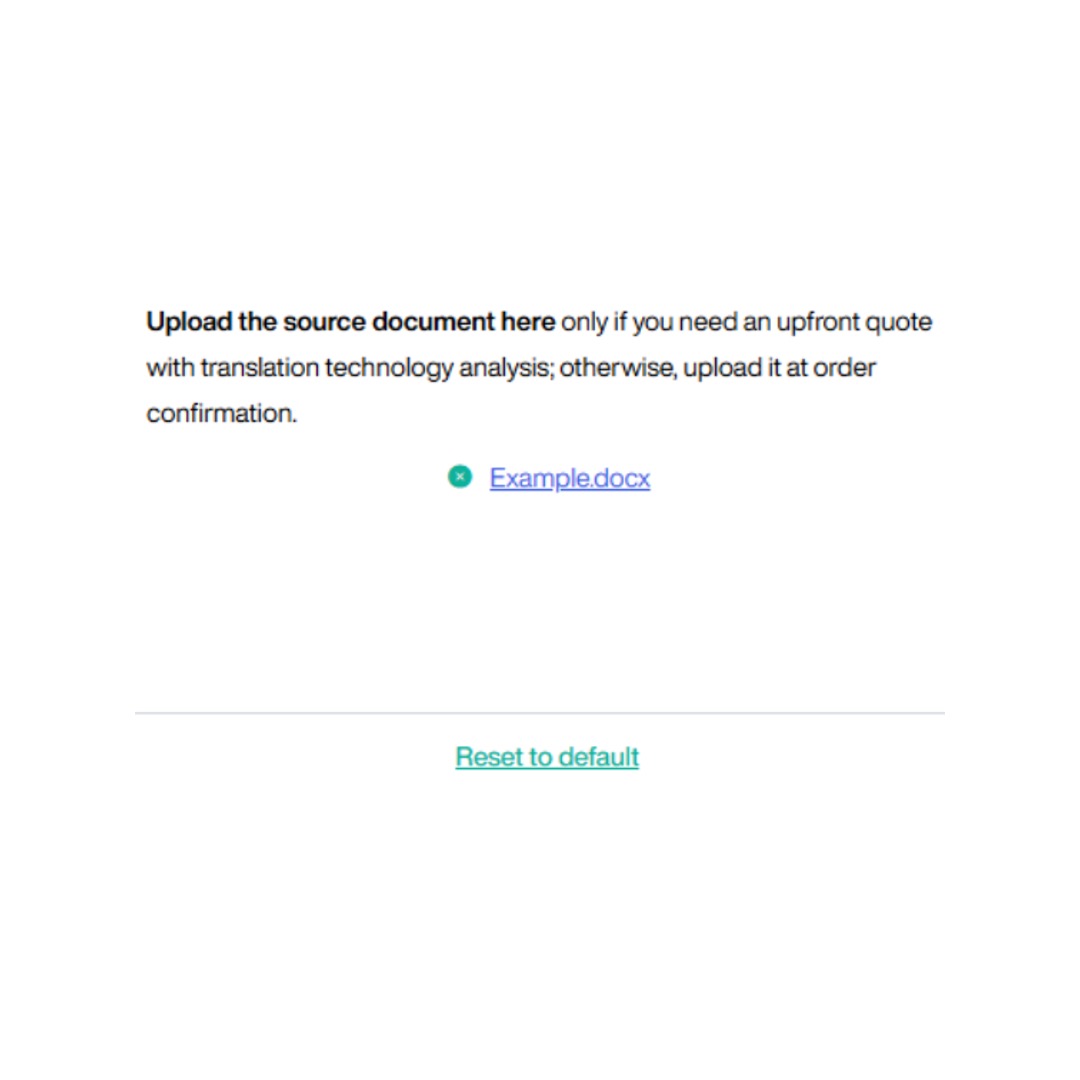
Upload Source Document
You can choose to upload a source document. Uploading a source document allows us to calculate potential translation memory savings.
- To upload your source document, click the Upload Source Document button to open your file browser.
- Select the desired file and click Open.
- Once uploaded, the document will appear at the bottom of the Specification Details section:
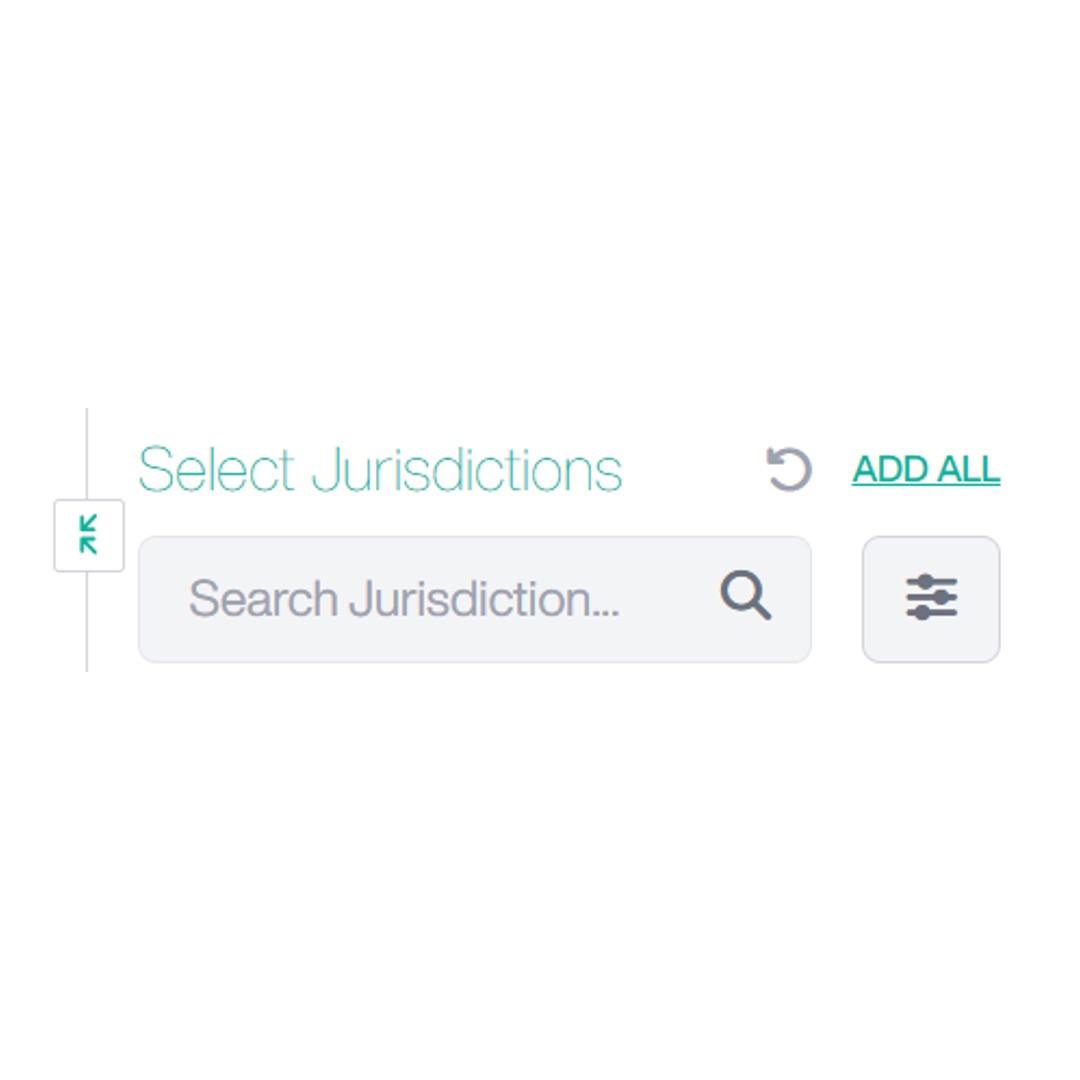
Select Jurisdictions
The Select Jurisdictions section allows you to choose the countries or regions to include in your Direct Filing quote.
- Use the search box to find a specific jurisdiction.
- Select or remove jurisdictions as required.
Click Add All to add every available jurisdiction
You can expand the view of the state list by clicking the button with two diagonal arrows to the left of Select Jurisdictions
This will open a pop-up displaying the full list of filing jurisdictions:
- Use the search bar to search for a jurisdiction using code or name.
- Click the filter icon next to the search bar to apply filters or change the sorting method.
- To change how the jurisdiction list is displayed, use the State Lineup option to the right:
- The left button displays a left-to-right view, where the list is sorted alphabetically across rows.
- The right button displays a top-to-bottom view, where the list is sorted alphabetically down columns.
- Click a state to add it to Filing Fees or click Add All if you want all available states to appear in your quote.
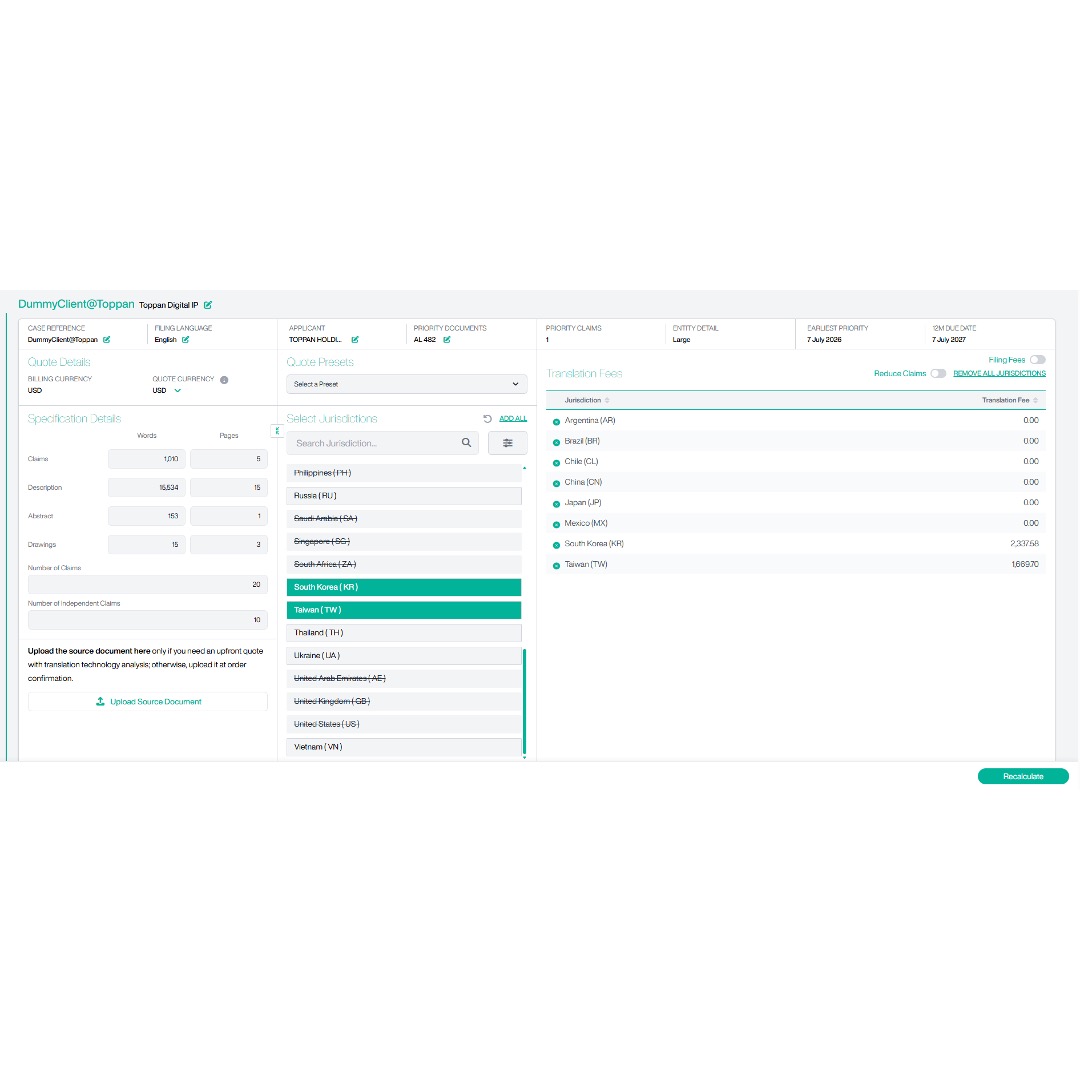
Filing Fees Toggle (Translation Only)
To display Translation Only fees, switch the Filing Fees toggle Off.
When the Filing Fees toggle is turned off, the fee table changes to display the Translation Only view.
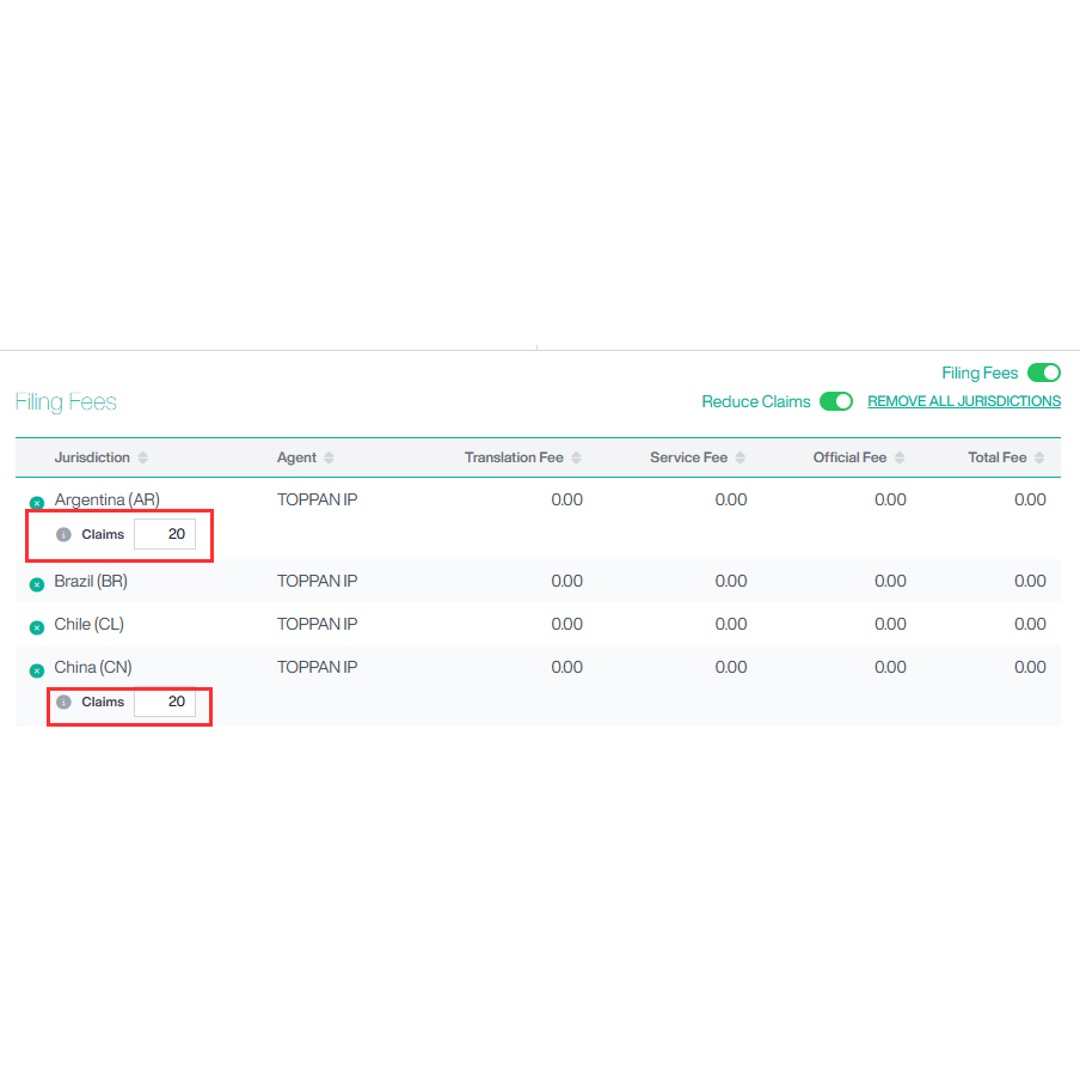
Reduce Claims
Where supported, enable the Reduce Claims toggle to apply reduced claim fees.
When enabled, additional claim fields become available for applicable jurisdictions, allowing claim values to be entered where required.
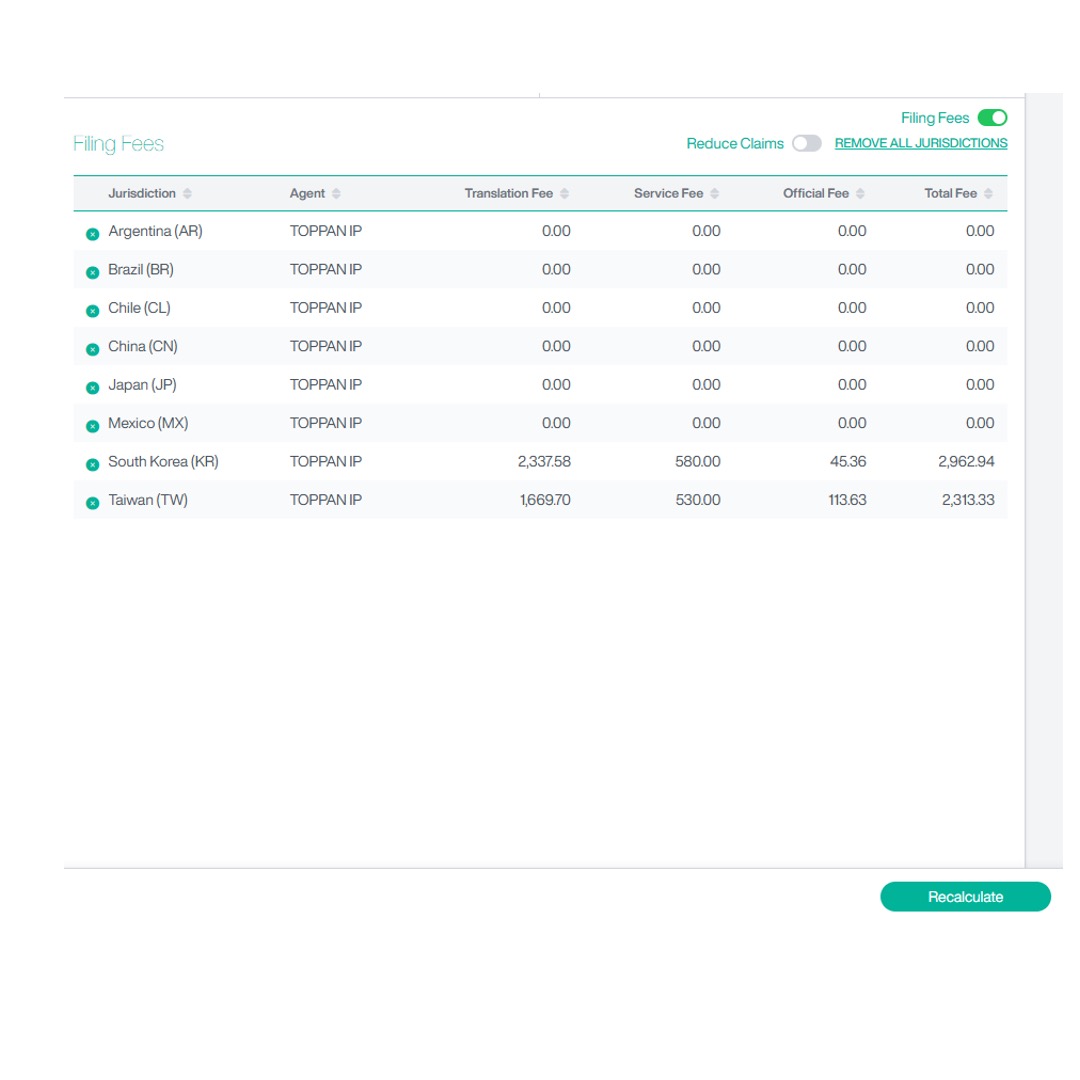
Fee Table
The Fee Table displays a breakdown of the fees for each selected jurisdiction. It allows you to review filing, translation, official and service fees before generating your quote.
On the fee table, you’ll see per-jurisdiction information:
- Jurisdictions included.
- Agent name.
- Translation fee.
- Service fee.
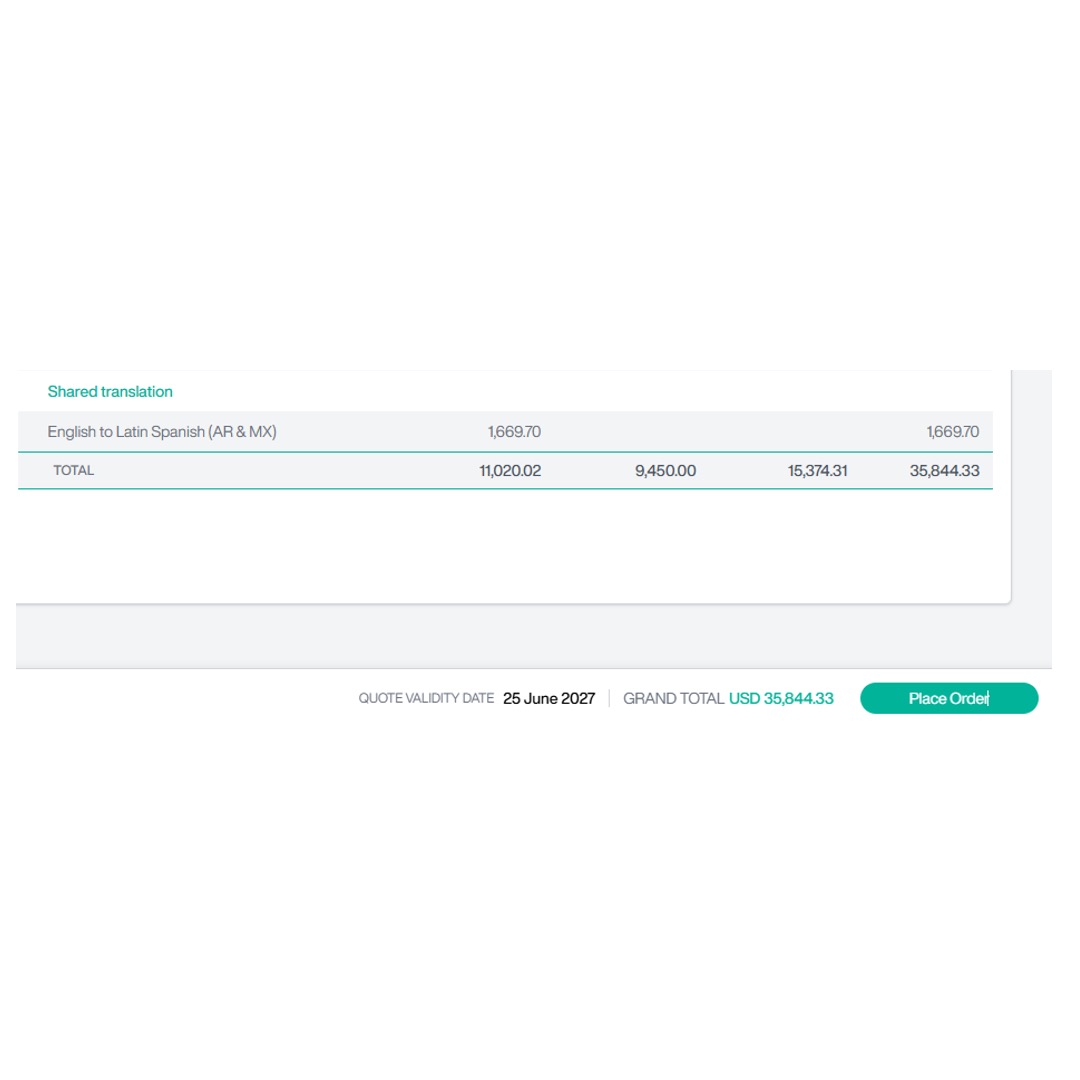
Official fee.At the bottom, a summary row shows totals for translation, service, official fees, and the grand total. Where multiple jurisdictions share the same translation requirement, the translation fee is displayed once under the Shared Translation section to avoid duplicate charges.
- After making changes that affect the quote, such as updating the specification details, changing jurisdictions, or enabling Reduce Claims,
- click Recalculate to refresh the fee table.
Export Quote
- Once you have reviewed the fee table, you can export the quote using the available Export options.
- Click Export and select one of the available options:
- PDF
- Word
- Excel
- Email
- The exported document contains the current quote information based on your selected jurisdictions and quote settings.
Note: The exported quote reflects the current quote configuration, including the selected Quote Currency.
Confirm Order
This section explains how to place an order on STREAM IP.
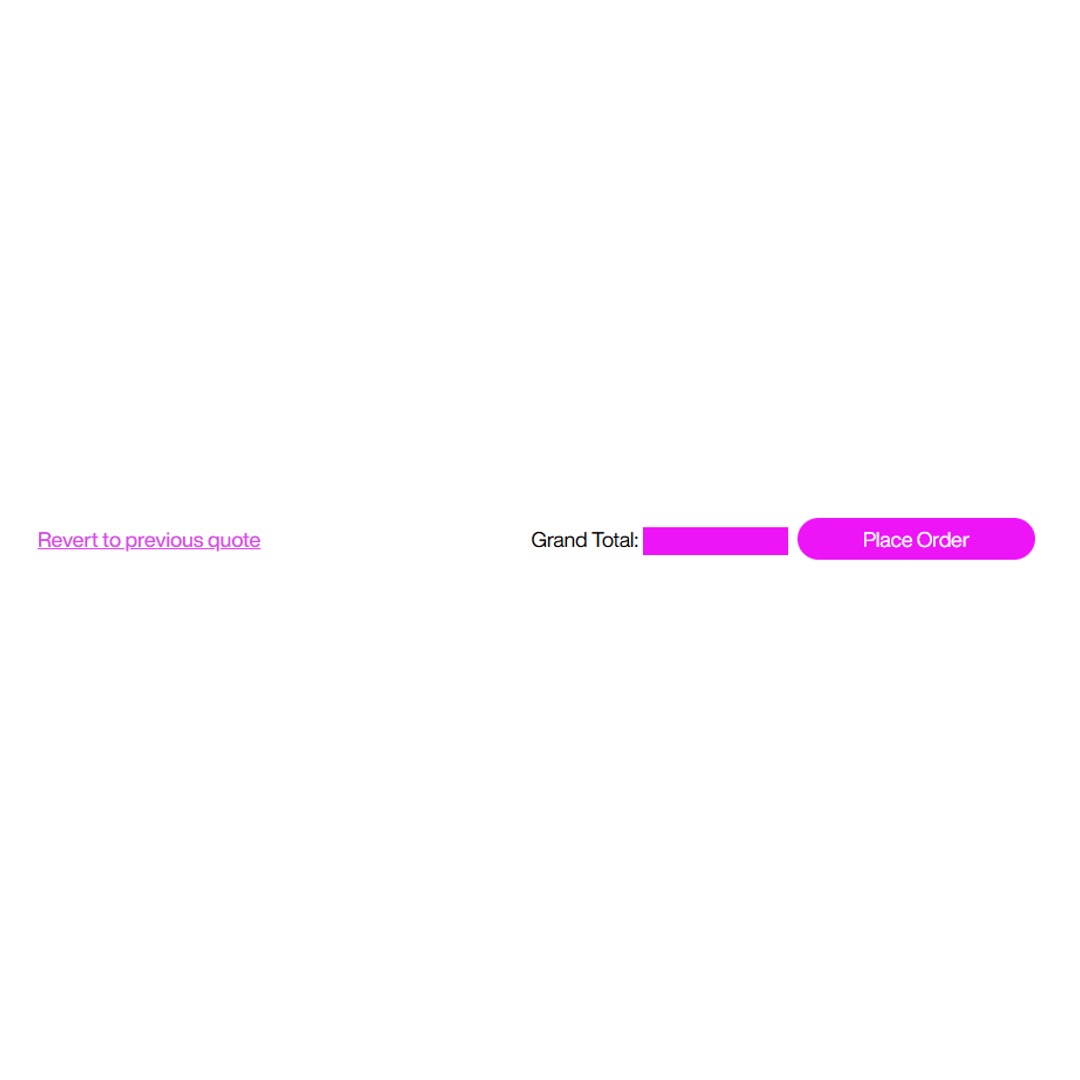
- After generating a quote, select Place Order to proceed to the Confirm Order page. Review the order details, complete any required questions and submit your order.
- Depending on the filing route, you will be asked to confirm specific information. If you have already provided these details in Account Management > Questions, they will be automatically applied.
- For EP, confirm:
- Case reference.
- Representative name.
- EP annuity options.
- For PCT, confirm:
- Case reference.
- Request for International Preliminary Examination, with details of any amendments filed.
- Applicant status.
- Request for examination.
- Amendments at filing.
- Whether the invention involves Brazilian genetic resources or associated traditional knowledge.
- Europe options.
- Whether the invention relates to the use of biological material.
- Applicant and inventor names for China.
- For Direct Filing, confirm:
- Case reference.
- Rights to the invention.
- Applicant status.
- Request for examination.
- Whether the invention involves Brazilian genetic resources or associated traditional knowledge.
- Europe options.
- Whether the invention relates to the use of biological material.
- Applicant and inventor names for China.
- Click Continue.
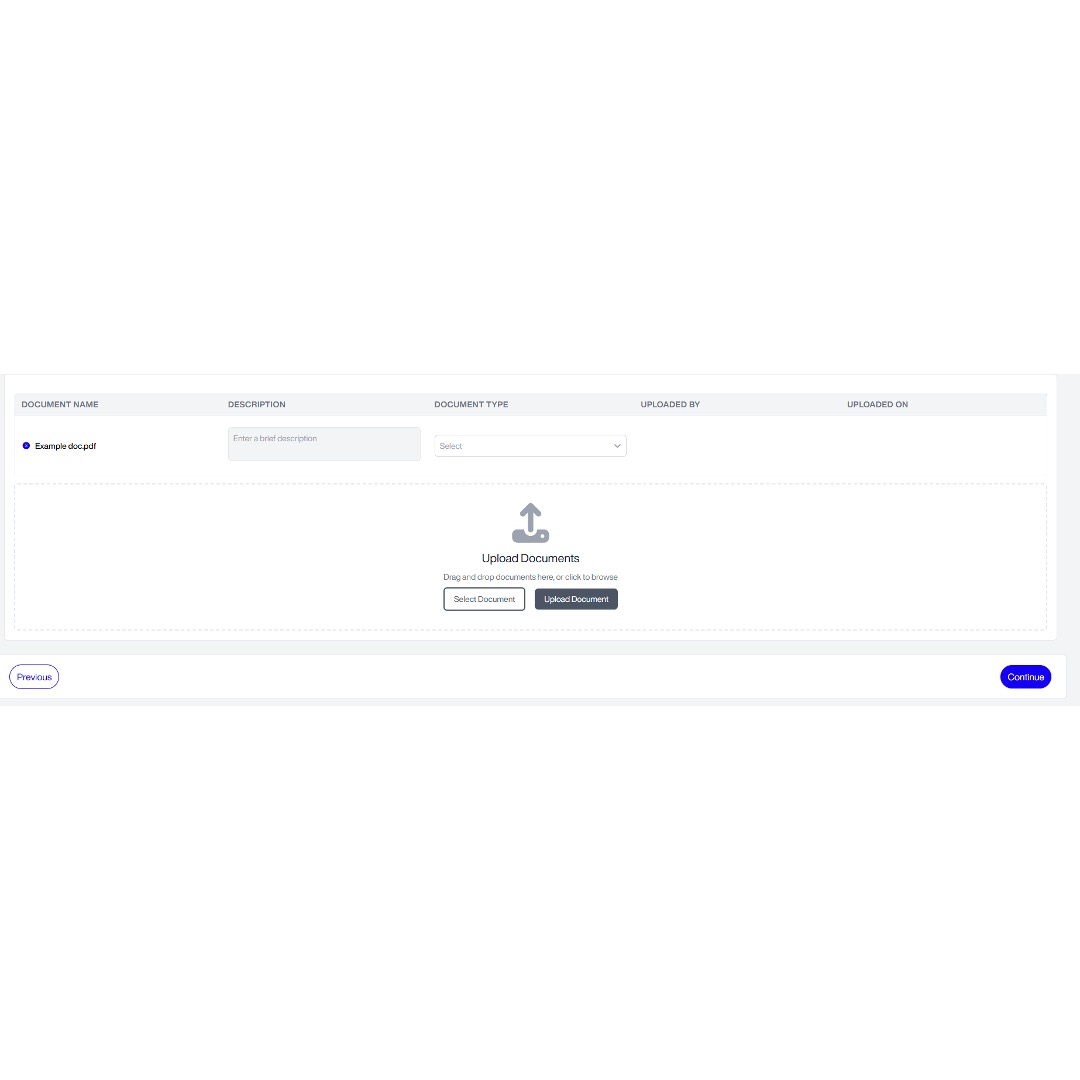
Upload Supporting Documents
After clicking continue, you will be taken to the Upload Documents page.
- To upload a document:
-
- Click Select Document, or drag and drop the file into the upload area.
- Enter a brief Description (optional, if applicable).
- Select the appropriate Document Type from the drop-down list.
- Click Upload Document.
- Repeat these steps if you need to upload additional documents.
- Click Continue to proceed.
- Specify additional recipients for order confirmation and filing notifications.
- Add any special instructions related to filing, translation, or invoicing requirements.
- Click Confirm Order to submit your order. Once the order has been successfully submitted, an Order Confirmed message will be displayed, together with a button to navigate to the Order Status
View Saved Quotes
This section explains how to access, review, and edit your saved quotes.
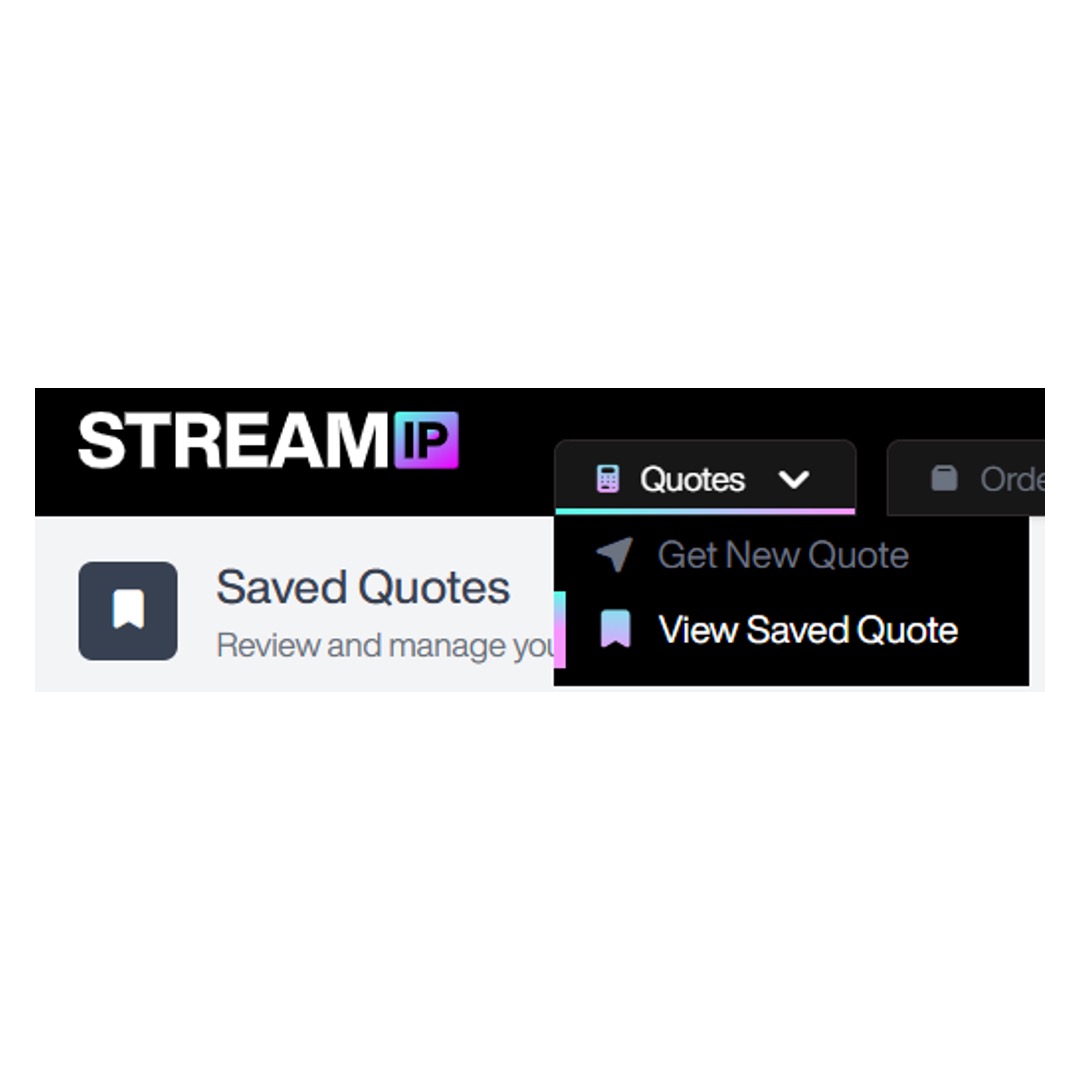
Accessing Saved Quotes
This section explains how to access, review, and edit your saved quotes.
- Click the drop-down menu of the Quote tab at the top of the page, and select View Saved Quotes:
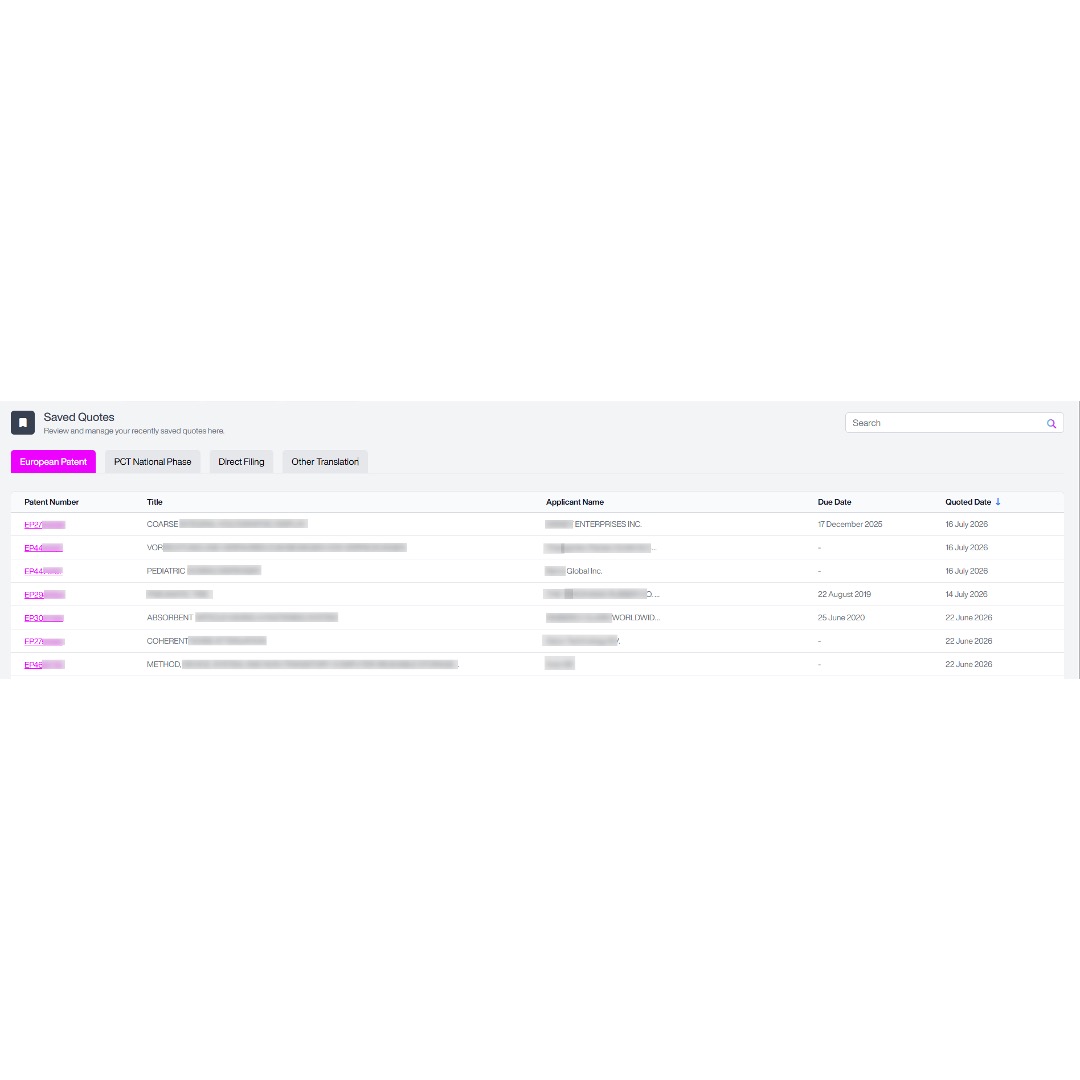
- A list of your saved quotes will appear.
- There are separate tabs for EP, PCT, and Direct Filing and Translation Online saved quotes. The system will default to the EP tab. To view quotes from another category, simply click the corresponding tab to switch between them. The following screen will appear:
- Each entry displays:
- Patent number/Case Reference.
- Title.
- Applicant name.
- Due date.
- Quote date.
- To view the full quote, or make edits, click on the patent number. This will open the quote in the standard quote view. Once the quote is open, you can make changes just as you would when creating a new quote.
Orders
This section will show you how to view all your filing and validation orders.
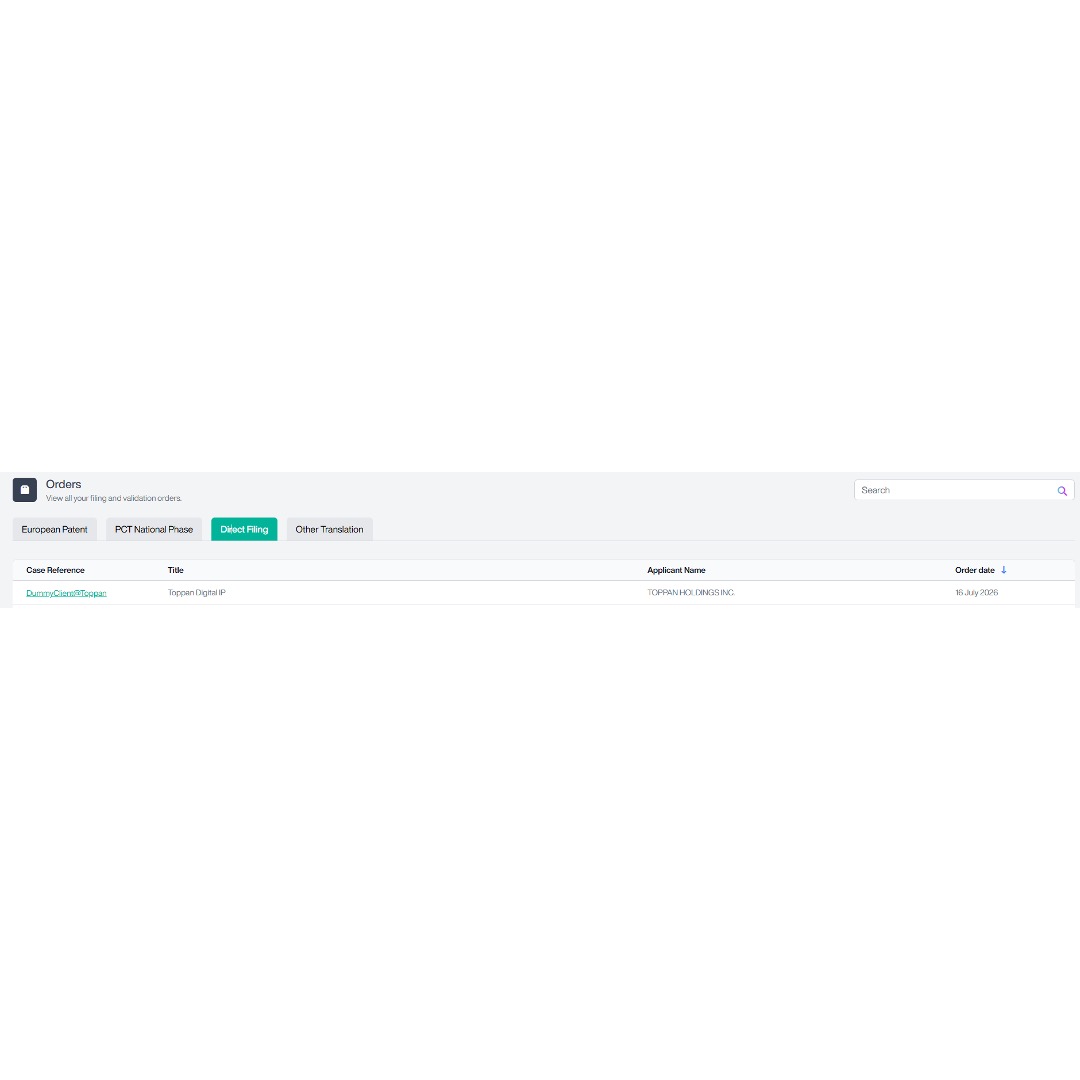
Accessing Orders
This section will show you how to view all your filing and validation orders.
- To access the orders section, select Orders from the menu at the top of the screen, and the following screen will display:
- Orders are separated based on filing route. To switch between them, select the filing route at the top.
- Use the search bar at the top right to search for an order.
- A list of your orders will appear.
- You will be able to see these details:
- Patent Number/Case Reference.
- Title.
- Applicant Name.
- Order Date.
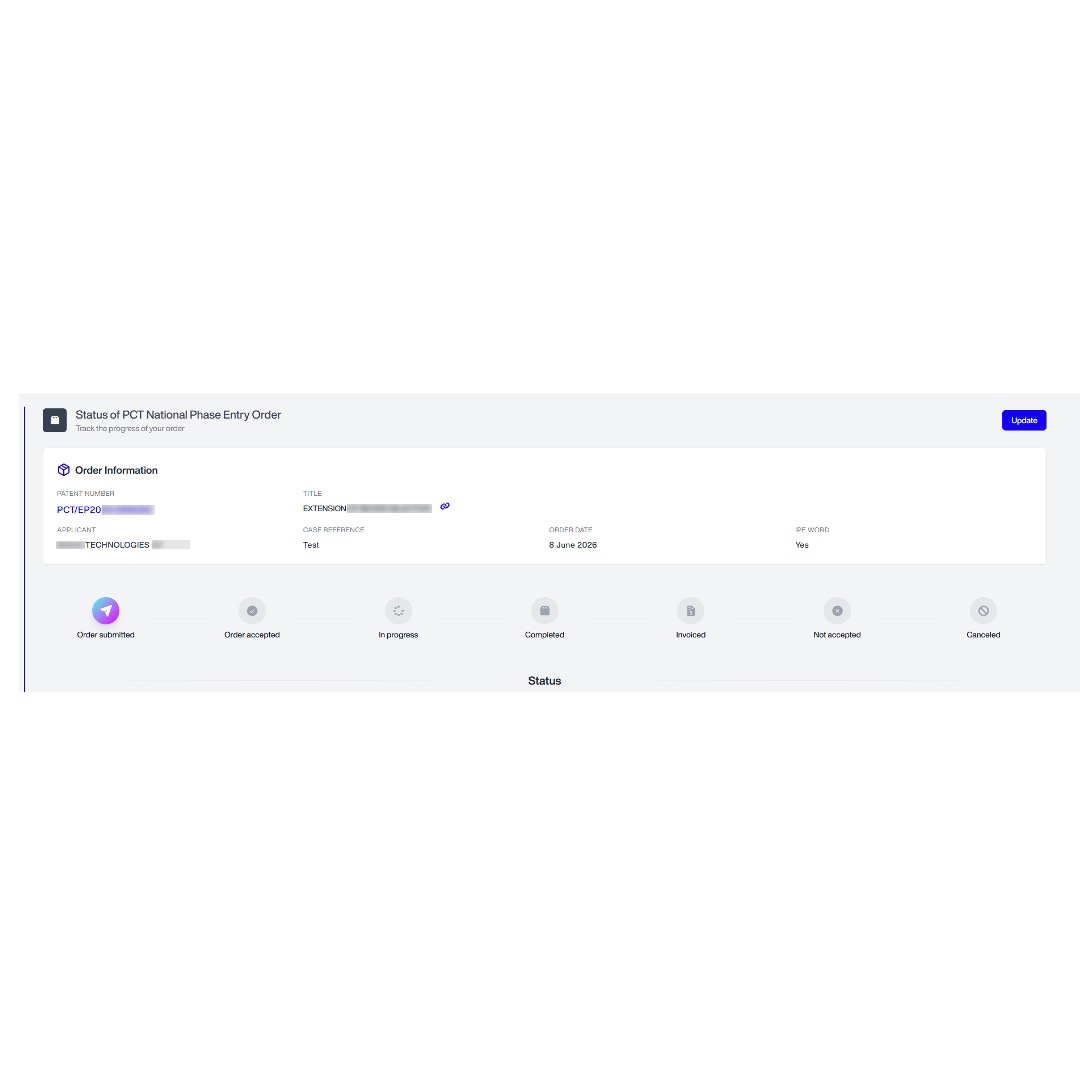
- Click on the order which you want to view the status of, and the following screen will display
Viewing Order Status
The Order Status page displays information relevant to the selected order. The information shown may vary depending on the order type.
For example:
The Order Information section provides a summary of the selected order. The information displayed varies depending on the order type and may include details such as the patent number or case reference, applicant, title, order date, IPE Word status, overall deadline, and quality level.
- This will show:
- Patent Number.
- Title.
- Applicant.
- Case Reference.
- Order Date.
- Furthermore, the status of your order will be visible, from stages:
- Order submitted.
- Order accepted.
- In progress.
- Completed.
- Invoiced.
- Not accepted.
- Cancelled.
- Scroll down to the Filing Status section to view the status of your patent filing in each individual state, and the following screen will show:
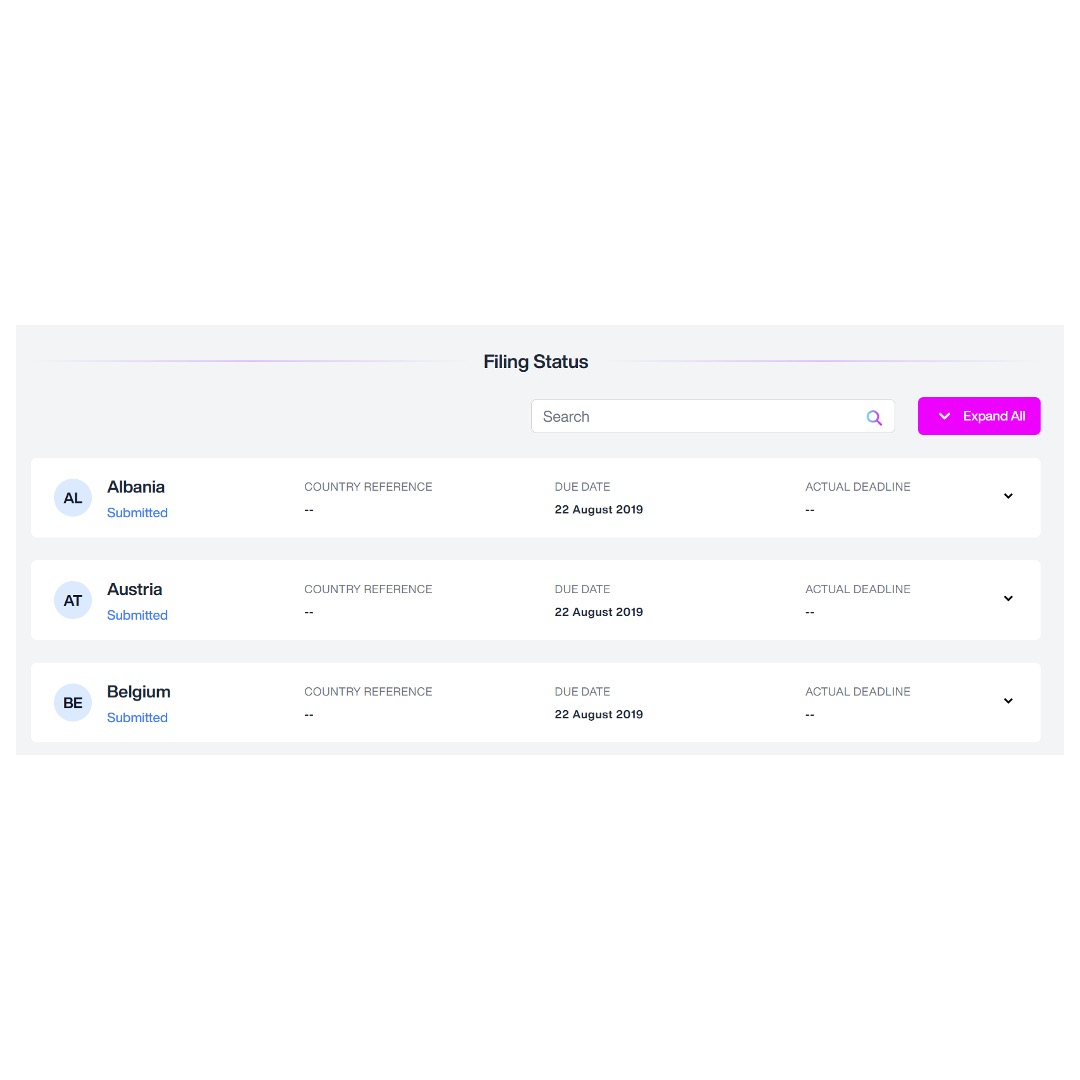
- This will show:
-
- Patent Number or Case Reference.
- Case Reference.
- Order Date.
- Furthermore, the status of your order will be visible, from stages:
-
- Order submitted.
- Order accepted.
- In progress.
- Completed
- Invoiced
- Not accepted.
- Cancelled
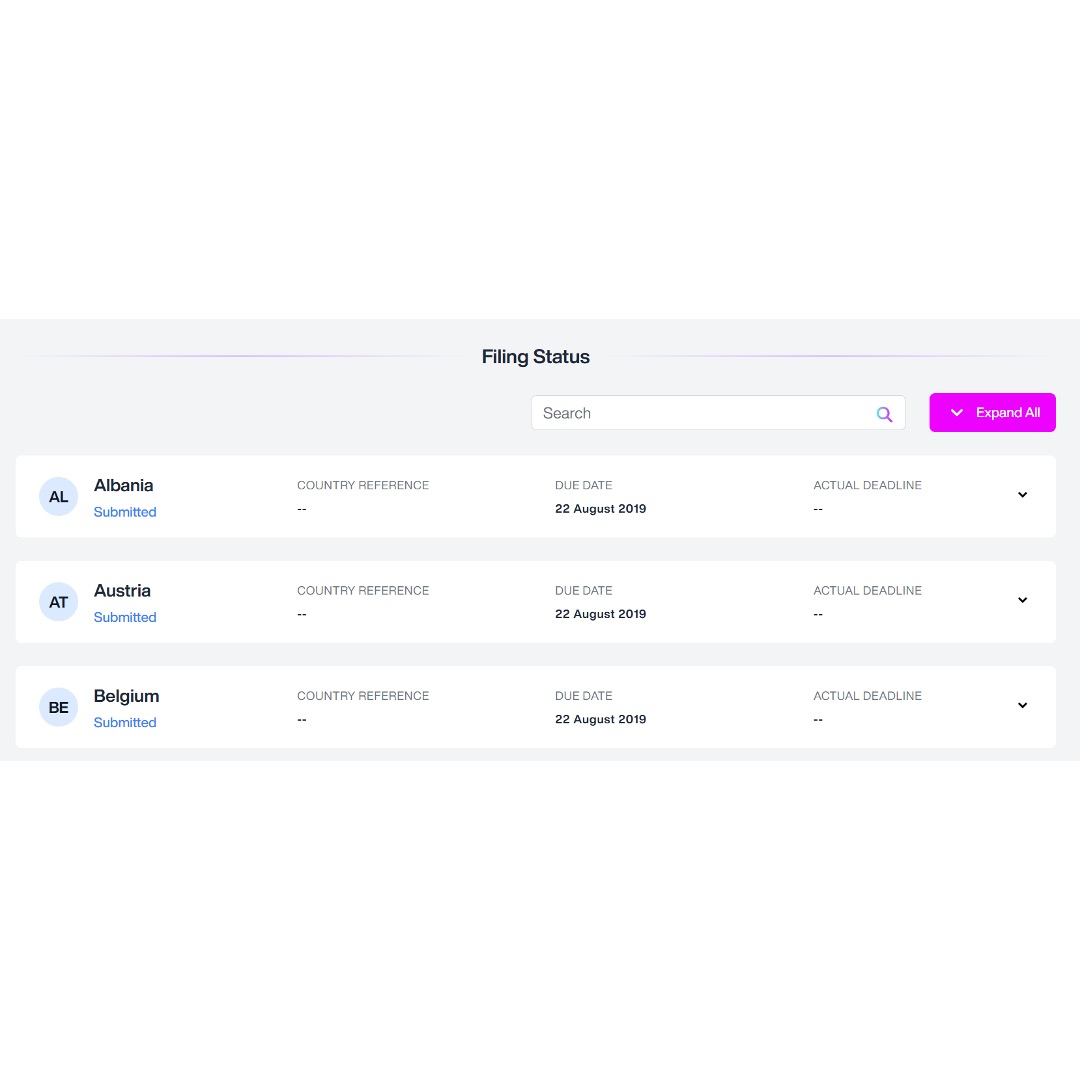
- Use the search bar to search for a specific state by state code or state name.
- Click ‘Expand All’ to view full details for every state.
- Next to each state, you will see:
- Country Code/Name.
- Client Reference.
- Due Date.
- Actual Deadline.
- Use the Drop-down icon ‘v’ button to the right to see full details for each state, and the following screen will show:
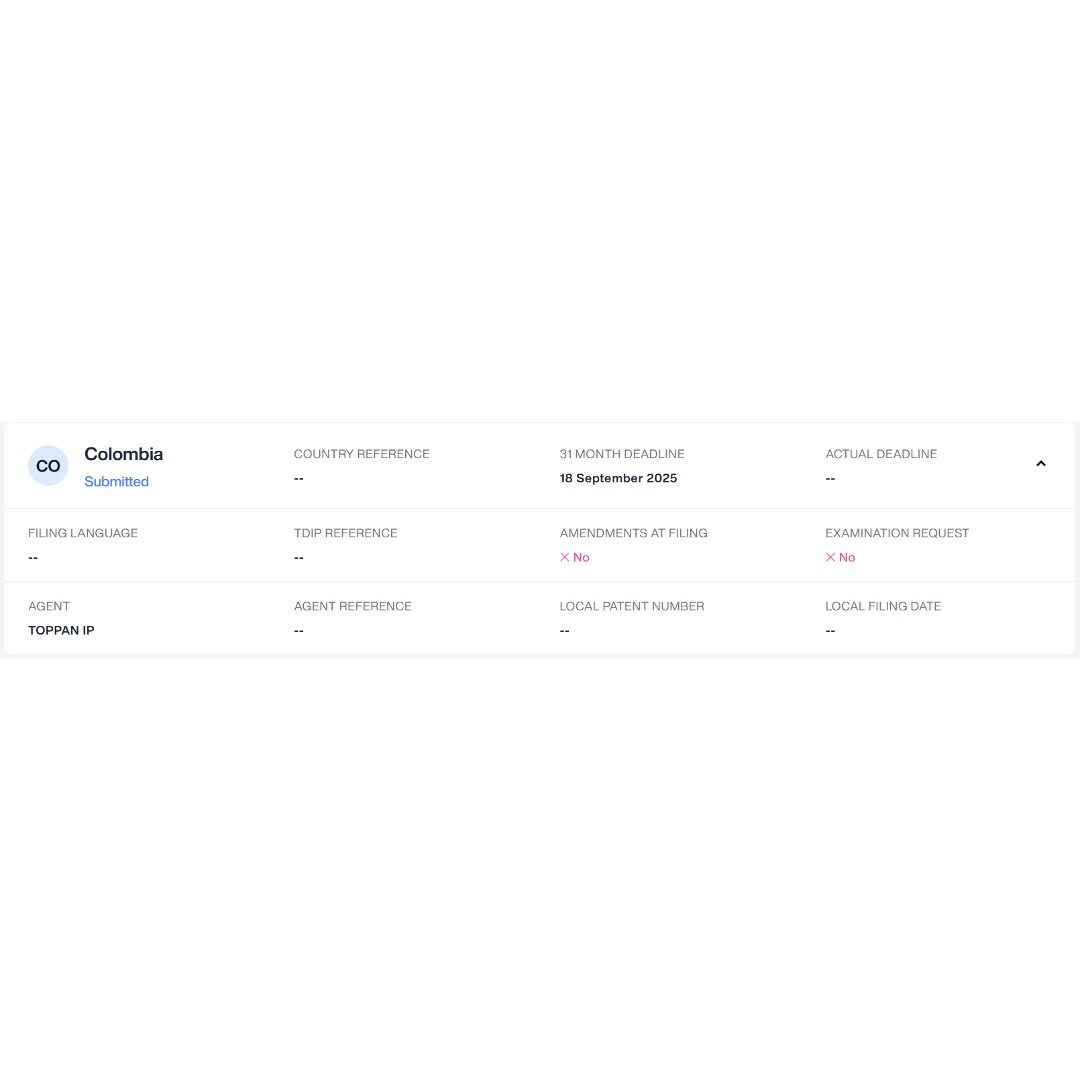
- This will show:
- Country Reference.
- 31 Month Deadline.
- Actual Deadline.
- Filing Language.
- TDIP Reference.
- Amendment at Filing.
- Examination Request.
- Agent Reference.
- Local Patent Number.
- Local Filing Date.
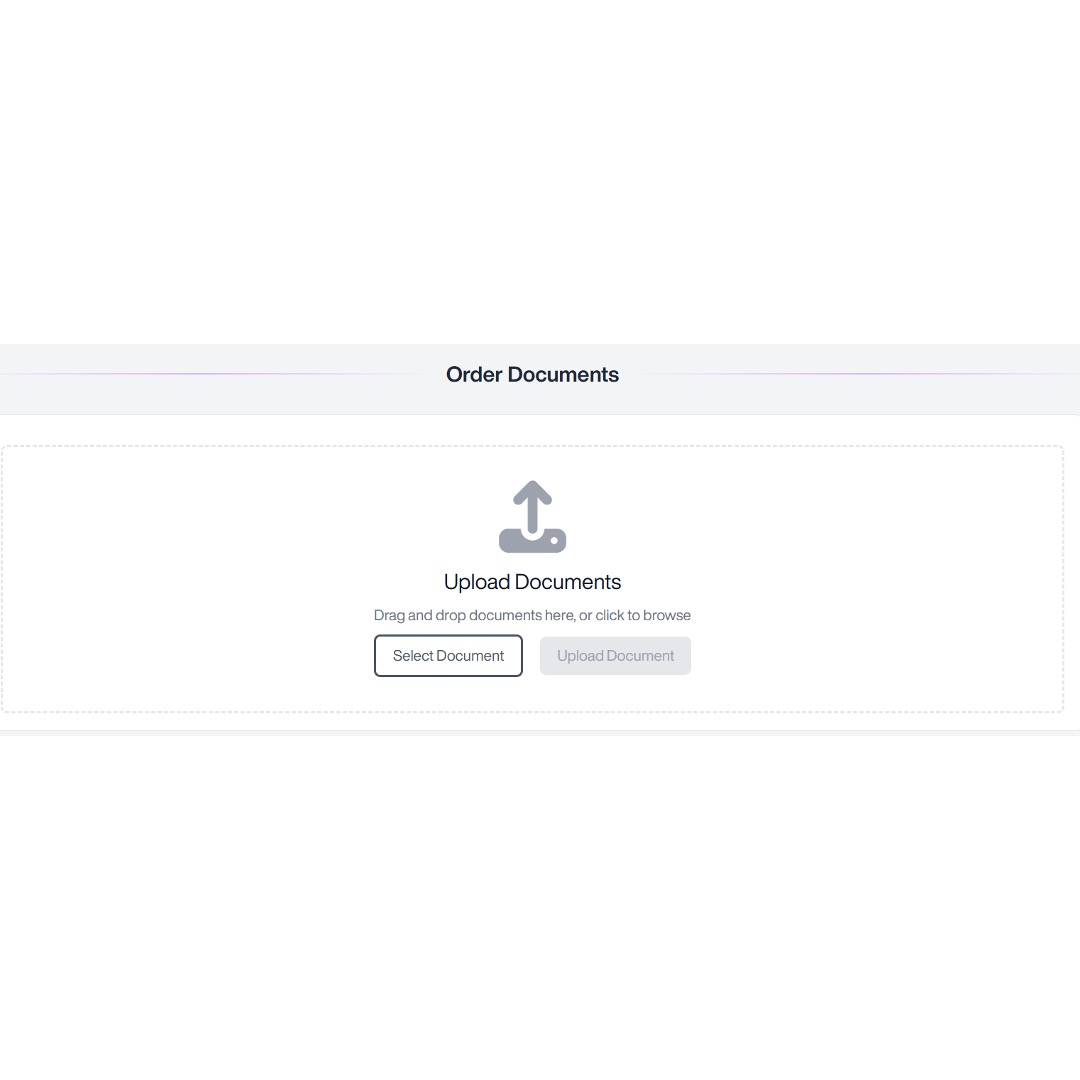
- You can upload additional documents here, such as completed Powers of Attorney. Scroll down to the ‘Order Documents’ section, and the following screen will appear:
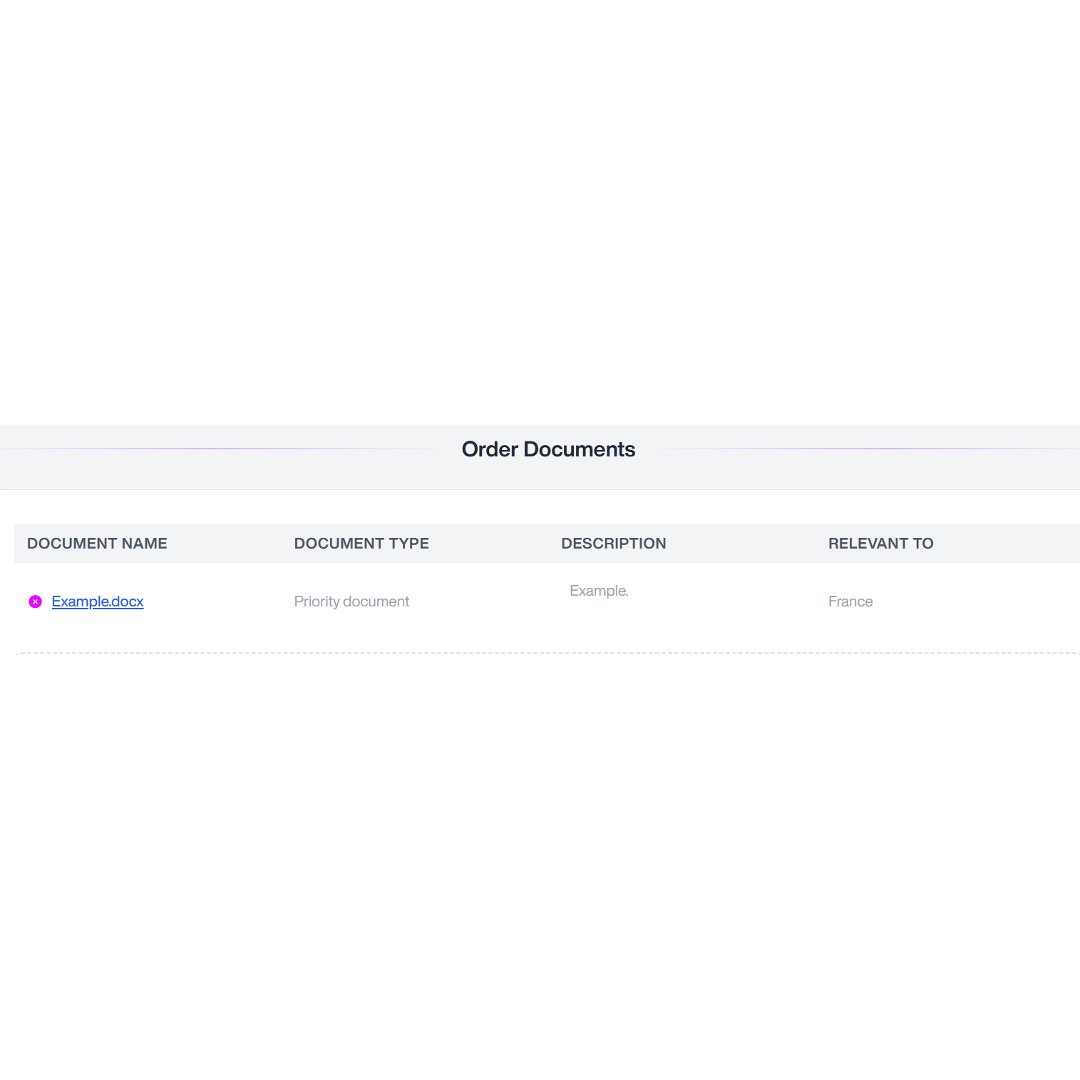
- Click ‘Select Document’ to add an additional document. Then, input the following details:
-
- Document type (Choose from the Drop-down; Filing Forms, Specification, Amendment (Amended claims) Priority document, Other).
- Description
- Relevant to (select the states which the additional document relates to).
- Click ‘Upload Document’. The additional document will then be visible under ‘Order Documents’:
FAQs
Account Registration
Log-in
Password Reset
Contact Us FAQ
Account Management - Personal Info
Preferences
Filing Jurisdiction
Notifications
Questions
Get New Quote - EP
Get new quote - PCT
Get new quote - Direct Filing
Confirming Orders
Viewing Saved Quotes
Orders
Account Registration
You should get it within a few minutes. If it doesn’t arrive, check your spam or junk folder. If it’s not there, wait 10 minutes and try resending. If the issue persists, contact support at TDIP@toppandigital.com.
Your password must contain uppercase, lowercase, a number, and a special character.
Yes, each user must register using their company email address.
No, the email used must be a company email- for example, no personal Gmail or Hotmail addresses will be accepted.
If you already have an account, click on ‘Already have an account?’ link at the bottom to sign in to your account.
STREAM IP is accessible via mobile browser. A dedicated app is currently in development.
While most modern browsers are compatible, STREAM IP is optimised for Chrome, Edge, and Firefox; using one of these ensures the best user experience.
Log-in
Click the “Forgot Password?” link on the login page and follow the instructions to reset your password via email. More help to reset your password is available here.
No, your email is tied to your account. If you need to update it, please contact support at TDIP@toppandigital.com.
Yes, STREAM IP uses industry-standard encryption and security protocols to protect your data.
Check your spam or junk folder and confirm you entered the correct email. If it still doesn’t arrive, contact support at TDIP@toppandigital.com
Yes. Your new password must include:
- At least one uppercase letter
- At least one lowercase letter
- At least one number
- At least one special character
For security, we recommend updating your password every 90 days.
No, STREAM IP will require a new password
Contact Us FAQ
An email will open to the TDIP support team.
We will get back to you on the same day or within one business day, depending on the nature of the query.
In your email, please begin by providing your registered email address, so that our support team can access your account and contact you regarding further steps. Please include a detailed description of the issue, including screenshots if needed.
Account Management - Personal Info
Yes. You can update your details anytime without restriction.
No, your registered email is tied to your account. To update it, please contact support at TDIP@toppandigital.com.
Preferences
It ensures that translations are provided in your preferred language when requesting the Unitary Effect of a European Patent.
Yes, you can update your preferred language anytime via the Preferences section or the language preference can be changed while creating a quote.
Filing Jurisdiction
A preset is a saved list of countries used for EP, PCT, or Direct filings. It simplifies quote creation by pre-selecting jurisdictions. Your selected default will appear on every new quote.
If you haven’t set a custom preset as your default, the system presets will apply by default. Once you create and set a custom preset as your default, it will override the system defaults. However, you can switch back to a system default at any time by going to Account Management – Filing Jurisdictions, and clicking Set as Default next to the system preset you want to use, and duing the quote process you can change the preset from a simple drop-down menu.
Go to Custom List, click Create New Preset, enter a title and description, choose a filing route, and select your desired countries.
Absolutely. You can Edit, View, or Duplicate any custom preset at any time.
Checking this box sets your custom preset as the default for future quotes in the selected filing route.
Notifications
Click the + next to To, Cc, or Bcc, enter the email address, and click Create Email.
Yes. At the top of the Notification Preferences page, select the filing route you want to manage.
No. At least one recipient must receive confirmation emails to ensure order and filing updates are properly delivered.
Questions
Answering these questions is not mandatory within account setup. However, responses provided will save you time during the order confirmation process.
No. Each filing route has its own set of questions tailored to its process and requirements.
Annuity fees keep your patent active over time. You’ll be asked if you want TOPPAN IP to manage these payments and whether to cover only the first annuities or all future ones.
Validation states are countries where you want your patent to be enforceable. Selecting them affects the quote and filing strategy.
You should answer as many questions as possible to ensure your quote is accurate. If unsure, select Unknown.
Click Save Questions to apply your responses. Your quote will update based on the information provided, but can be amended during the quote stage.
Get New Quote - EP
Your EP number can be a publication number (e.g., EP1234567) or an application number (EP12345678.9). You can input your number with or without the EP prefix.
Check that you have included all 7 digits, no extra spaces, digits, or numbers. If any issues remain, please contact our SUPPORT team at TDIP@toppandigital.com.
In Specification Details, click the field you want to change, and overwrite it with the correct number.
Use the Quote presets feature: set up presets in your account settings, then choose one here.
Get new quote - PCT
It must start with “PCT/”, then a two-letter Receiving Office code, a four-digit filing year, a slash, and a six-digit sequence number. Example: PCT/IB2025/000123.
No, the Application Number must be inputted to generate a PCT quote.
Under Specification details, click the existing number, delete it, and type in the corrected count. The recalculated quote will use your updated figures.
Yes. Details on creating a custom preset are available here.
Only countries that accept PCT national phase entries are shown. If one is missing, contact support to verify its availability.
These refer to the 30-month and 31-month national-phase entry deadlines, counted from your earliest priority date.
Get new quote - Direct Filing
You’ll need:
- Patent title.
- Page and word count for claims, description, abstract, drawings.
- Number of claims and independent claims.
- Priority date, priority country code, and priority number.
Yes. Click the Edit button next to the title at the top of the quote.
Under Specification details, click the existing number, delete it, and type in the corrected count. The recalculated quote will use your updated figures.
Yes. Details on creating a custom preset are available here.
Confirming Orders
Once the order is confirmed, you will need to contact support at TDIP@toppandigital.com to request modifications.
Yes, if you have entered information in Account Management → Questions, it will be pre-filled during the order process.
You will see an Order Confirmation page and receive an email notification. You can also track progress on your Order Status page.
Viewing Saved Quotes
Click the drop-down menu on the Quote tab at the top of the page, then select View Saved Quotes.
Click on the patent number in the list to open the full quote in the standard quote view.
Yes. Once opened, you can edit the quote just like a new one: change the currency, update patent details, or modify the included jurisdictions.
Orders
Use the search bar in the top-right corner of the ‘Orders’ screen. You can search by patent number, title, or applicant name.
Orders typically progress through the following stages:
- Order submitted.
- Processing
- Completed.
- Invoiced
Yes. Scroll to the Order Documents section, click Select Document, and fill in the required fields. You can upload items like POAs, specifications, amended claims, and more.
You can remove a document by clicking the ‘X’ next to the document. However, once uploaded, documents cannot be edited. If you need to replace a file, delete the original file, and upload the edited version.
This section will explain how to update your account details, customise language and notification settings, and indicate filing preferences.
To access account management:
In Personal Info, you can update your personal information and view all account updates.
- Click your profile icon in the top-right corner.
- Select Account Management from the drop-down menu.
Personal Info
- Select Personal Info, and your screen will display the Personal Info page:
- Edit any fields (name, address, phone number, etc.).
- Click Save Info to apply changes.
- If you wish to change your password, scroll down to the Change Password section, enter your old and new password, and click Change Password.
- If any account updates look unfamiliar, this may indicate unauthorized changes. In such cases, we recommend changing your password immediately to protect your account.
Preference
In Preferences, you can customise language settings for Unitary Patent requests.
- Select Preferences, and the following screen will appear:
- Select your preferred language for Unitary Effect requests from the drop-down menu.
- Click Save Changes.
Preset List
This feature will help you manage filing jurisdiction presets by use of system defaults or by creating custom presets. A preset is a saved list of countries used for EP, PCT, or Direct filings and languages for Other Translation. It simplifies quote creation by pre-selecting jurisdictions/languages based on your own requirements. You can create multiple presets.
Accessing Filing Jurisdictions
Select Filing Jurisdictions, and the following screen will appear.
System Default Presets
System presets are displayed by default until custom presets are created. There are system presets for EP, PCT and Direct Filing.
Click View to see the list of states included in each system preset.
Please note that Other Translations does not have a system default preset. If required, you can create a custom preset for Other Translations from the Preset List.
Creating a Custom Preset
- Optionally, add a description to clarify when or why to use this preset.
- Select the order type from the drop-down:
- European Validation
- Patent Cooperation Treaty
- Direct Filing
- Other Translation
- Click Next Step. The next screen will depend on the filing route selected:
- o For EP, PCT and Direct Filing presets, the next screen allows you to select the relevant states/jurisdictions for the preset. The available list will depend on the filing route selected.
- o For Other Translation presets, the next screen allows you to select the relevant target language options for the preset.
- If you wish to return to the previous step, to revise the title, description, or filing route, click Return to Previous Step.
- Click on the states you wish to add into your preset and your selections will appear in the Selected States box on the right.
- If you can’t quickly see the state, you can search by state name or state code.
- To include all available states, click Add All.
- To remove all selected states, click Remove All.
- To make this preset your default, check the Make as Default box.
- Your new preset will now appear under Custom List:
- For any custom preset, you can:
- Edit – update the title, description, order type
- Add or remove states or languages.
- View – see the full list of included jurisdictions or selected languages.
- Duplicate – create a copy to modify without changing the original.
- Delete – to remove a preset from your system, click the red bin icon next to the preset you want to delete. Then confirm by selecting Delete Preset.
- If you wish to revert to a system default, click Set as Default for that filing route.
Filing Agents
This section explains how to add and manage filing agents for EP, PCT and Direct Filing. Filing agents can be added for selected filing routes and jurisdictions, and once approved, they can be used when generating quotes.
Please note that filing agents do not apply to Other Translations.
- Select Filing Agents, and the Filing Agents page will appear.
- If no agents have been added, the page will display No agents to display.
- Click New Agent to add a filing agent.
- The first step is to select the filing routes and jurisdictions for the agent.
- By default, European Validation, PCT National Phase Entry and Direct Filing are selected, and the available jurisdictions are displayed.
- To narrow the list of jurisdictions, untick any filing route that does not apply. For example, if the agent should only be used for PCT, leave PCT National Phase Entry selected and untick the other filing routes.
- Select the jurisdictions that the filing agent should apply to.
- Once the required jurisdictions have been selected, proceed to the agent details step.
- For each selected jurisdiction, enter the required agent information:
-
- Firm Name.
- Firm Email.
You can also add contact details if required: Contact Name, Contact Email, Country Code, Phone Number.
-
- If a selected jurisdiction is available for more than one filing route, the applicable filing routes will be shown against that jurisdiction. You can untick any filing route that should not apply to the agent.
- If you need to add more than one agent for a jurisdiction, click Add another agent.
- If you want one agent to be used as the default for a jurisdiction/filing route, select the Default toggle for that agent.
- Click Save to submit the agent details.
- Once saved, the agent will appear in the Filing Agents list.
- Newly added agents will show as Pending while TDIP reviews and onboards the agent.
- Once the agent has been activated, the Activation Date will be populated and the agent can be used during quote creation where applicable.
Notifications
This section explains how to customise email notification settings, and outlines when notifications will be sent.
Accessing Notification Preferences
- Select Notifications, and the Notification Preferences page will appear:
- At the top of the Notification Preferences page, select the 0rder type you want to manage notifications for.
Set-up
- You will need to set up Notification Preferences for each filing route via the EP, PCT, and Direct Filing and Other Translations tabs.
- Your primary email address is the one listed in your account. To update it, please contact support at TDIP@toppandigital.com.
- To add additional recipients, click the + button next to To, enter the email address, and click Create Email.
- To Cc someone, click the + next to Cc, enter their email, and click Create Email.
- To Bcc someone, click the + next to Bcc, enter their email, and click Create Email.
Notification Types
- This can be done separately for order confirmation and filing notification emails.
- Order Confirmation is sent immediately after placing an order and confirms what has been ordered.
- Filing Notification is sent when a country filing has been completed.
Questions
This section will guide you through answering filing-specific questions that help generate tailored quotes based on applicant details, jurisdictions, and disclosures.
You will be asked questions depending on your filing route, which will help generate a more accurate quote by factoring in variables such as company size.
EP Questions
- Select EP Order, and the following screen will appear:
- You’ll be asked about annuity fees, which keep your patent active over the patent’s lifespan.
- Choose whether you want TOPPAN IP to manage any annuity payments. If you would like TOPPAN IP to manage annuity payments, select either:
- First annuities only.
- All annuity fees due for the lifespan of the patent.
- Click Save Questions to confirm your preference.
PCT Questions
- Select PCT Order, and the following screen will appear:
- Rights to the invention: select how the applicant obtained rights to the invention (assignment from the inventor, employment agreement, applicant is the inventor, or unknown).
- Applicant status: Is the applicant an individual/multiple individuals, a company with <500 employees, a company with >500 employees, a non-profit organisation, or unsure.
- Request for examination: Would you like to request examination in any available jurisdictions? If you select yes, you will be asked to select at least one option.
- ARIPO: Select which countries you would like to designate in your ARIPO application.
- Genetic Heritage Disclosures: Does the patent involve Brazilian genetic resources or associated knowledge, or relate to or involve the use of biological material?
- Extension of European Patent to Bosnia and Herzegovina: Select yes or no.
- Extension of European Patent to validation states: Select whether you’d like to include any validation states in the application. If you select yes, you will be asked to check which validation states to include.
- Biological Material Disclosures: Does the invention relate to, or involve, the use of biological material?
- Priority document: A full translation of the priority document is required. Do you instruct us to translate it? Please note that this will incur additional costs.
- Click Save Questions to confirm your answers.
Direct Filing Questions
Select Direct order questions, and the following screen will appear:
- Rights to the invention: select how the applicant obtained rights to the invention (assignment from the inventor, employment agreement, applicant is the inventor, or unknown).
- Applicant status: Is the applicant an individual/multiple individuals, a company with <500 employees, a company with >500 employees, a non-profit organisation, or unknown.
- Request for examination: Would you like to request examination in any available jurisdictions?
- ARIPO: Select which countries you would like to designate in your ARIPO application.
- Genetic Heritage Disclosures: Does the patent involve Brazilian genetic resources or associated knowledge, or relate to or involve the use of biological material?
- Extension of European Patent to Bosnia and Herzegovina: Select yes or no.
- Extension of European Patent to validation states: Select whether you’d like to include any validation states in the application. If you select yes, you will be asked to check which validation states to include.
- Biological Material Disclosures: Does the invention relate to, or involve, the use of biological material?
- Priority document: A full translation of the priority document is required. Do you instruct us to translate it? Please note that this will incur additional costs.
- Once you have completed the questions, click Save Questions to confirm your answers.
Get New Quote
This section will guide you through the steps to generate a quote for each of the filing routes.
Getting to the New Quote page.
Select Get New Quote from the drop-down box on Quote
Get New Quote- EP
- Click the (EP) European Patent & Unitary Effect button, and an input box appears to enter the EP Number:
- Enter your EP number. Your EP number can be a publication number (e.g., EP1234567) or an application number (EP12345678.9). You can input your number with or without the EP prefix.
- Click Get Quote, and the following screen will appear:
- Your EP number and patent title display at the top.
- Click the link beside the title to open the record in the European Patent Register.
- In the row beneath the patent number and title, you’ll see:
- Patent number and publication language.
- Applicant and application date.
- Article 71(3) date and 71(3) deadline.
- Grant date.
- EP validation deadline.
- The Currency Details section displays your account billing currency and allows you to select the quote currency for the current quote.
- Billing Currency displays the default currency associated with your account.
- Quote Currency allows you to choose the currency in which you would like the quote to be displayed.
- Select the Quote Currency drop-down and choose the required currency
- The fee table will update to display the quote values in the selected currency.
Note: Changing the Quote Currency only affects how the current quote is displayed. Your invoice will always be issued in your account Billing Currency, regardless of the Quote Currency selected.
Exporting a Quote
- Under Specification Details, you can view page counts, word counts, and claim counts. If you wish to update these details, click any field to overwrite it with your latest numbers.
- You can choose to upload a source document. Uploading a source document allows us to calculate potential translation memory savings.
- To upload your source document, click the Upload Source Document button to open your file browser. Select the desired file and click Open. Once uploaded, the document will appear at the bottom of the Specification Details section:
- To remove a source document from the platform, click the X next to the document name.
- To revert the Specification Details to their original settings, click Reset to Default, then confirm by selecting Yes.
- If you’ve already created a preset which you’d like to use to select the states included in the quote, go to the Quote Presets section:
- Click the drop-down menu and select the preset you want to apply to your quote:
- For help with setting up a preset, please refer to section 3.3.2 Creating a Custom Preset of this guide.
- If you do not want to use a default or custom preset for the states included in the quote, you can either click Remove All States or click on a highlighted state to remove it.
- In Select States, search or scroll to find states.
- You can expand the view of the state list by clicking the button with two diagonal arrows to the left of Select States:
- This will open a pop-up displaying the full list of states:
- Use the search bar to search for a state using code or name.
- Click the filter icon next to the search bar to apply filters or change the sorting method.
- To change how the state list is displayed, use the State Lineup option to the right:
- The left button displays a left-to-right view, where the list is sorted alphabetically across rows.
- The right button displays a top-to-bottom view, where the list is sorted alphabetically down columns.
- Click a state to add it to Validation Fees or click Add All if you want all available states to appear in your quote.
- Click Recalculate to refresh the fee breakdown.
- If you want to add a Unitary Patent quote, click Add UP, and the following screen will appear:
- Choose whether you’d prefer to use TOPPAN IP or add UP via another channel.
- Using TOPPAN IP creates a fully integrated experience, with end-to-end support. This will default to TOPPAN IP also preparing the UP translations. If you do not want TOPPAN IP to prepare the UP translations, please uncheck the ‘TOPPAN IP to prepare UP translation’ box.
- Use another agent if you need local representation, if you require advice beyond standard filing, or you prefer to use an agent with an established relationship. This will default to TOPPAN IP not preparing the UP translations. If you want TOPPAN IP to prepare the UP translations, please check the ‘TOPPAN IP to prepare UP translation’ box.
- Click Yes to save these changes.
- If 71(3) formalities have not been completed in full or in part by your EP attorney, you can request them by clicking 71(3):
- You can request:
- A translation of the claims into one or both other official languages.
- EPO filing formalities via our EPO representative network agent.
- Click Yes to save these changes.
- Under Validation fees you’ll see per-state information:
- States included
- Agent name
- Translation fee
- Service fee
- Official fee
At the bottom, a summary row shows totals for translation, service, official fees, and the grand total. Click Place Order to place your order with TOPPAN IP.
Get New Quote- PCT
This section will guide you through the steps to generate a quote to file a patent via PCT National Phase. To generate a PCT National Phase Entry quote:
Get New Quote- PCT
- From the Select Quote or Order Type page, click PCT.
- Enter the PCT application number and click Get Quote.
- STREAM IP retrieves the application details and displays:
- Patent Number
- Publication Language
- Applicant
- Priority Claims
- Earliest Priority Date
- International Filing Date
- Publication Date
- Entity Details
- 30-Month Due Date
- 31-Month Due Date
Currency Details
- The Currency Details section displays:
- Billing Currency – your account’s default billing currency.
- Quote Currency – the currency used to display the current quote.
- Select a different Quote Currency if required and click Recalculate.
- The fee table automatically refreshes to display values in the selected currency.
Note: Changing the Quote Currency only affects how the current quote is displayed. Your invoice will always be issued in your account Billing Currency, regardless of the Quote Currency selected.
Quote Preset
- The Quote Presets section displays the preset currently applied to the quote.
- Select another preset from the drop-down if required.
- Click Exam Request where examination requests are applicable.
Tip: Hover over the information icon beside Exam Request for additional guidance.
- For help with setting up a preset, please refer to the ‘Creating a Custom Preset’ section of this guide.
- If you do not want to use a default or custom for the jurisdictions included in the quote, you can either click Remove All Jurisdictions or click on a highlighted jurisdiction to remove it.
Specification Details
- Under Specification Details, you can view or overwrite the details:
- Claims
- Description
- Abstract
- Drawings
- Number of Claims
- Number of Independent Claims
- If Did you demand IPE for this application? is set to Yes, enter the Additional Word Count where applicable.
Tip: Hover over the information icon beside IPE Demand for guidance on when this option should be used.
- Upload the source document if you require an upfront quote with Translation Technology Analysis. Otherwise, upload it during Order Confirmation
- To remove a source document from the platform, click the X next to the document name.
- To revert the Specification Details to their original settings, click Reset to Default, then confirm by selecting Yes.
Select Jurisdiction
- In Select Jurisdictions, search or scroll to find states.
- You can expand the view of the state list by clicking the button with two diagonal arrows to the left of select jurisdictions
- This will open a pop-up displaying the full list of filing jurisdictions
- Use the search bar to search for a jurisdiction using code or name.
- Click the filter icon next to the search bar to apply filters or change the sorting method.
- To change how the state list is displayed, use the State Lineup option to the right:
- The left button displays a left-to-right view, where the list is sorted alphabetically across rows.
- The right button displays a top-to-bottom view, where the list is sorted alphabetically down columns.
- Click a jurisdiction to add it to the quote or click Add All if you want all available jurisdictions to appear in your quote.
- Use the 30M / 31M filter to display jurisdictions based on their applicable national phase deadline.
- Click the Filter icon to apply additional jurisdiction filters where required.
- Click Recalculate to refresh the fee breakdown.
If you have selected filing services as well, this further information is required:
- To request an examination, click Exam Request
- Check the box next to each state where you want to request examination.
- Alternatively, click Select All to request examination in all available jurisdictions.
- Click Save to confirm your request for examination.
Translation & Filing Fees
- By default, the Filing Fees toggle is enabled. The fee table displays both translation and filing fees for the selected jurisdictions.
- To view translation fees only, switch the Filing Fees toggle Off.
- When the Filing Fees toggle is turned off, the fee table changes to display the Translation Fees
- Use the Reduce Claims toggle where applicable. Turn the Reduce Claims toggle On if you want to enter a different claim count for one or more jurisdictions.
- When enabled, an additional Claims field is displayed beneath each applicable jurisdiction in the fee table.
- Enter the required claim count for each jurisdiction where the number of claims differs from the application’s default claim count and click
- Click Remove All Jurisdictions to clear all selected jurisdictions.
- If Filing Agents have been configured in Account Management, the default Filing Agent for each jurisdiction is displayed automatically.
- Review the fee table, which includes:
- Translation Fee
- Service Fee
- Official Fee (when Filing Fees are enabled)
- Total Fee
- Where multiple jurisdictions share the same translation requirements, STREAM IP groups them under a Shared Translation
- The shared translation fee is displayed once and applies to all jurisdictions listed beneath it (for example, French to English (AE, AP, GB & US)).
- This prevents duplicate translation charges while clearly showing which jurisdictions share the same translation.
Export Quote
Once you have reviewed the fee table, you can export the quote using the available Export options.
- Click Export and select one of the available options:
- Word
- Excel
- The exported document contains the current quote information based on your selected jurisdictions and quote settings.
Note: The exported quote reflects the current quote configuration, including the selected Quote Currency.
Review the totals displayed at the bottom of the table before continuing. Click Place Order to place your order with TOPPAN IP.
Get New Quote- Direct Filing
This section will guide you through the steps to generate a quote to file a patent via Direct Filing.
Get New Quote- Direct Filing
This section will guide you through the steps to generate a quote to file a patent via Direct Filing.
- Select Get New Quote from the drop-down box on Quote:
- Click the Direct Filing button, and an input box will appear for your case reference:
- Enter the Case Reference. This becomes the unique identifier due to the absence of a published patent number.
- Click Get Quote to open the Direct Filing quote configuration page.
- You will need to fill in information about your patent, including:
- Patent Title.
- Publishing Language.
- Pages and Words of Claims, Description, Abstract, Drawings, and SEQ Listings.
- Number of Claims.
- Number of Independent Claims.
- Priority Date.
- Priority Count.
- Priority Number.
- Applicant Name.
- Applicant Country.
- Applicant Address.
- Select Get quote to see the quote.
Application Details
The application details are displayed at the top of the page to provide a summary of the Direct Filing application. Depending on the information entered, this may include:
- Case Reference
- Filing Language
- Applicant
- Priority Documents
- Priority Claims
- Entity Detail
- Earliest Priority Date
- 12-Month Due Date
Quote Details
The Quote Details section displays the billing currency associated with your account and allows you to select the currency in which the quote will be displayed.
- Billing Currency
The Billing Currency is determined by your account settings and cannot be changed when generating a quote. - Quote Currency
Use the Quote Currency drop-down to select the currency in which you would like the quote to be displayed. - To remove a source document from the platform, click the X next to the document name.
- To revert the Specification Details to their original settings, click Reset to Default, then confirm by selecting Yes.
Quote Presets
Quote Presets allow you to quickly populate your preferred filing jurisdictions without selecting each jurisdiction individually.
- Select an existing preset from the drop-down list.
- The selected preset will automatically populate the relevant jurisdictions. For help with setting up a preset, please refer to the ‘Creating a Custom Preset’ section of this guide.
- If you do not want to use a default or custom for the states included in the quote, you can either click Remove All Jurisdictions or click on a highlighted jurisdiction to remove
- If no preset is available, continue by selecting jurisdictions manually.
Examination Request
Click Exam Request to specify whether examination should be requested in any available jurisdictions.
- Select Yes if you would like to request examination.
- Choose one or more jurisdictions from the available list, or select Select All to choose every available jurisdiction.
- Click Save to apply your selection.
Specification Details
The Specification Details section displays the specification information used to calculate the quote. Review the values and update them where required before generating your final quote.
- The specification includes:
- Claims (words and pages)
- Description (words and pages)
- Abstract (words and pages)
- Drawings (pages)
- Number of Claims
- Number of Independent Claims
To update any of these details, click any field to overwrite it with your latest numbers.
Upload Source Document
You can choose to upload a source document. Uploading a source document allows us to calculate potential translation memory savings.
- To upload your source document, click the Upload Source Document button to open your file browser.
- Select the desired file and click Open.
- Once uploaded, the document will appear at the bottom of the Specification Details section:
Select Jurisdictions
The Select Jurisdictions section allows you to choose the countries or regions to include in your Direct Filing quote.
- Use the search box to find a specific jurisdiction.
- Select or remove jurisdictions as required.
Click Add All to add every available jurisdiction
You can expand the view of the state list by clicking the button with two diagonal arrows to the left of Select Jurisdictions
This will open a pop-up displaying the full list of filing jurisdictions:
- Use the search bar to search for a jurisdiction using code or name.
- Click the filter icon next to the search bar to apply filters or change the sorting method.
- To change how the jurisdiction list is displayed, use the State Lineup option to the right:
- The left button displays a left-to-right view, where the list is sorted alphabetically across rows.
- The right button displays a top-to-bottom view, where the list is sorted alphabetically down columns.
- Click a state to add it to Filing Fees or click Add All if you want all available states to appear in your quote.
Filing Fees Toggle (Translation Only)
To display Translation Only fees, switch the Filing Fees toggle Off.
When the Filing Fees toggle is turned off, the fee table changes to display the Translation Only view.
Reduce Claims
Where supported, enable the Reduce Claims toggle to apply reduced claim fees.
When enabled, additional claim fields become available for applicable jurisdictions, allowing claim values to be entered where required.
Fee Table
The Fee Table displays a breakdown of the fees for each selected jurisdiction. It allows you to review filing, translation, official and service fees before generating your quote.
On the fee table, you’ll see per-jurisdiction information:
- Jurisdictions included.
- Agent name.
- Translation fee.
- Service fee.
Official fee.At the bottom, a summary row shows totals for translation, service, official fees, and the grand total. Where multiple jurisdictions share the same translation requirement, the translation fee is displayed once under the Shared Translation section to avoid duplicate charges.
- After making changes that affect the quote, such as updating the specification details, changing jurisdictions, or enabling Reduce Claims,
- click Recalculate to refresh the fee table.
Export Quote
- Once you have reviewed the fee table, you can export the quote using the available Export options.
- Click Export and select one of the available options:
- Word
- Excel
- The exported document contains the current quote information based on your selected jurisdictions and quote settings.
Note: The exported quote reflects the current quote configuration, including the selected Quote Currency.
Confirm Order
This section explains how to place an order on STREAM IP.
- After generating a quote, select Place Order to proceed to the Confirm Order page. Review the order details, complete any required questions and submit your order.
- Depending on the filing route, you will be asked to confirm specific information. If you have already provided these details in Account Management > Questions, they will be automatically applied.
- For EP, confirm:
- Case reference.
- Representative name.
- EP annuity options.
- For PCT, confirm:
- Case reference.
- Request for International Preliminary Examination, with details of any amendments filed.
- Applicant status.
- Request for examination.
- Amendments at filing.
- Whether the invention involves Brazilian genetic resources or associated traditional knowledge.
- Europe options.
- Whether the invention relates to the use of biological material.
- Applicant and inventor names for China.
- For Direct Filing, confirm:
- Case reference.
- Rights to the invention.
- Applicant status.
- Request for examination.
- Whether the invention involves Brazilian genetic resources or associated traditional knowledge.
- Europe options.
- Whether the invention relates to the use of biological material.
- Applicant and inventor names for China.
- Click Continue.
Upload Supporting Documents
After clicking continue, you will be taken to the Upload Documents page.
- To upload a document:
-
- Click Select Document, or drag and drop the file into the upload area.
- Enter a brief Description (optional, if applicable).
- Select the appropriate Document Type from the drop-down list.
- Click Upload Document.
- Repeat these steps if you need to upload additional documents.
- Click Continue to proceed.
- Specify additional recipients for order confirmation and filing notifications.
- Add any special instructions related to filing, translation, or invoicing requirements.
- Click Confirm Order to submit your order. Once the order has been successfully submitted, an Order Confirmed message will be displayed, together with a button to navigate to the Order Status
View Saved Quotes
This section explains how to access, review, and edit your saved quotes.
Accessing Saved Quotes
This section explains how to access, review, and edit your saved quotes.
- Click the drop-down menu of the Quote tab at the top of the page, and select View Saved Quotes:
- A list of your saved quotes will appear.
- There are separate tabs for EP, PCT, and Direct Filing and Translation Online saved quotes. The system will default to the EP tab. To view quotes from another category, simply click the corresponding tab to switch between them. The following screen will appear:
- Each entry displays:
- Patent number/Case Reference.
- Title.
- Applicant name.
- Due date.
- Quote date.
- To view the full quote, or make edits, click on the patent number. This will open the quote in the standard quote view. Once the quote is open, you can make changes just as you would when creating a new quote.
Orders
This section will show you how to view all your filing and validation orders.
Accessing Orders
This section will show you how to view all your filing and validation orders.
- To access the orders section, select Orders from the menu at the top of the screen, and the following screen will display:
- Orders are separated based on filing route. To switch between them, select the filing route at the top.
- Use the search bar at the top right to search for an order.
- A list of your orders will appear.
- You will be able to see these details:
- Patent Number/Case Reference.
- Title.
- Applicant Name.
- Order Date.
- Click on the order which you want to view the status of, and the following screen will display
Viewing Order Status
The Order Status page displays information relevant to the selected order. The information shown may vary depending on the order type.
For example:
The Order Information section provides a summary of the selected order. The information displayed varies depending on the order type and may include details such as the patent number or case reference, applicant, title, order date, IPE Word status, overall deadline, and quality level.
- This will show:
- Patent Number.
- Title.
- Applicant.
- Case Reference.
- Order Date.
- Furthermore, the status of your order will be visible, from stages:
- Order submitted.
- Order accepted.
- In progress.
- Completed.
- Invoiced.
- Not accepted.
- Cancelled.
- Scroll down to the Filing Status section to view the status of your patent filing in each individual state, and the following screen will show:
- This will show:
-
- Patent Number or Case Reference.
- Case Reference.
- Order Date.
- Furthermore, the status of your order will be visible, from stages:
-
- Order submitted.
- Order accepted.
- In progress.
- Completed
- Invoiced
- Not accepted.
- Cancelled
- Use the search bar to search for a specific state by state code or state name.
- Click ‘Expand All’ to view full details for every state.
- Next to each state, you will see:
- Country Code/Name.
- Client Reference.
- Due Date.
- Actual Deadline.
- Use the Drop-down icon ‘v’ button to the right to see full details for each state, and the following screen will show:
- This will show:
- Country Reference.
- 31 Month Deadline.
- Actual Deadline.
- Filing Language.
- TDIP Reference.
- Amendment at Filing.
- Examination Request.
- Agent Reference.
- Local Patent Number.
- Local Filing Date.
- You can upload additional documents here, such as completed Powers of Attorney. Scroll down to the ‘Order Documents’ section, and the following screen will appear:
- Click ‘Select Document’ to add an additional document. Then, input the following details:
-
- Document type (Choose from the Drop-down; Filing Forms, Specification, Amendment (Amended claims) Priority document, Other).
- Description
- Relevant to (select the states which the additional document relates to).
- Click ‘Upload Document’. The additional document will then be visible under ‘Order Documents’:
FAQs
Account Registration
Log-in
Password Reset
Contact Us FAQ
Account Management - Personal Info
Preferences
Filing Jurisdiction
Notifications
Questions
Get New Quote - EP
Get new quote - PCT
Get new quote - Direct Filing
Confirming Orders
Viewing Saved Quotes
Orders
Account Registration
You should get it within a few minutes. If it doesn’t arrive, check your spam or junk folder. If it’s not there, wait 10 minutes and try resending. If the issue persists, contact support at TDIP@toppandigital.com.
Your password must contain uppercase, lowercase, a number, and a special character.
Yes, each user must register using their company email address.
No, the email used must be a company email- for example, no personal Gmail or Hotmail addresses will be accepted.
If you already have an account, click on ‘Already have an account?’ link at the bottom to sign in to your account.
STREAM IP is accessible via mobile browser. A dedicated app is currently in development.
While most modern browsers are compatible, STREAM IP is optimised for Chrome, Edge, and Firefox; using one of these ensures the best user experience.
Log-in
Click the “Forgot Password?” link on the login page and follow the instructions to reset your password via email. More help to reset your password is available here.
No, your email is tied to your account. If you need to update it, please contact support at TDIP@toppandigital.com.
Yes, STREAM IP uses industry-standard encryption and security protocols to protect your data.
Check your spam or junk folder and confirm you entered the correct email. If it still doesn’t arrive, contact support at TDIP@toppandigital.com
Yes. Your new password must include:
- At least one uppercase letter
- At least one lowercase letter
- At least one number
- At least one special character
For security, we recommend updating your password every 90 days.
No, STREAM IP will require a new password
Contact Us FAQ
An email will open to the TDIP support team.
We will get back to you on the same day or within one business day, depending on the nature of the query.
In your email, please begin by providing your registered email address, so that our support team can access your account and contact you regarding further steps. Please include a detailed description of the issue, including screenshots if needed.
Account Management - Personal Info
Yes. You can update your details anytime without restriction.
No, your registered email is tied to your account. To update it, please contact support at TDIP@toppandigital.com.
Preferences
It ensures that translations are provided in your preferred language when requesting the Unitary Effect of a European Patent.
Yes, you can update your preferred language anytime via the Preferences section or the language preference can be changed while creating a quote.
Filing Jurisdiction
A preset is a saved list of countries used for EP, PCT, or Direct filings. It simplifies quote creation by pre-selecting jurisdictions. Your selected default will appear on every new quote.
If you haven’t set a custom preset as your default, the system presets will apply by default. Once you create and set a custom preset as your default, it will override the system defaults. However, you can switch back to a system default at any time by going to Account Management – Filing Jurisdictions, and clicking Set as Default next to the system preset you want to use, and duing the quote process you can change the preset from a simple drop-down menu.
Go to Custom List, click Create New Preset, enter a title and description, choose a filing route, and select your desired countries.
Absolutely. You can Edit, View, or Duplicate any custom preset at any time.
Checking this box sets your custom preset as the default for future quotes in the selected filing route.
Notifications
Click the + next to To, Cc, or Bcc, enter the email address, and click Create Email.
Yes. At the top of the Notification Preferences page, select the filing route you want to manage.
No. At least one recipient must receive confirmation emails to ensure order and filing updates are properly delivered.
Questions
Answering these questions is not mandatory within account setup. However, responses provided will save you time during the order confirmation process.
No. Each filing route has its own set of questions tailored to its process and requirements.
Annuity fees keep your patent active over time. You’ll be asked if you want TOPPAN IP to manage these payments and whether to cover only the first annuities or all future ones.
Validation states are countries where you want your patent to be enforceable. Selecting them affects the quote and filing strategy.
You should answer as many questions as possible to ensure your quote is accurate. If unsure, select Unknown.
Click Save Questions to apply your responses. Your quote will update based on the information provided, but can be amended during the quote stage.
Get New Quote - EP
Your EP number can be a publication number (e.g., EP1234567) or an application number (EP12345678.9). You can input your number with or without the EP prefix.
Check that you have included all 7 digits, no extra spaces, digits, or numbers. If any issues remain, please contact our SUPPORT team at TDIP@toppandigital.com.
In Specification Details, click the field you want to change, and overwrite it with the correct number.
Use the Quote presets feature: set up presets in your account settings, then choose one here.
Get new quote - PCT
It must start with “PCT/”, then a two-letter Receiving Office code, a four-digit filing year, a slash, and a six-digit sequence number. Example: PCT/IB2025/000123.
No, the Application Number must be inputted to generate a PCT quote.
Under Specification details, click the existing number, delete it, and type in the corrected count. The recalculated quote will use your updated figures.
Yes. Details on creating a custom preset are available here.
Only countries that accept PCT national phase entries are shown. If one is missing, contact support to verify its availability.
These refer to the 30-month and 31-month national-phase entry deadlines, counted from your earliest priority date.
Get new quote - Direct Filing
You’ll need:
- Patent title.
- Page and word count for claims, description, abstract, drawings.
- Number of claims and independent claims.
- Priority date, priority country code, and priority number.
Yes. Click the Edit button next to the title at the top of the quote.
Under Specification details, click the existing number, delete it, and type in the corrected count. The recalculated quote will use your updated figures.
Yes. Details on creating a custom preset are available here.
Confirming Orders
Once the order is confirmed, you will need to contact support at TDIP@toppandigital.com to request modifications.
Yes, if you have entered information in Account Management → Questions, it will be pre-filled during the order process.
You will see an Order Confirmation page and receive an email notification. You can also track progress on your Order Status page.
Viewing Saved Quotes
Click the drop-down menu on the Quote tab at the top of the page, then select View Saved Quotes.
Click on the patent number in the list to open the full quote in the standard quote view.
Yes. Once opened, you can edit the quote just like a new one: change the currency, update patent details, or modify the included jurisdictions.
Orders
Use the search bar in the top-right corner of the ‘Orders’ screen. You can search by patent number, title, or applicant name.
Orders typically progress through the following stages:
- Order submitted.
- Processing
- Completed.
- Invoiced
Yes. Scroll to the Order Documents section, click Select Document, and fill in the required fields. You can upload items like POAs, specifications, amended claims, and more.
You can remove a document by clicking the ‘X’ next to the document. However, once uploaded, documents cannot be edited. If you need to replace a file, delete the original file, and upload the edited version.